
This article contains all you need to use Teams in a DTS - from creating a Team, adding the DTS, preparing the channel before student arrival, and finally adding the students.
TABLE OF CONTENTS
- Creating a new Team
- The "General" channel
- Creating a Channel for your DTS
- Preparing the DTS channel
- Adding student users
- Creating a chat group
Creating a new Team
The Teams we use is normally
- A Base Team (where all common information on the base is shared. This lives for many years)
- A school staff team (where all staff information, templates and general school information is stored)
- A Student team - one per school
Your DTS probably have a Staff Team already. If you start a new quarter, you should create a new Student Team for your school. (See next chapter).
For a complete overview of the Teams structure, see the article "Teams structure".
To request a new team, use this form: https://forms.office.com/e/p7Q0SvgV6A
The "General" channel
To make it nice for the students, add an announcement in the General channel so that they feel welcome. The General channel is the first they see when they open Teams.
Here is an example on how to make a new Announcement.
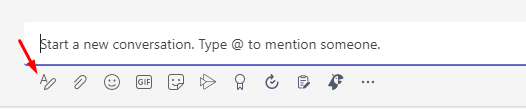
Click New conversation
Click the icon to write text
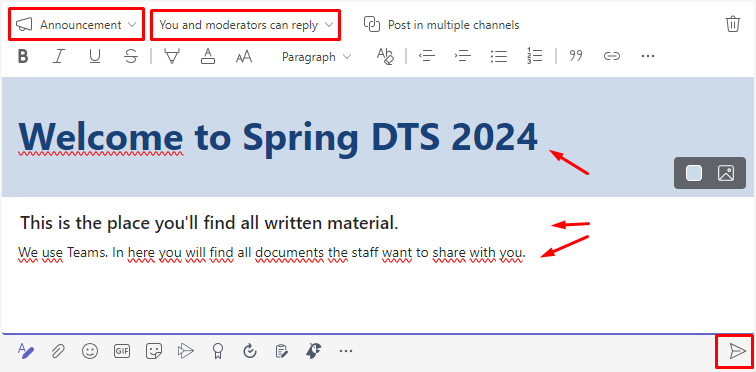
Set the type to Announcement, and select that only You and moderators can reply.
Write a header, ingress and body. Select a different color or background picture if you like, before you click Send.
Creating a Channel for your DTS
This step is optional. You can create channels if you want to have specific content or topics (like "recordings" or "whiteboard pictures" or "announcements"). You may also just use the General channel.
Team owners can do this themselves. (If there are no Team owners left, IT can promote a new Team owner for you.)
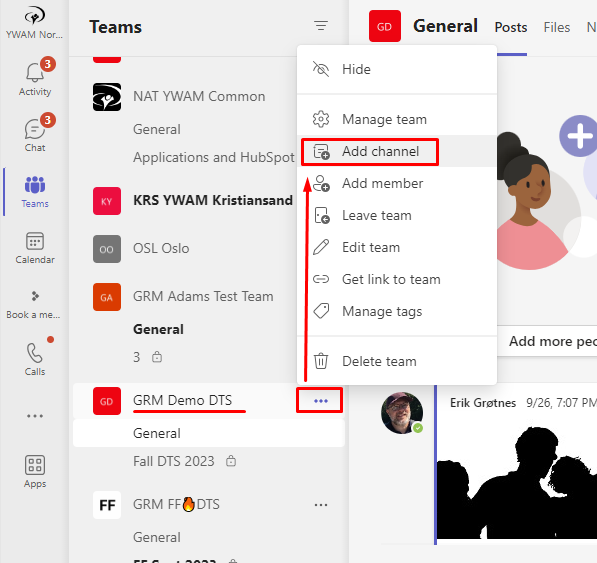
In your DTS Team, click the three dots next to the Team name, and select Add channel.
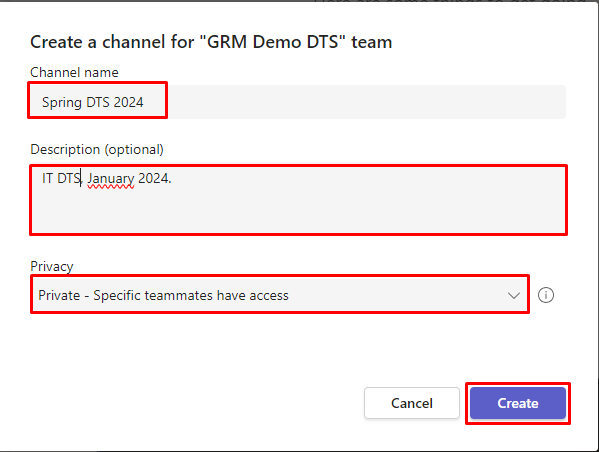
Enter a name for the channel, enter a description.
Most important: Set the Privacy to Private. (If you forget this, you must do it all again. A channel can not be converted to a Private channel).
Click Create.
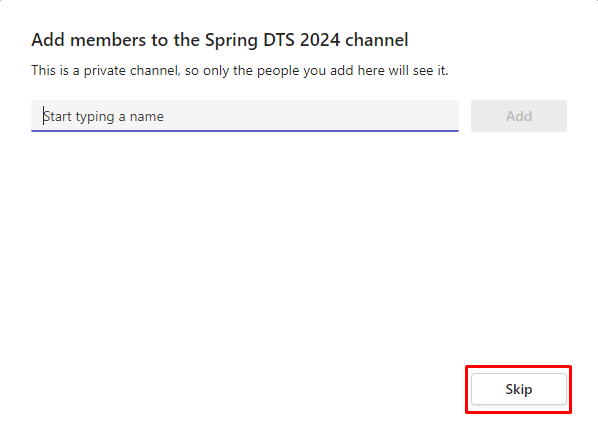
Add members now if you like. You can probably skip this for now, and add all the names after doing some more preparations in the next chapter.
Preparing the DTS channel
Add the first announcement
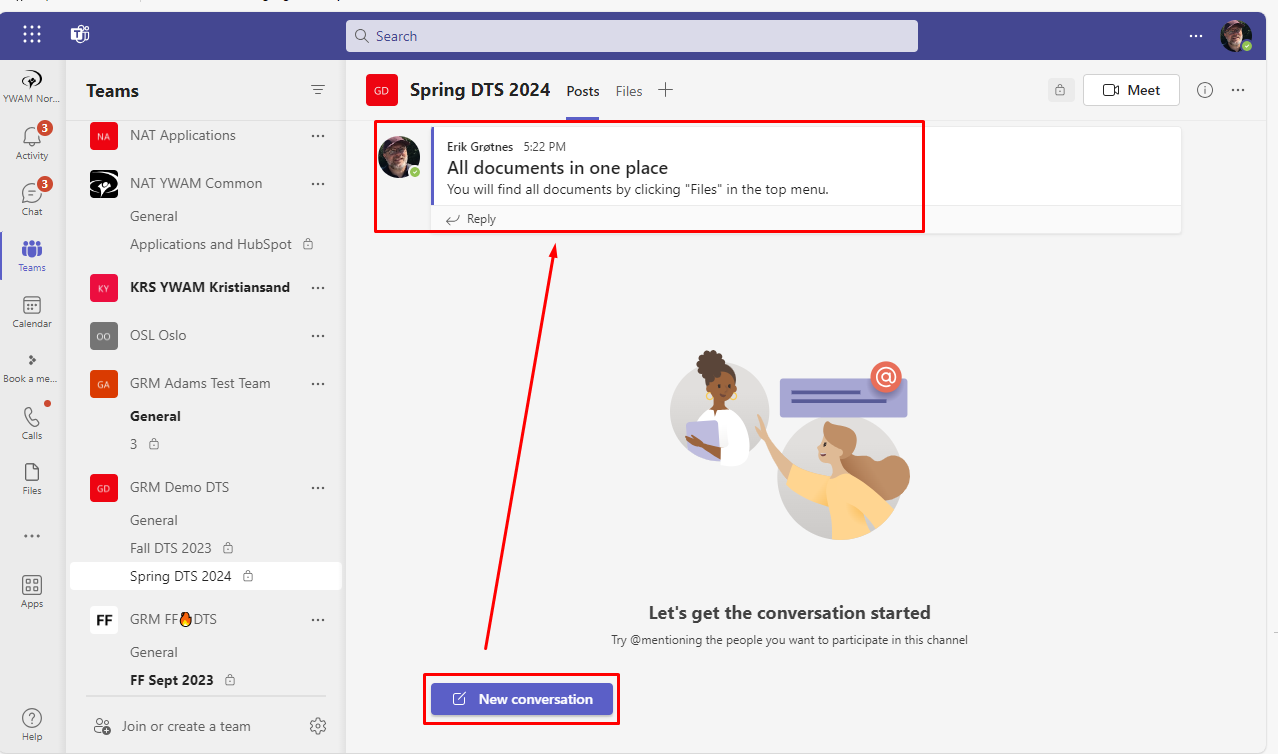
Just like you did in the General folder, create an Announcement in the channel with information about where students can find the files. Remember: They are not as experienced in Teams as you.
Click New conversation, select Announcement, and set that only You and moderators can reply to prevent unnecessary cluttering.
Create a file structure
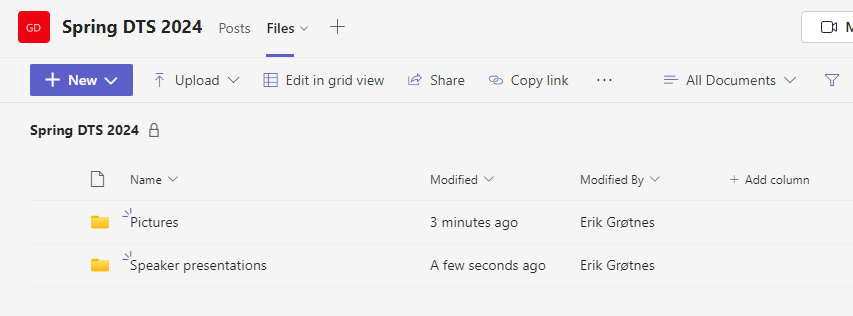
Prepare a file structure so that the students (and staff) understands where they can find documents.
Click Files in the top menu.
Click New and create as many Folders as needed.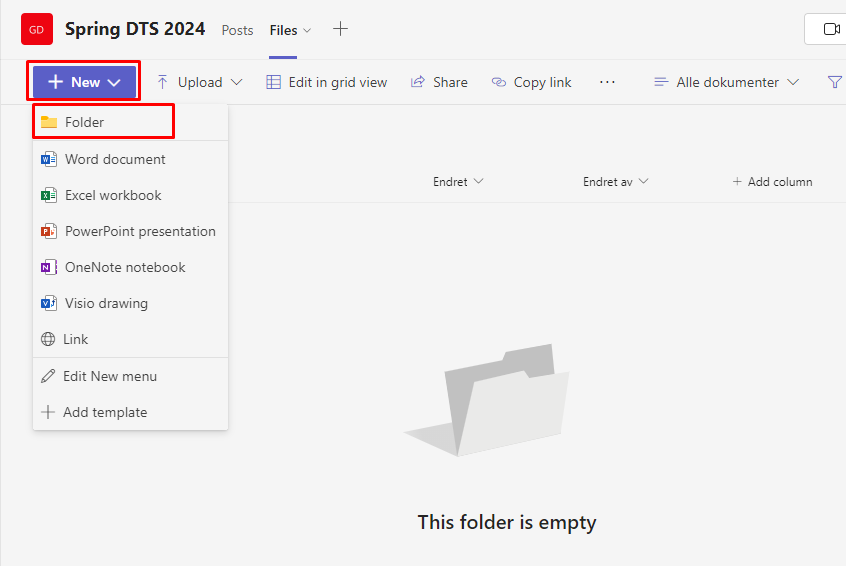
Do not add folders you do not intend to use...
Here is an example:
If you're used to OneNote, you can also add a shared OneNote in here, or add Polls using Polly by clicking the "+" sign.
Add staff members
Now it's time to add your fellow staff members if you did not do that when creating the Channel.
Click the three dots next to the Channel. Click Add members.
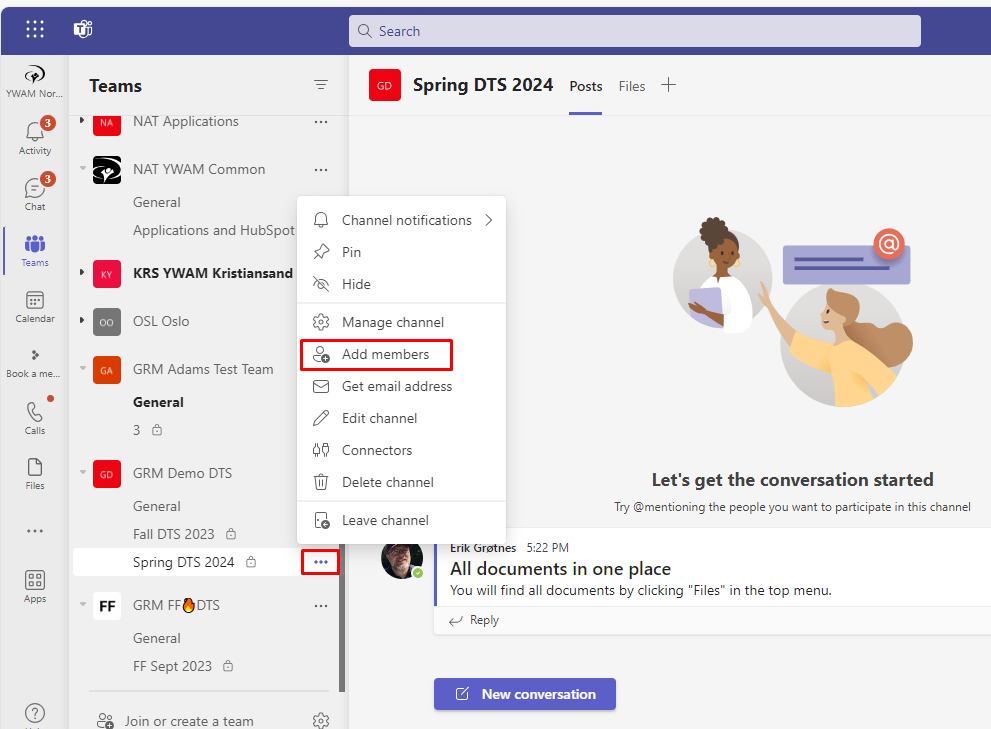
Enter all their names, and finally click Add.
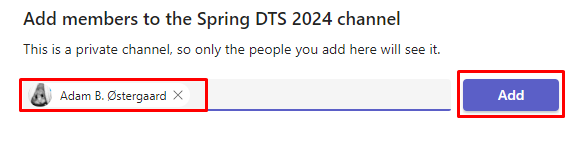
Add students
The easiest is to add students when they have arrived.
Students are "guest users" in our system. That means that they have only access to the Team/Channel they're invited into. This will be described in the next chapter.
Adding student users
Students are invited as guests into our Team - they do not get an YWAM account, but use their personal email.
To add students to a private channel, they must first be added as guests. Then added to the Channel.
Here is the procedure:
- Add the student to the Team
- Add the student to the Channel
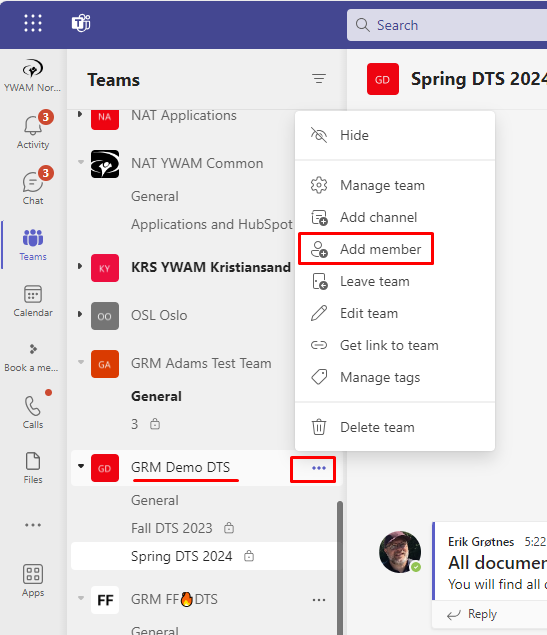
In your school Team, click the three dots, select Add member
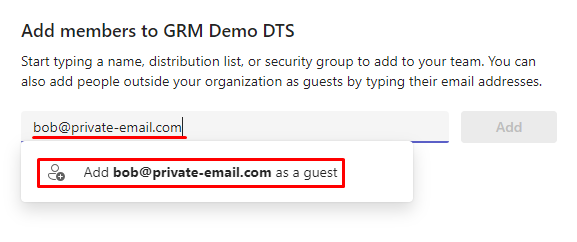
Enter the student email address. After you have typed, a button will appear and suggest to add the student as a Guest user. Click the button. This will send an invite to the student.
 After adding all the emails, click Add.
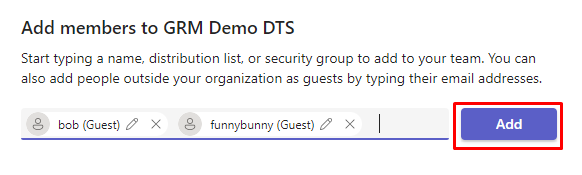
When the student receives the invite, (s)he must accept it, and fill in their full name.
It can take a while before the invited guest is visible.
Next step is to add the student to the Channel.
Click the three dots outside the correct channel, and select Add members.
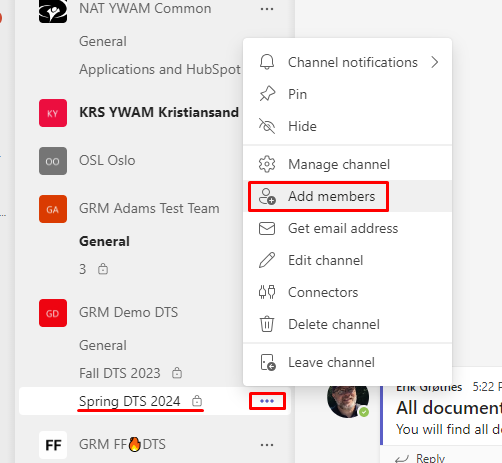
Write the student email, and also add their real name to make it easier later. Click Add.
If they do not show up, you have to wait.
If you think you have to wait too long, ask a Norwegian for some "Tålmodighetskrem" - a product for better patience.

Creating a chat group
Messages in a Teams channel and a Teams Chat appears differently, and notifications are different.
Often we see that a Chat is more what youth are used to when receiving messages, but a Team and a file structure is more efficient when going back to find information.
So I recommend that you use them both.
Do not add files in the chat! They will disappear. A chat is stored differently than a Team.
To create a chat group, click the Chat icon, click the "new" icon and start entering email addresses.
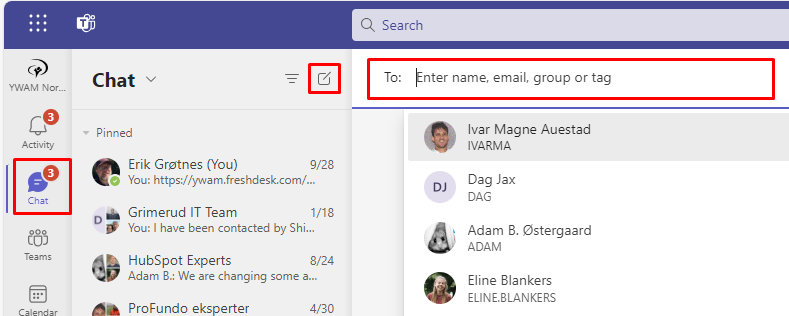
After you have sent the first message, you can click the pencil-icon, and change the name of this group to the school name.