
In order to keep our security high, we need to enable multi-factor authentication (MFA).
This adds an extra layer of security on top of your normal password.
We recomment you use Microsoft Authenticator app for multi-factor authentication.
Video: https://youtu.be/hd-OHW9eVrc
Step-by-step instructions are listed below.
Microsoft Authenticator
First step is to download the Microsoft Authenticator app from the Apple App Store og Google Play
- iPhone: https://apps.apple.com/app/microsoft-authenticator/id983156458
- Android: https://play.google.com/store/apps/details?id=com.azure.authenticator
When the app is installed and open, open this link on your PC https://aka.ms/mfasetup
You do not need to log in to the Authenticator app. (If you want to log in, use a different account).
Choose mobile app and follow the instructions. In the App click Add word or school account and scan the QR code showed on the PC.
You can follow the guide below, or watch this video showing the process: https://youtu.be/uWbkLuI4g30?t=84
Need to make changes?
If you ever need to change two-factor setup (like if you get a new phone), go to https://aka.ms/mysecurityinfo
To change your preferred way to sign in, go to https://aka.ms/mfasetup
Your phone/computer will remember the login for 30 days.
If you need help, you are very welcome to send a mail to it@ywam.no
Have you been using SMS and need to change to Authenticator, here is howto.
Microsoft Authenticator - Registration process
| (1) The registration process may look different based on how you have configured your account. | 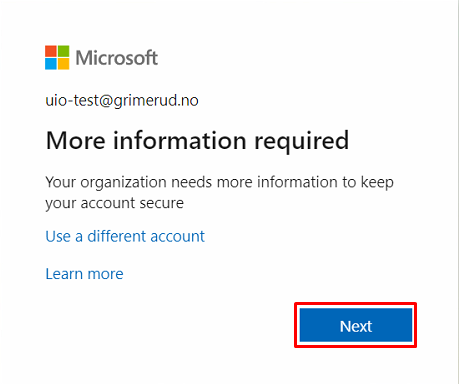 |
(2) If you haven't downloaded the app yet, start by doing that. Then click Next. | 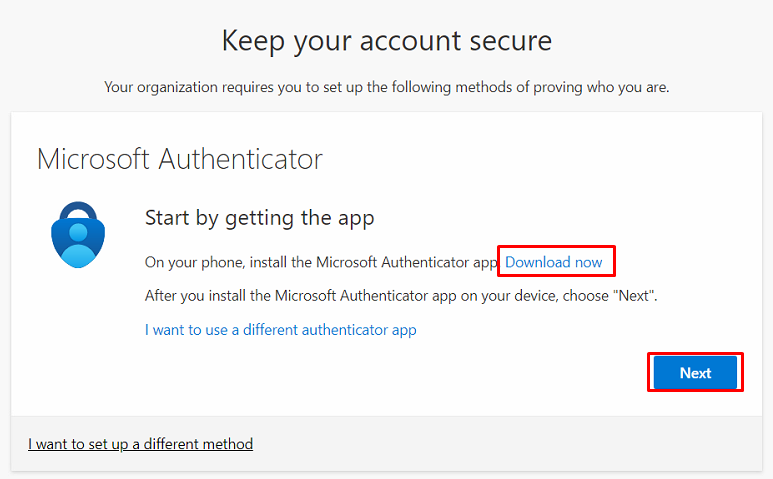 |
(3) Open the app, select "Add an account", select "Work or school" | 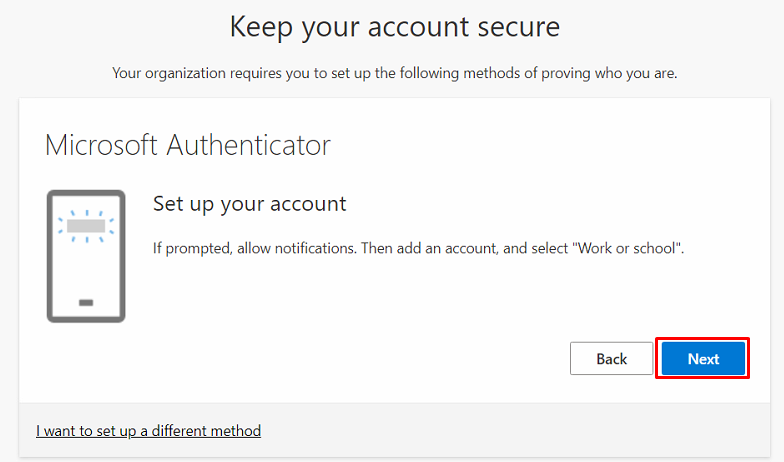 |
(4) Scan the QR-code by using your camera. If you cannot use your camera, click the button and enter the code. | 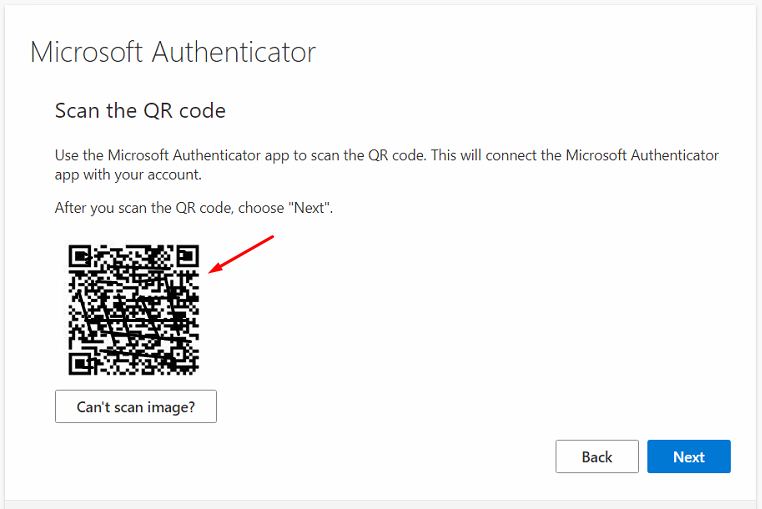 |
(5) Click Next after scanning the code. | 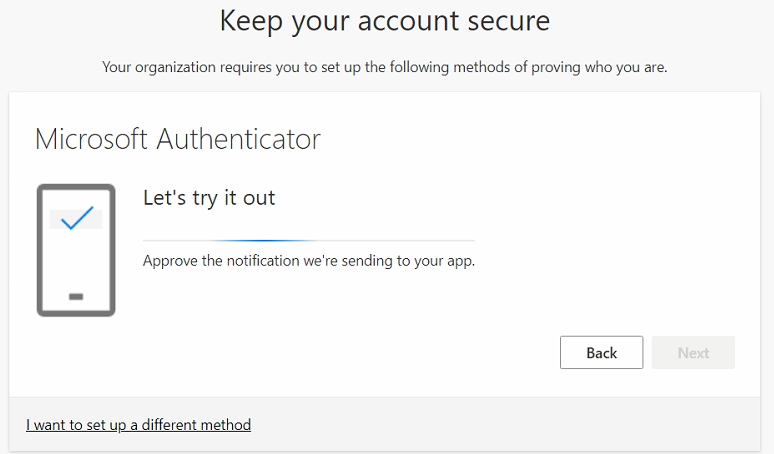 |
| (6) Click Next | 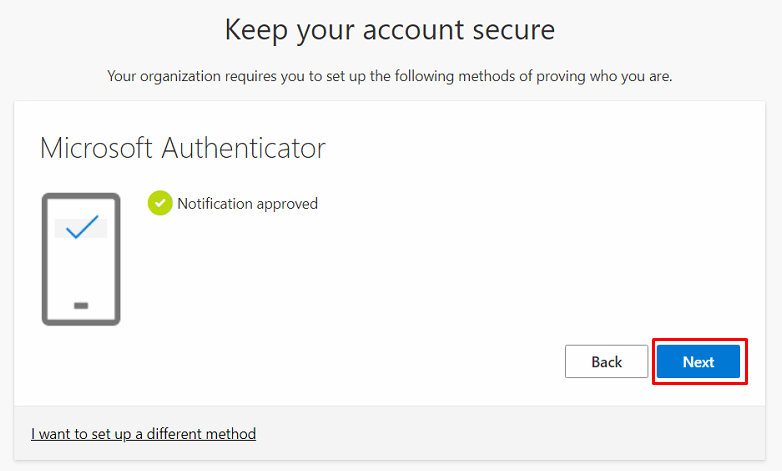 |
| (7) Great job! Your account is now more secure! | 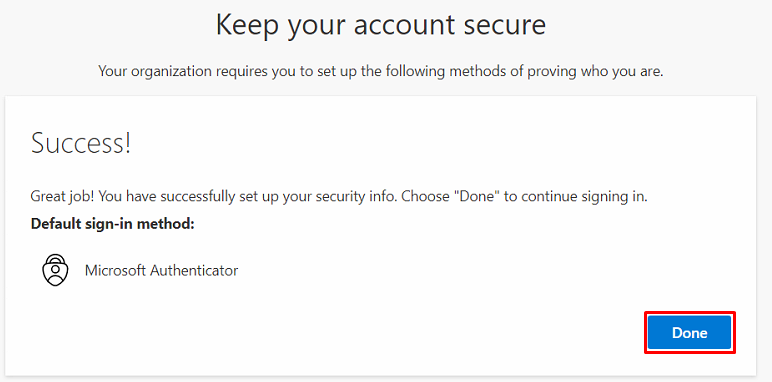 |
| (8) Next time you log in, you will be asked to use the Authenticator app to verify your login. You will be asked every few days, or if you are logging in from a new location, device or another browser session. | 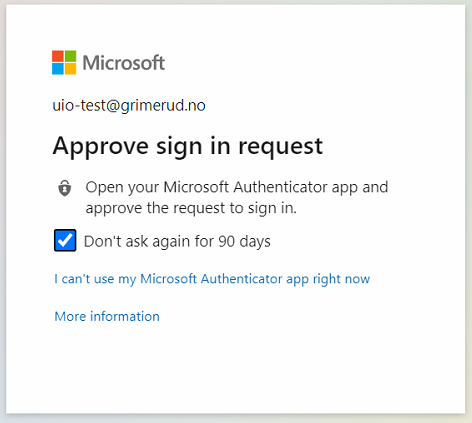 |
If you need help, you are very welcome to send a mail to it@ywam.no