To add Microsoft Authenticator as an MFA method, this is how to do it.
(If you want to use Google Authenticator, use the same method, but choose to use another app for approval. But keep in mind that Microsoft integrates best with Microsoft).
Do this on a computer. That's the easiest.
1. Go to https://aka.ms/mfasetup
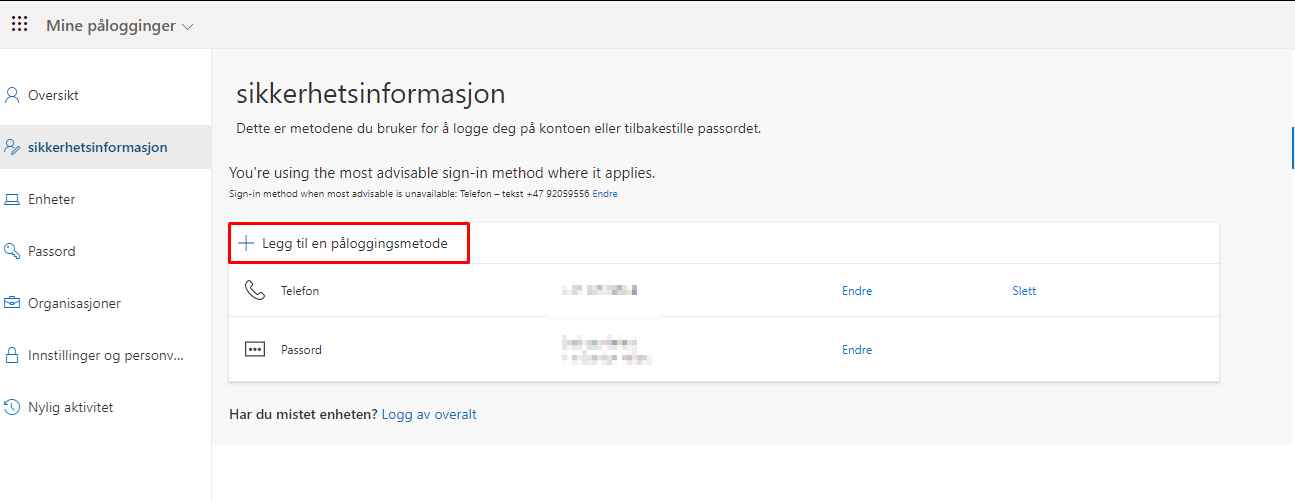
2. After you have logged in, you will get a screen like this.
Click the "+" to add a login method.
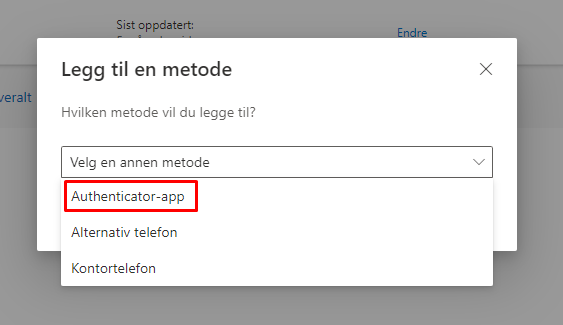
3. Click the drop-down and select to use the Authenticator-app. Click Add.
(You can see the english screenshots here).
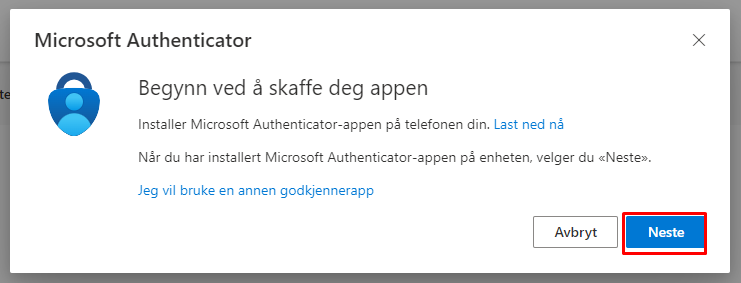
4. Download the MS Authenticator app to your phone if you don't already have it.
DO NOT LOG IN when it starts. Just leave it hangin'
5. When asked, accept notofications from the app.
Click the "+" button in the corner, og click "Add an account".
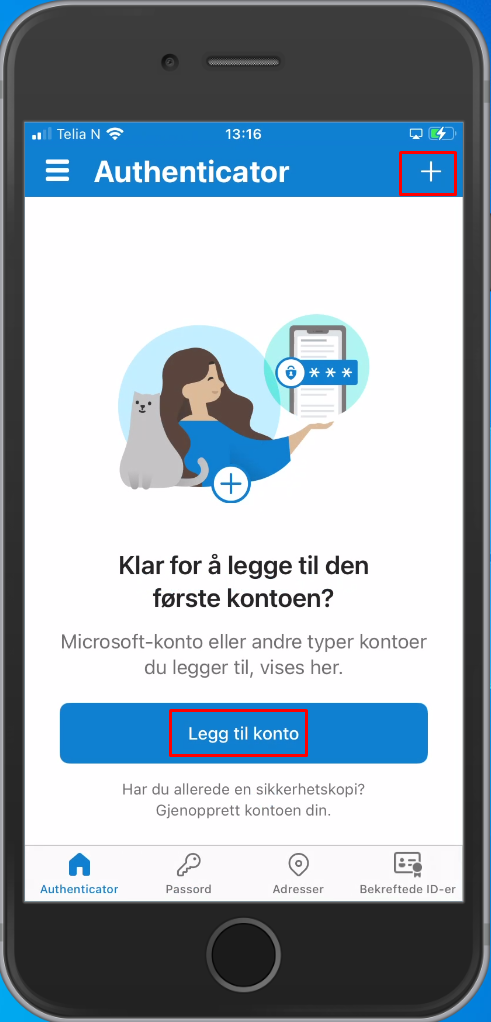
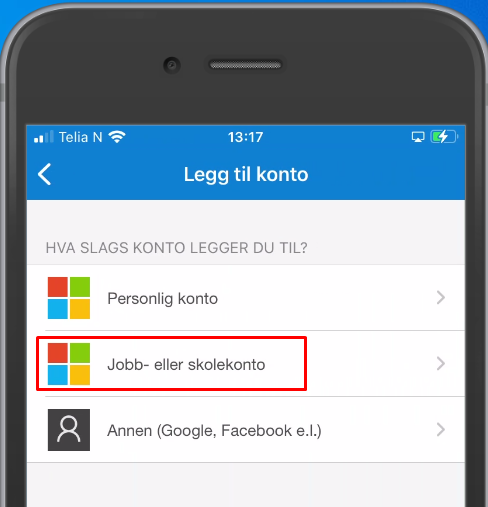
Select Work or school account
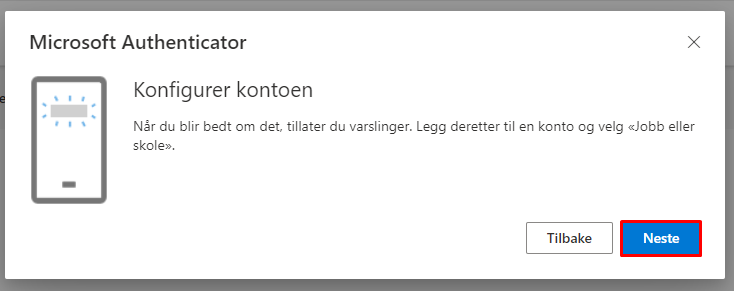
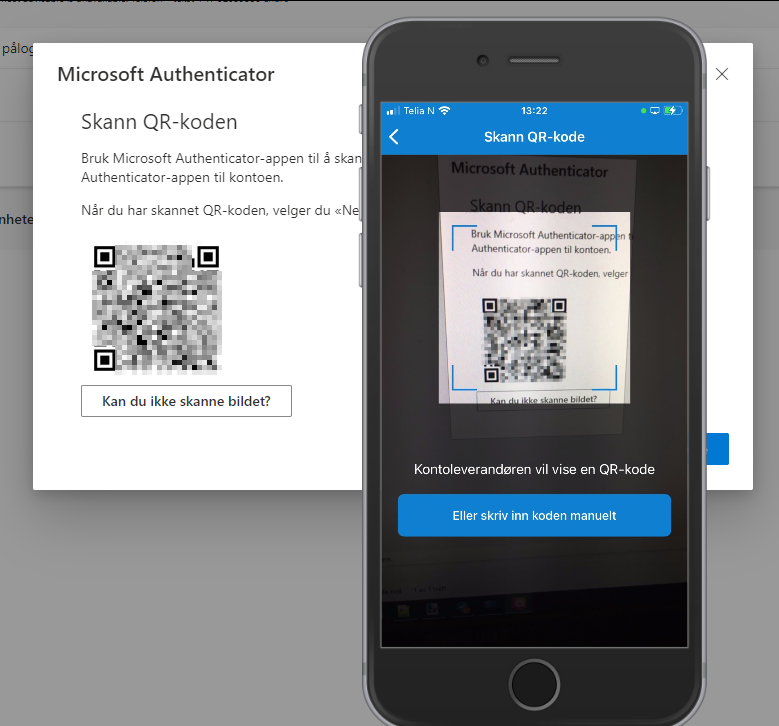
Select "Scan QR-code"

Click "Next" on your computer.
Scan the QR code
Test that it's working...
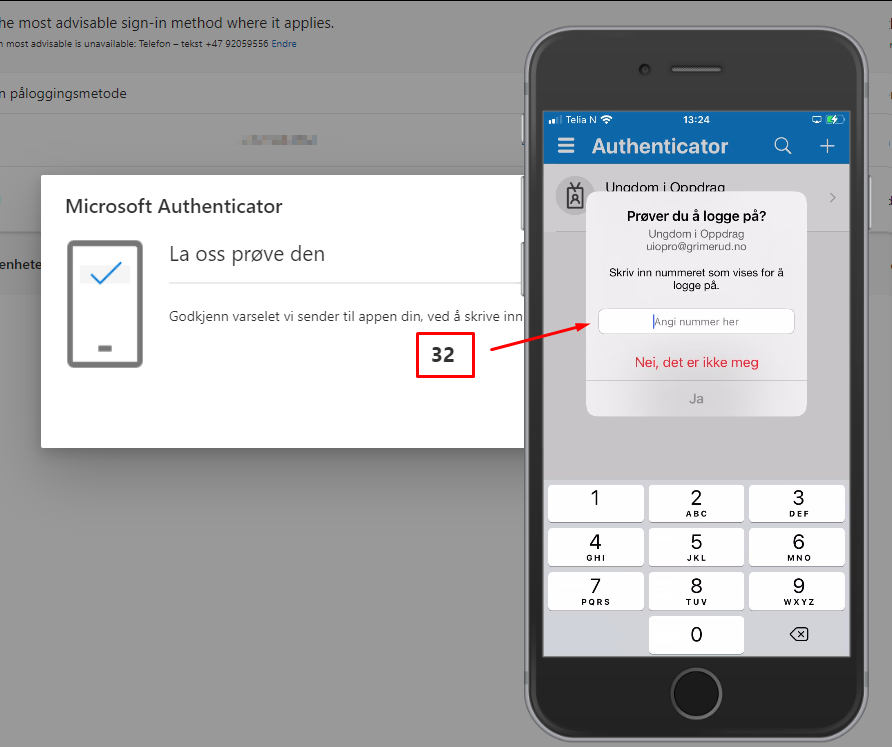
You will now get a push message, and a request to enter the code you see on the screen.
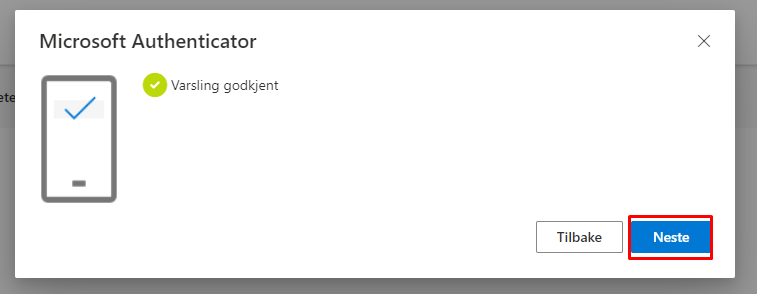
6. You're done adding MS Authenticator.
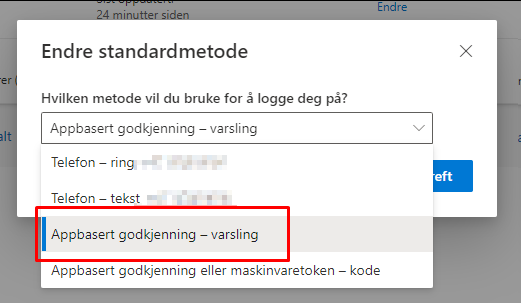
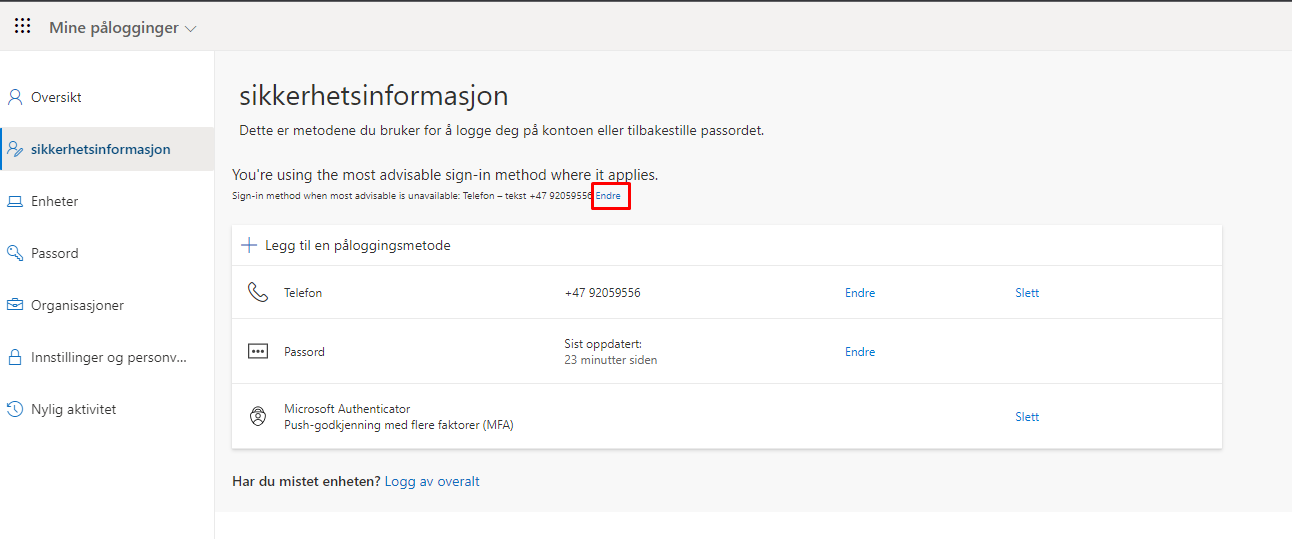
7. Change your preferred login method to MS Authenticator.
Click the tiny "Change"-link.
8. Select "App based approval"