Welcome.
If you are joining us for a DTS or second level school, you have probably received a Teams invite.
We use Microsoft Teams as a communications platform. It is used for the staff to give information, and for the students and staff to communicate.
How to set up Teams
You are invited to the school Team as a guest user. The invite is sent to your personal email. You do not need a license or Microsoft account to use Teams. Here are the steps to accept the invite.
This works best in front of a computer with your phone present!
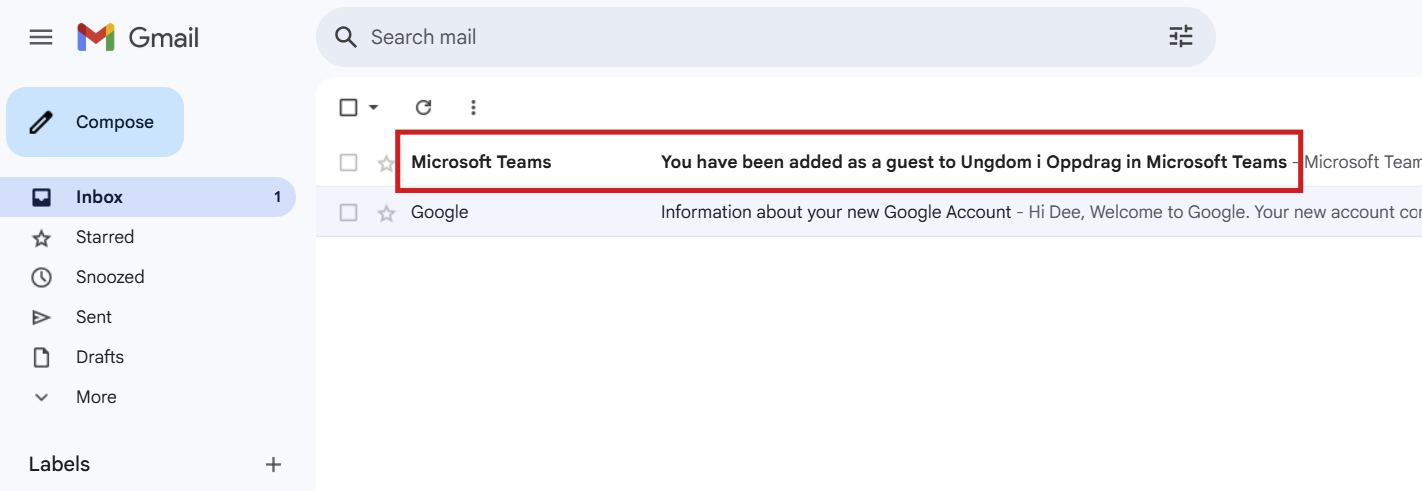
Open your email and find the invite.
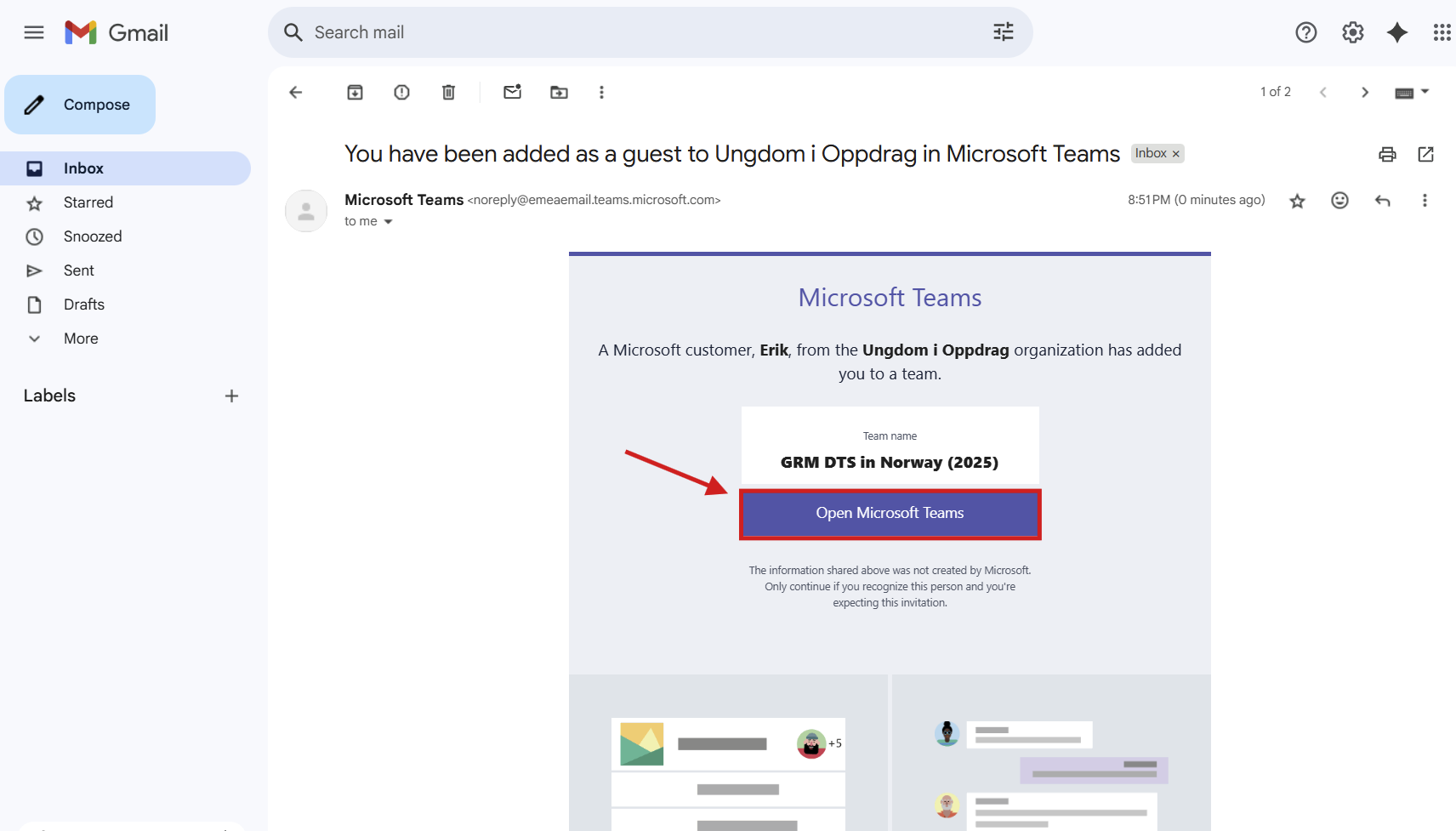
Click "Open in Microsoft Teams"
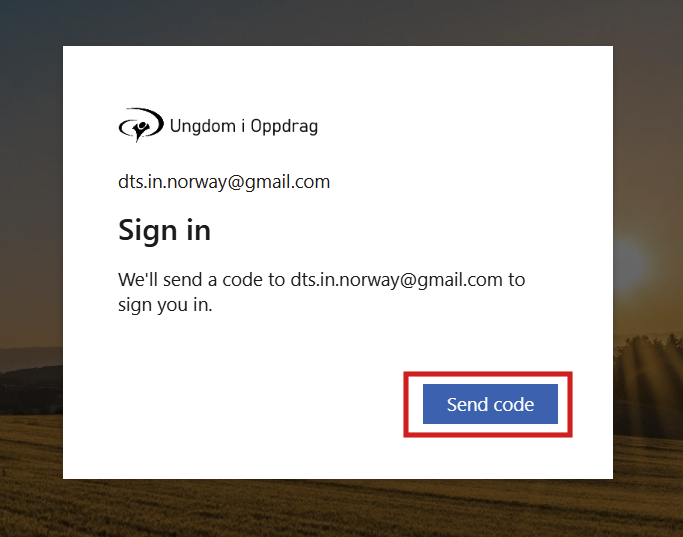
To confirm that you are you, a confirmaion email will be sent to your email. Click "Send code".
Find the code in your email and enter it.
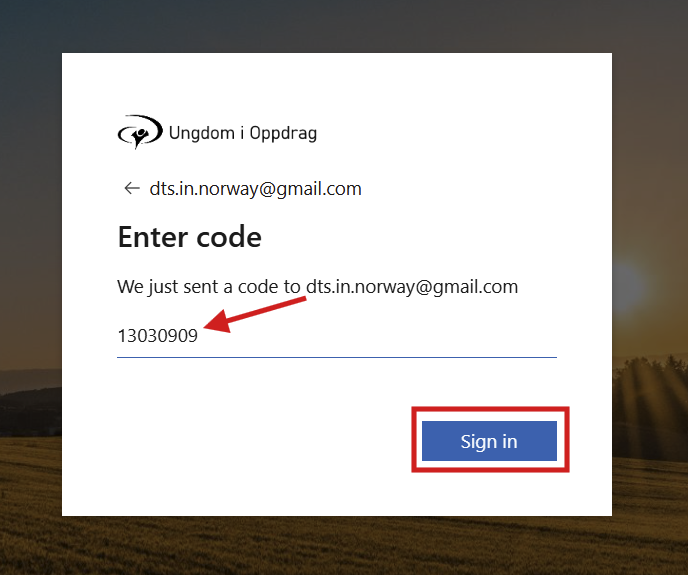
Accept that YWAM Norway can handle your account. (There's no way around it).
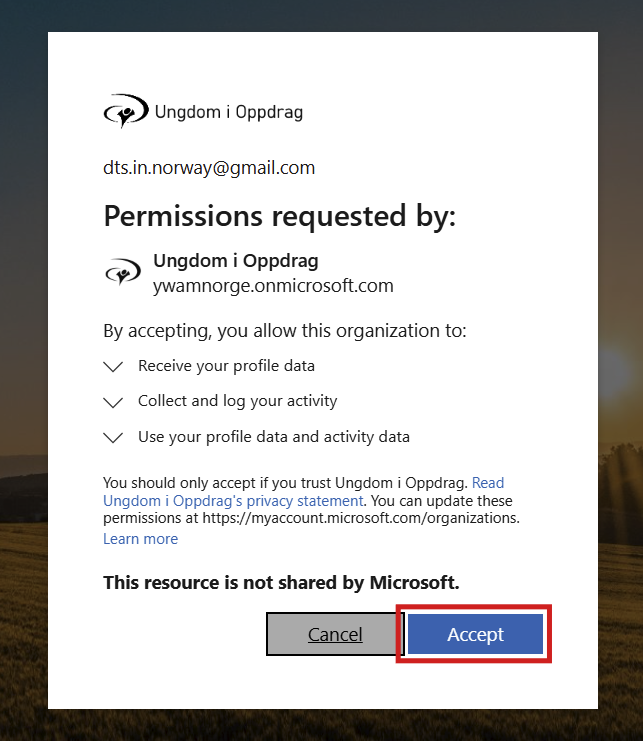
Setting up 2-factor authentication:
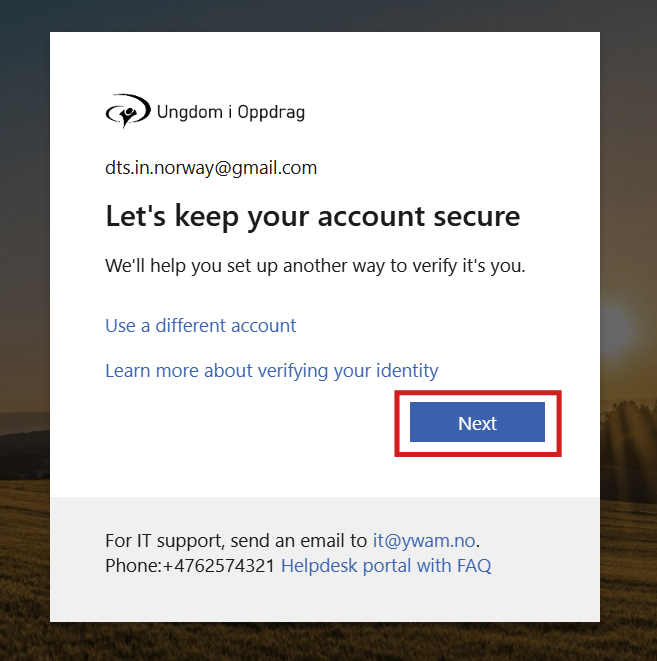
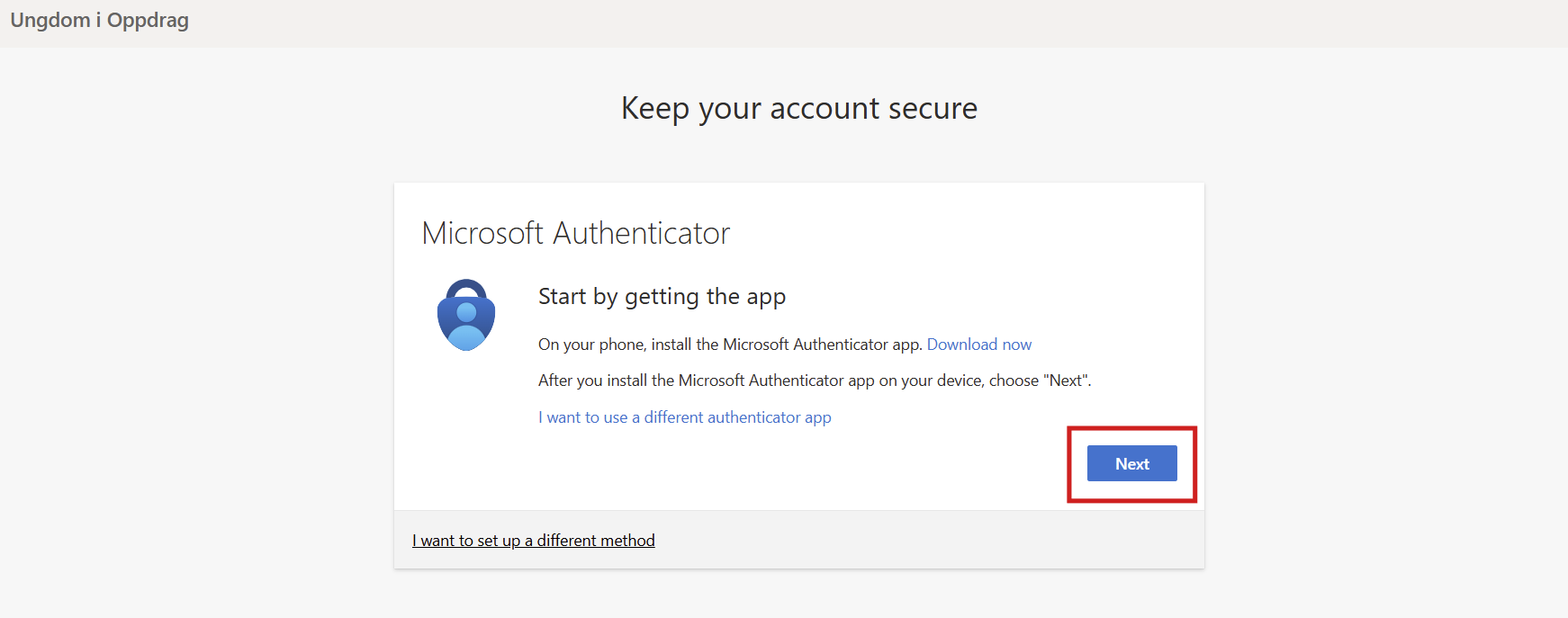
We recommend that you use Microsoft Authenticator. (You can get more details why this is smart when school starts).
Download the Microsoft Authenticator app. (You do not need to log in. Just download the app.)
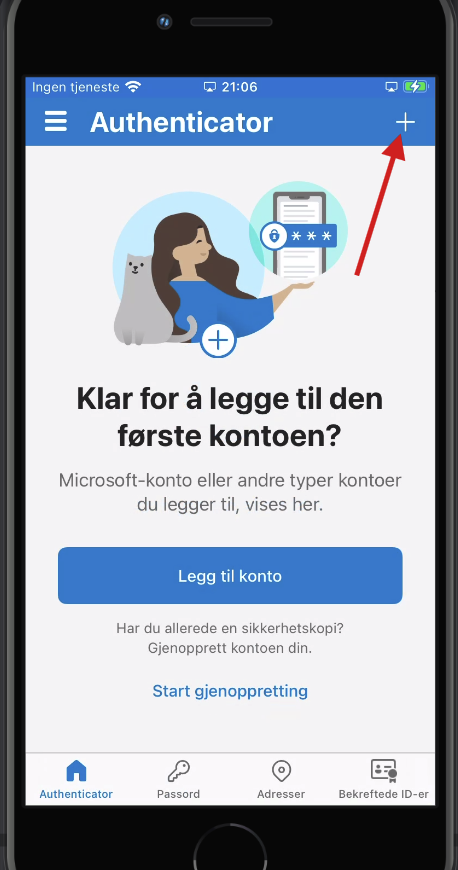
Open Authenticator on your phone.
Click the + sign
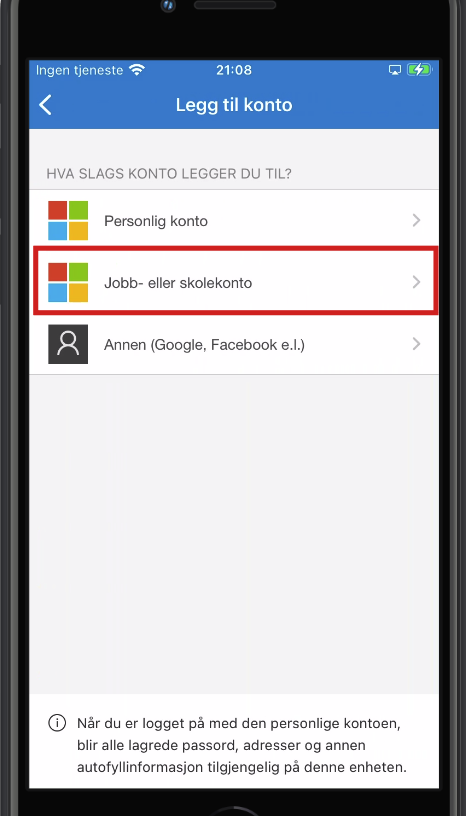
Select "Work or school"
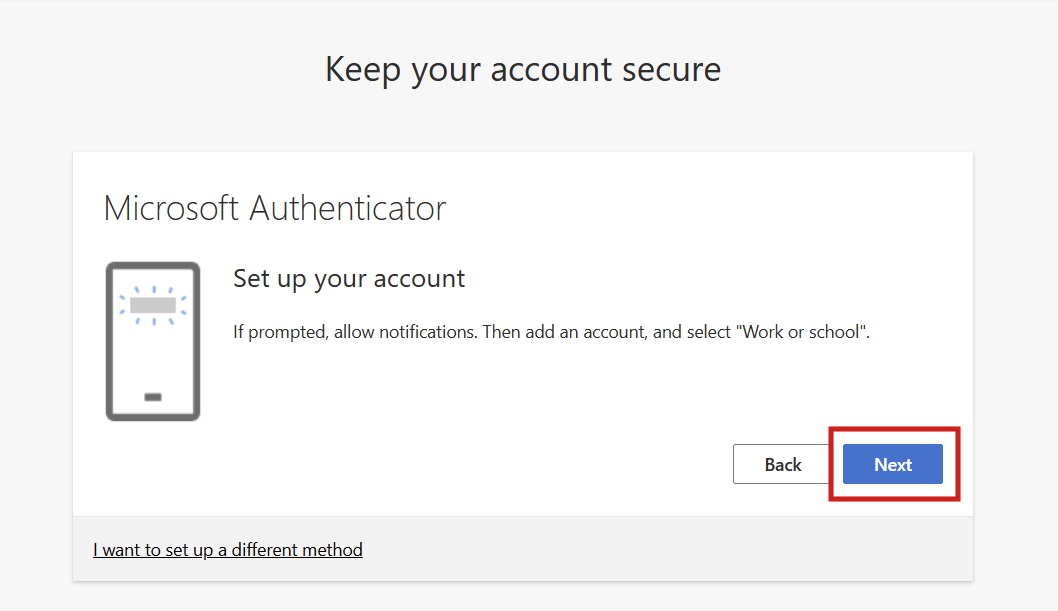
Click Next on your computer
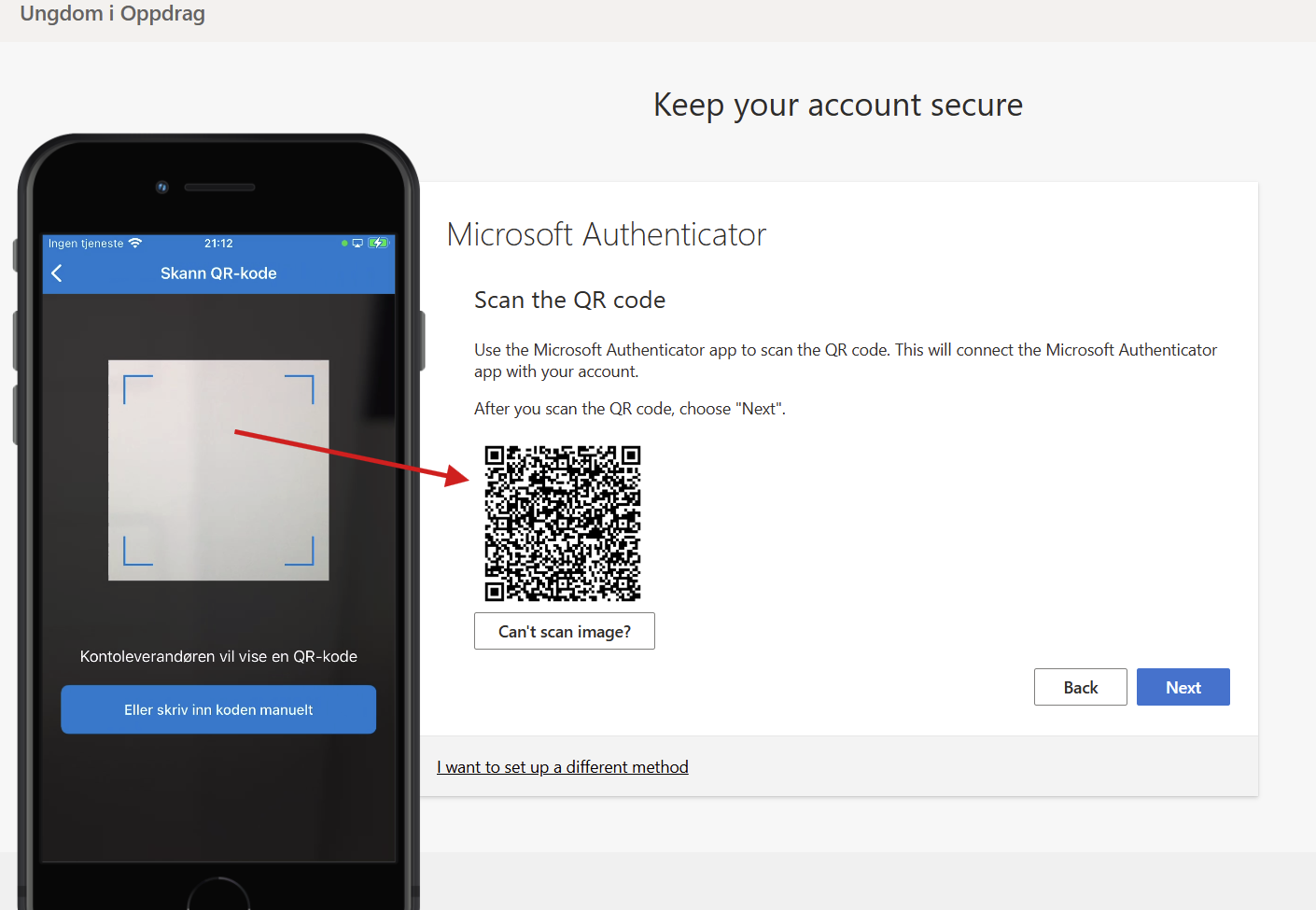
On your phone, select Scan QR-code

Scan the QR-code on your computer screen...
... and it will be added like this (only with your own email of course :-).
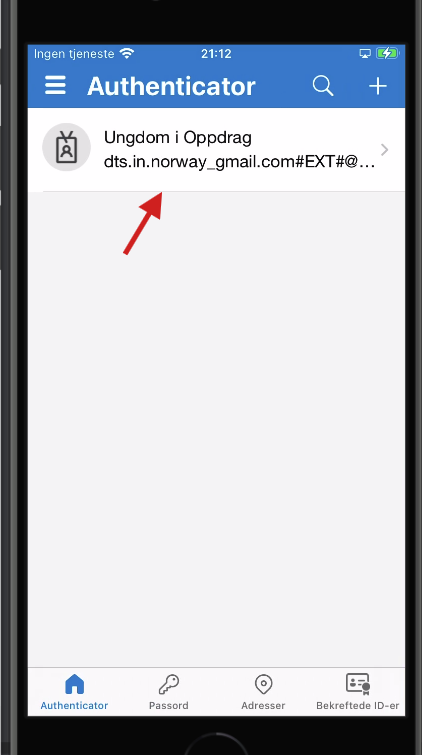
Now it's time to test that it works.
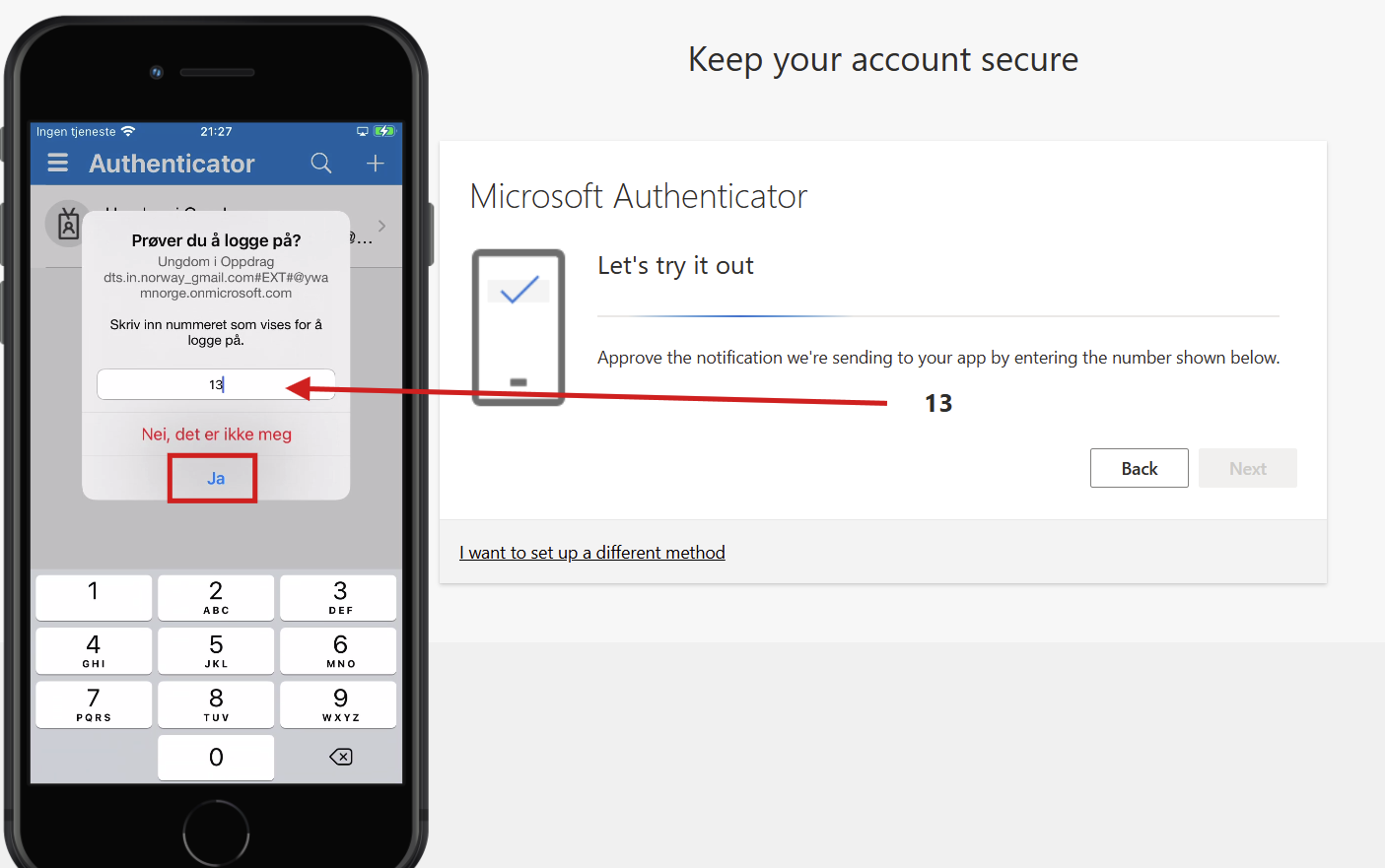
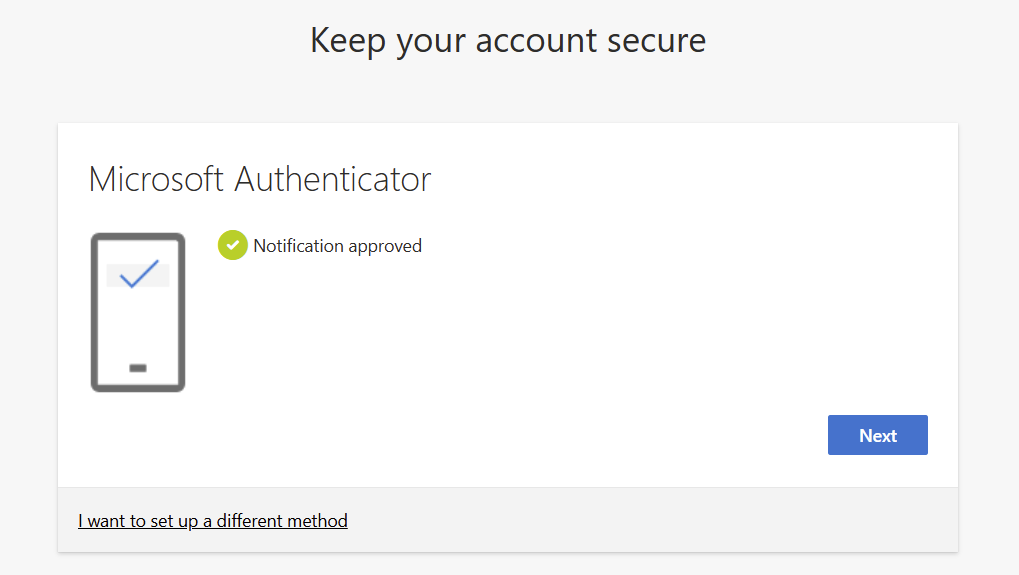
Click Next in your browser.
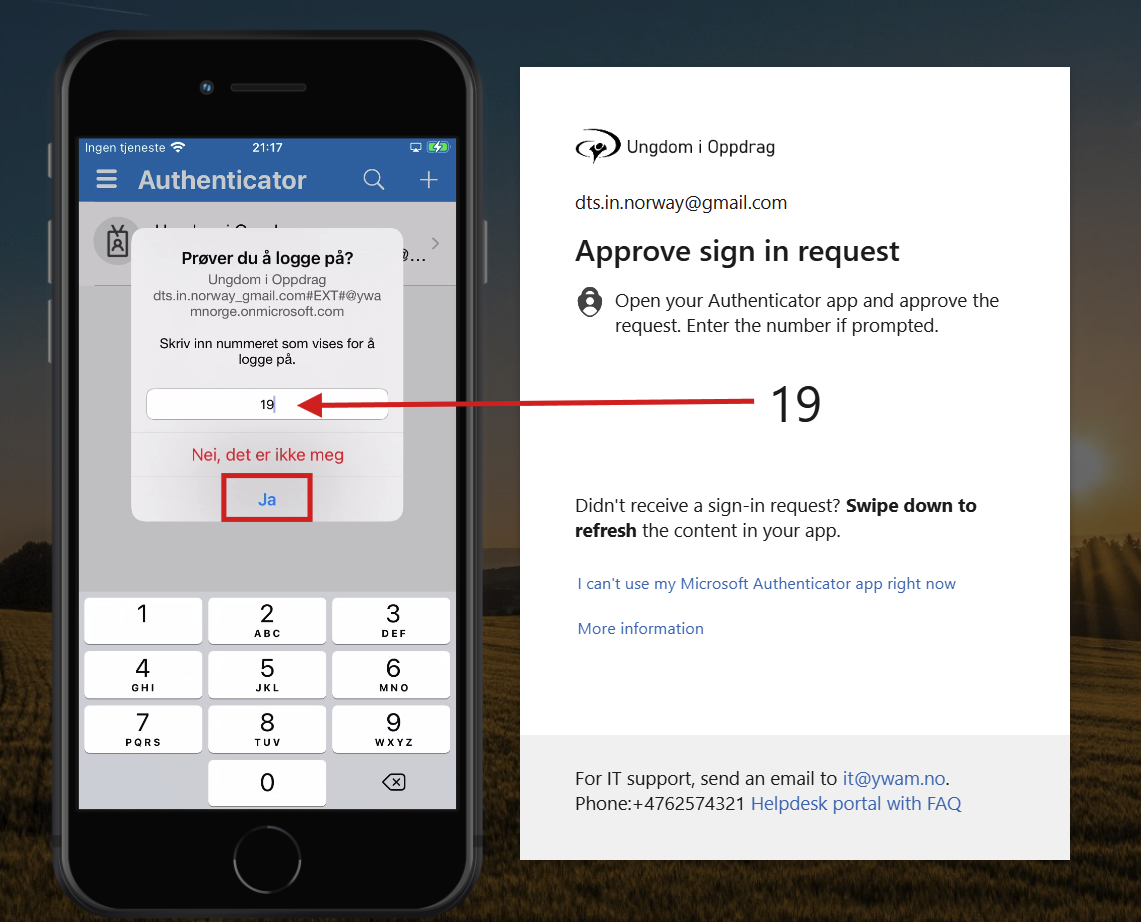
Enter the number you see.
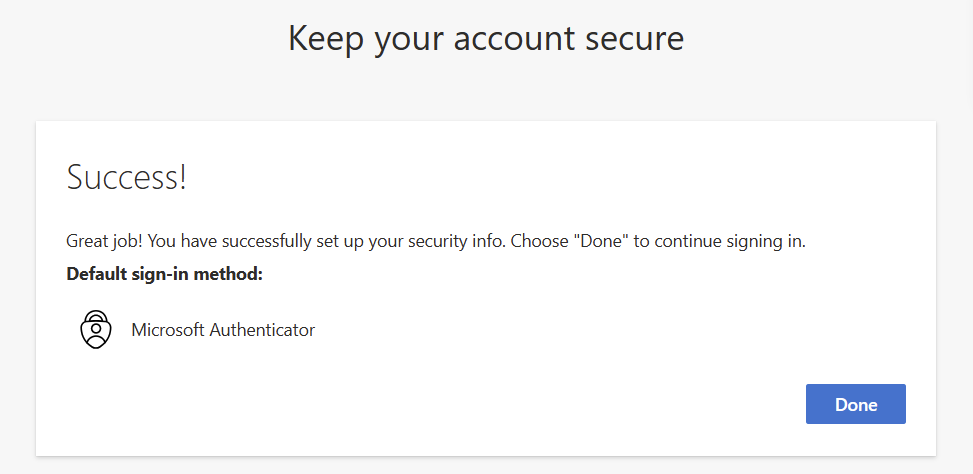
Whenever you need to log on, you will first receive a login code in your email (like a one time password), and then a two-factor challenge in your Authenticator app.
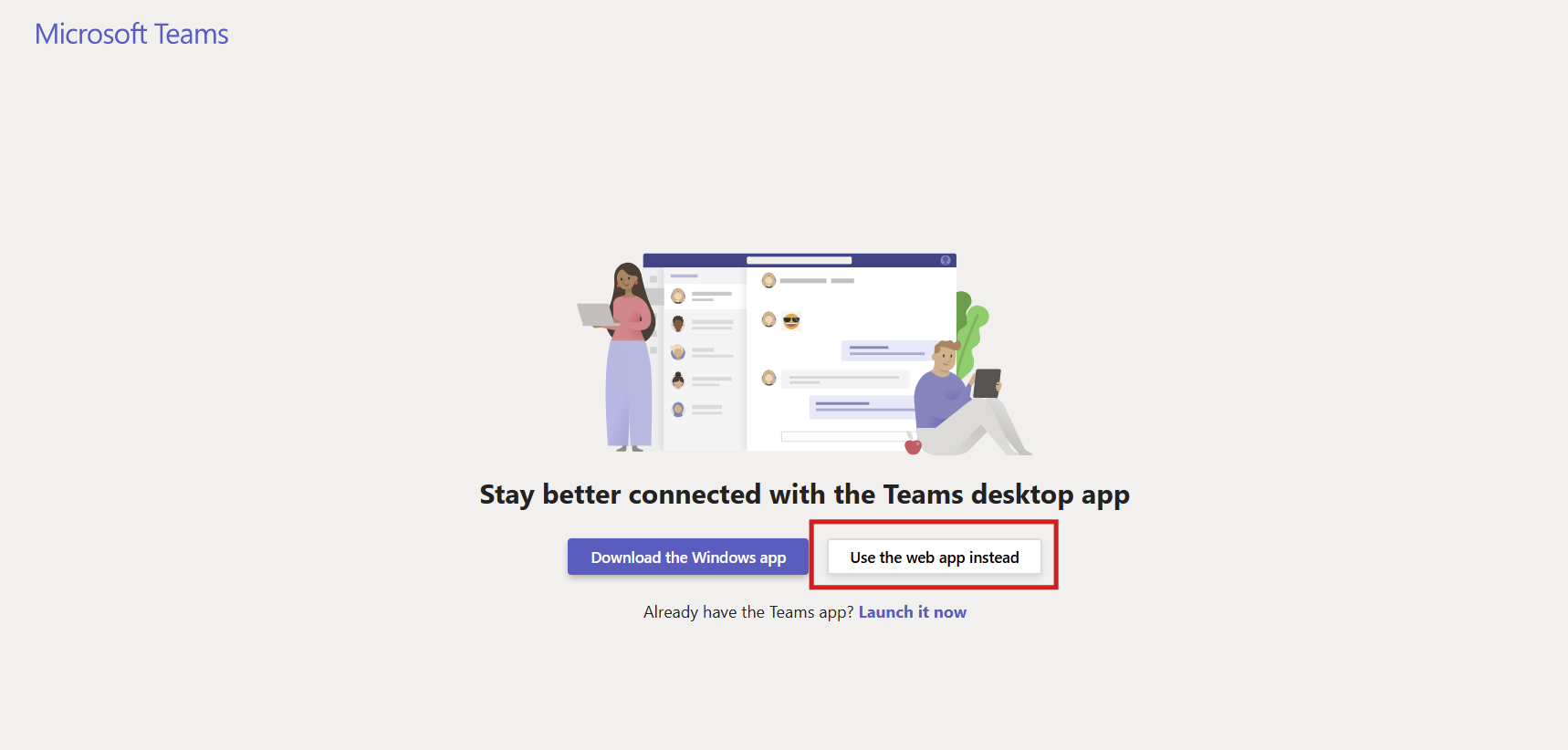
Use the web version of the app. You may also use the mobile version on your phone, but a desktop version is not available with your student account - use the browser version.
And the fun starts :-)
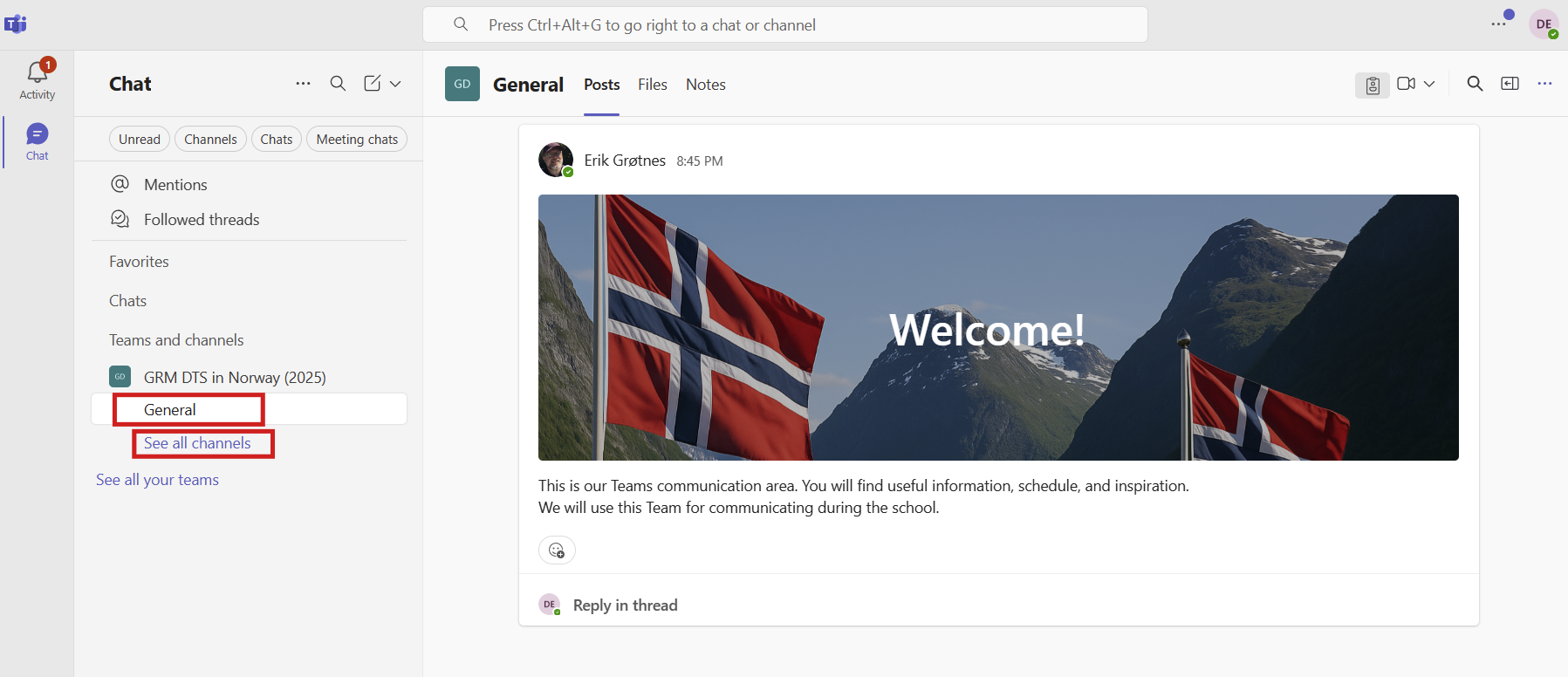
Find your school team and get aquinted with the content.