Before you remove your YWAM account from your phone, you should check that you have not accidently stored other valuable information in it.
You may have used one of these apps. Your access to them will be removed when your account is closed, and the data will be deleted.
- Outlook mail+calendar
- Teams app
- OneDrive
- OneNote
- Loop
If you have stored any material in OneDrive that other staff should have, this MUST be moved to Teams, or it will be removed when the account is terminated.
Checking if it is safe to remove Outlook
On an iPhone, you can store more than emails in Outlook. It can contains Contacts and Notes. This is how you can check if you might have stored more than you know in Outlook:
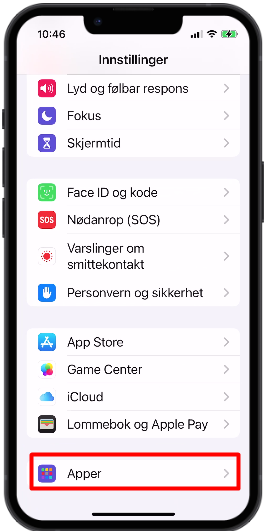
On an iPhone, go to Settings, Apps
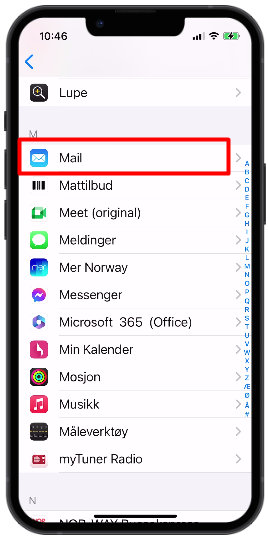
Select Mail
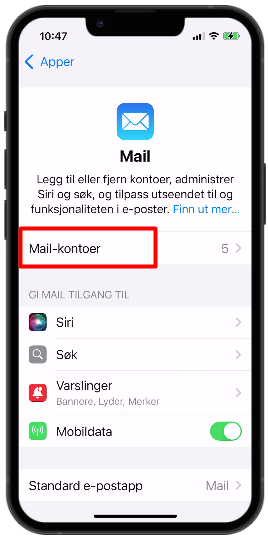
Select Mail accounts
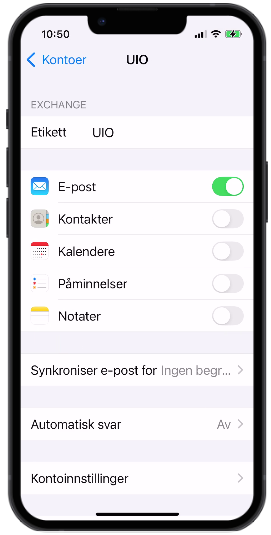
Select the one for YWAM email. (Default name is just Exchange)
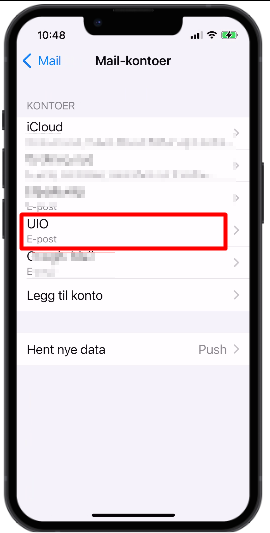
If your screen looks like this, you're safe. This means that your phone only uses Email from YWAM.
If you have also stored Contacts or Notes, you should move that to your own account.
Remove YWAM from your Teams app
Open Teams
Click your picture and select Log out. This will remove your account from Teams.
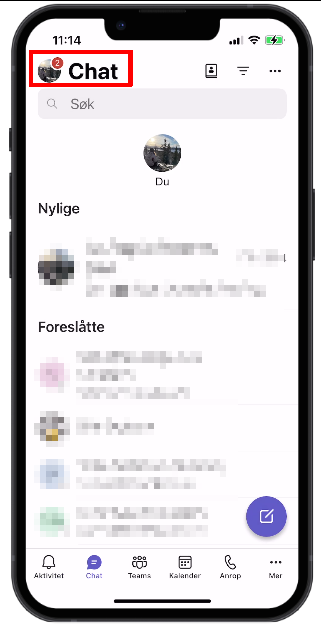
If you have multiple accounts, switch to YWAM by clicking Chat...
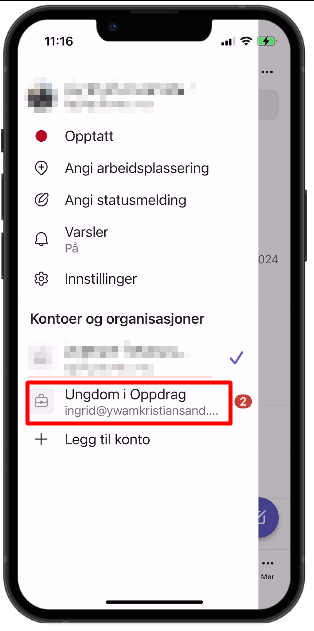
If you get the login page, click Cancel.
You will then be asked to Log out. Select to log out. This will remove the organization from Teams.