This guide explains how to clear cache in apps on: Windows computers, Macbooks, Android phones and Iphones.
And a quick rundown on clearing cache in webbrowsers.
Clearing your cache can fix a lot of synchronisation problems. Infodesk not showing right information, missing editing rights, login not working with a different account and licenses.
Clearing cache is the technical word for removing app data or cookies which are automatically saved to make your app or login experience faster, but sometimes bugs happen. When bugs happen, we have to clear the cache.
We will use microsoft teams as an example in this case, but is applicable to any app.
Clearing apps on Windows and Mac:
How to clear your cache in an app on a Windows 11 computer
Settings -> Add or remove programs -> Installed apps -> Microsoft teams -> Advanced options -> Reset
Detailed version:
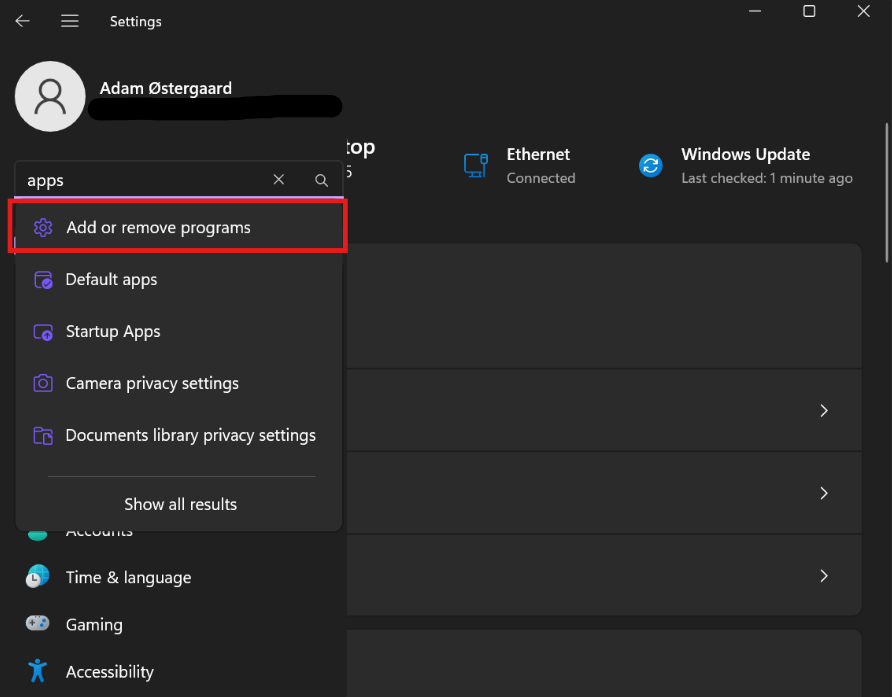
Search for "apps" and select "add or remove programs"
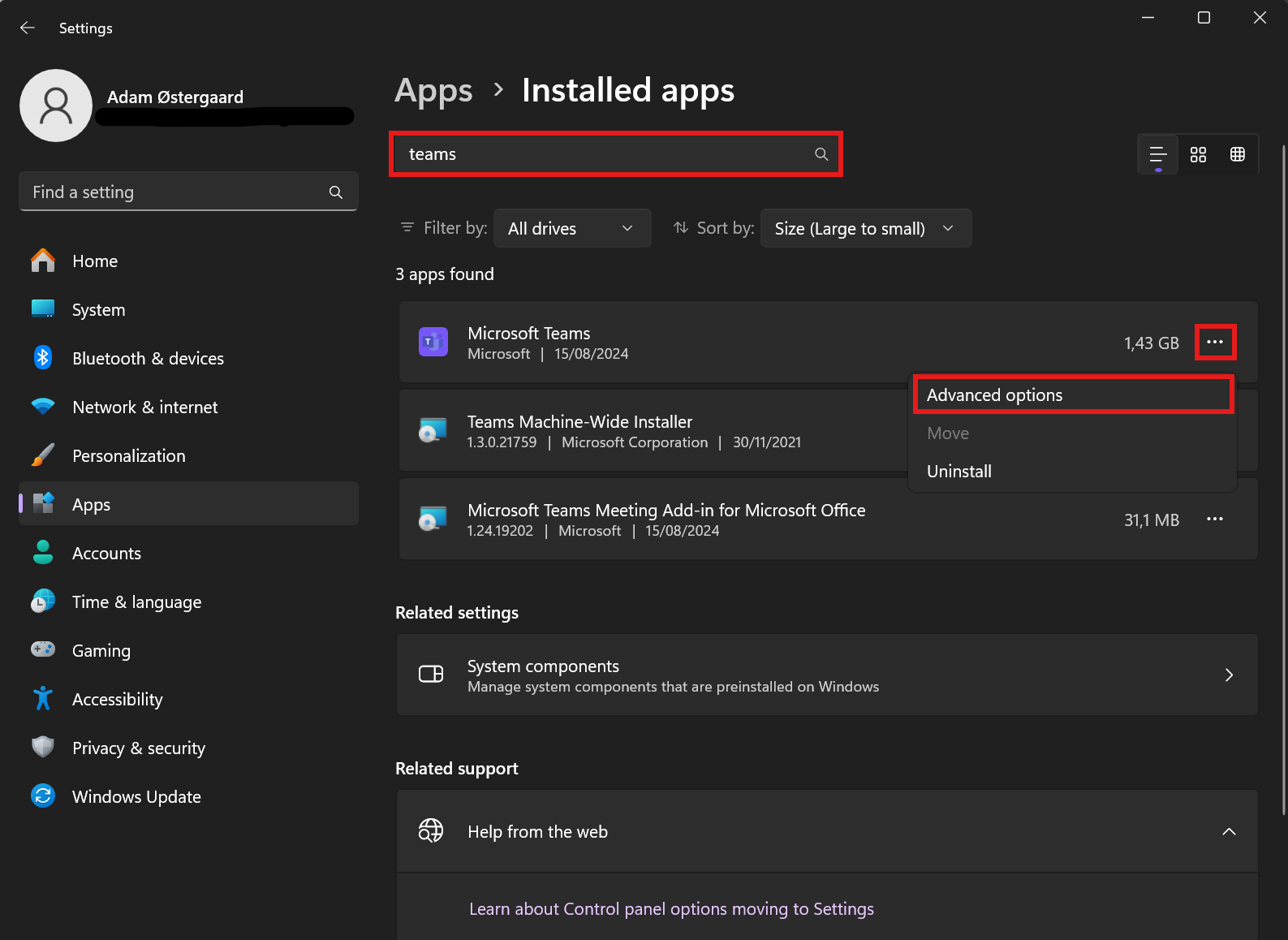
Here you search for "Microsoft Teams"
From here you scroll down to the bottom and select "Reset"
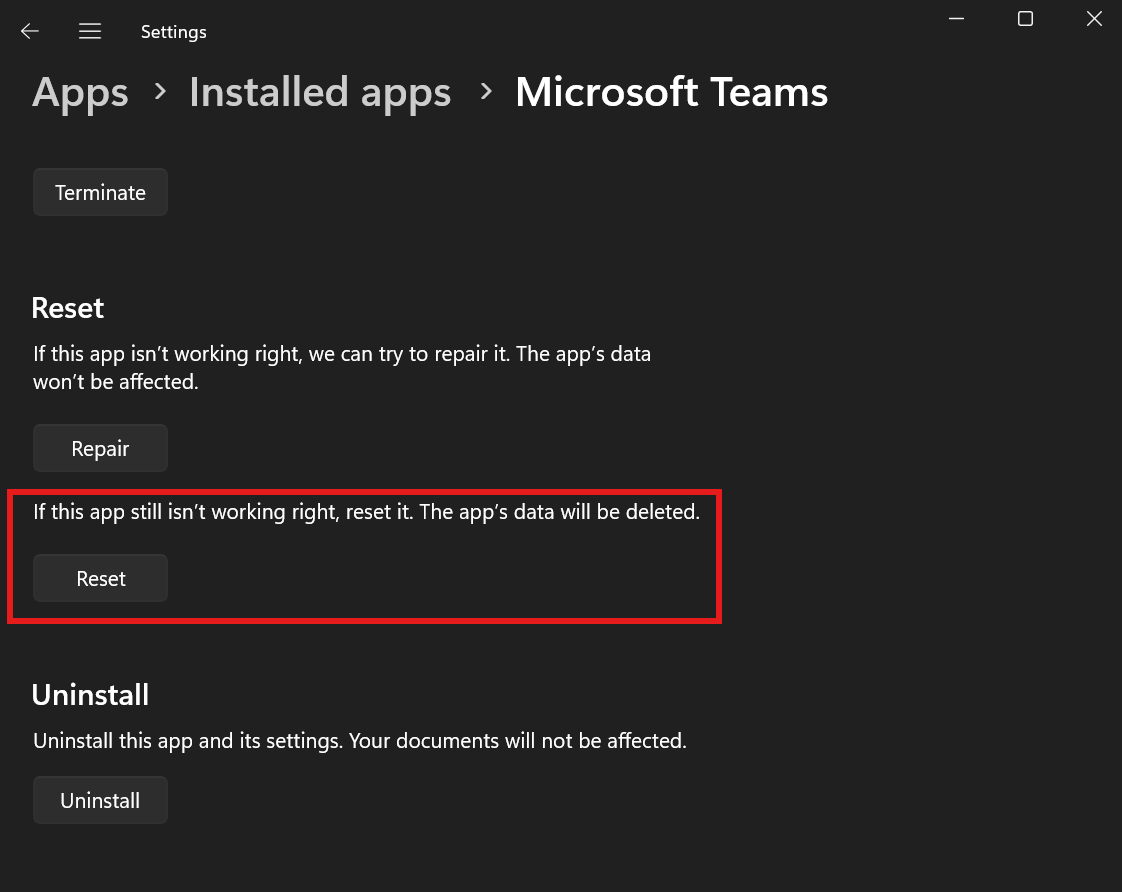
You have now successfully cleared your cache.
How to clear your cache in apps on Mac
Depending on your system there will be different ways of removing cache.
This way will not always work, but if in doubt you should google it. It will always give you the updated answer you need.
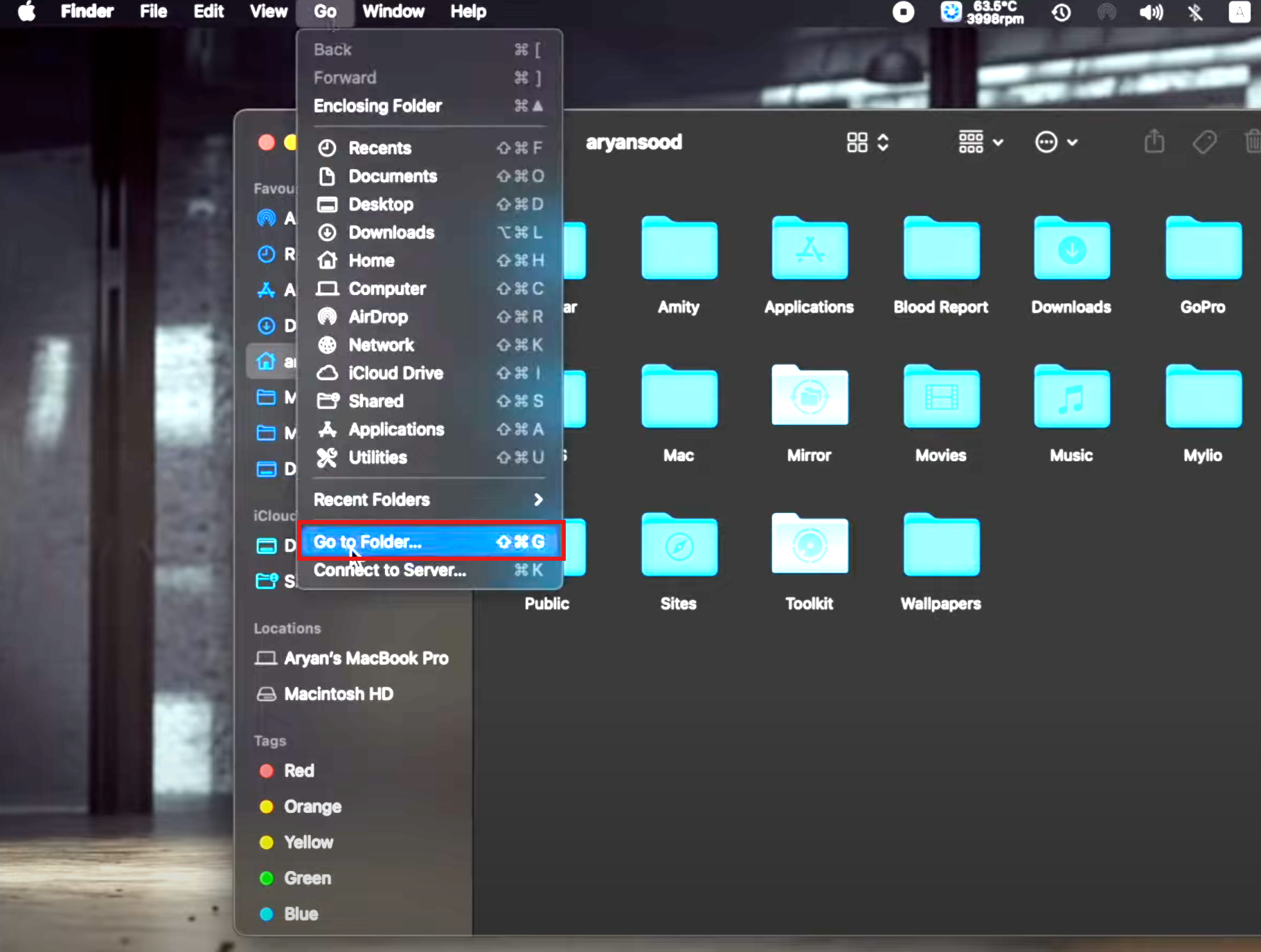
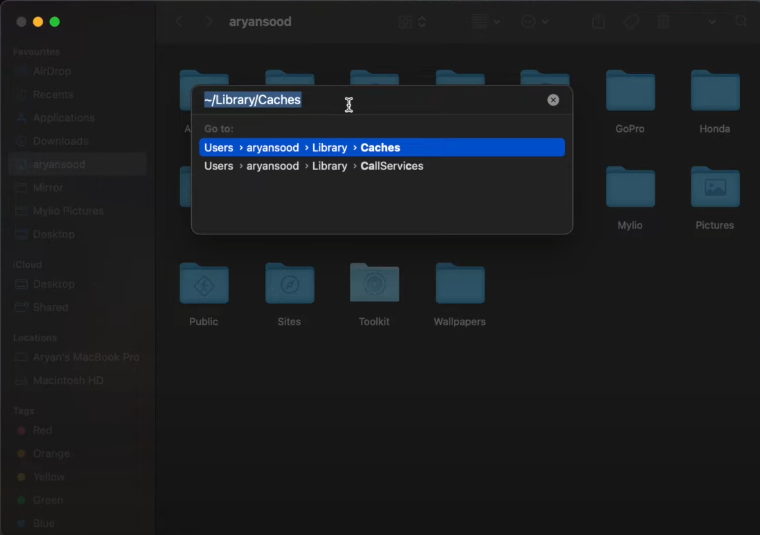
Now you have access to your cache, and can find the specific app and remove the "Microsoft Teams" folder.
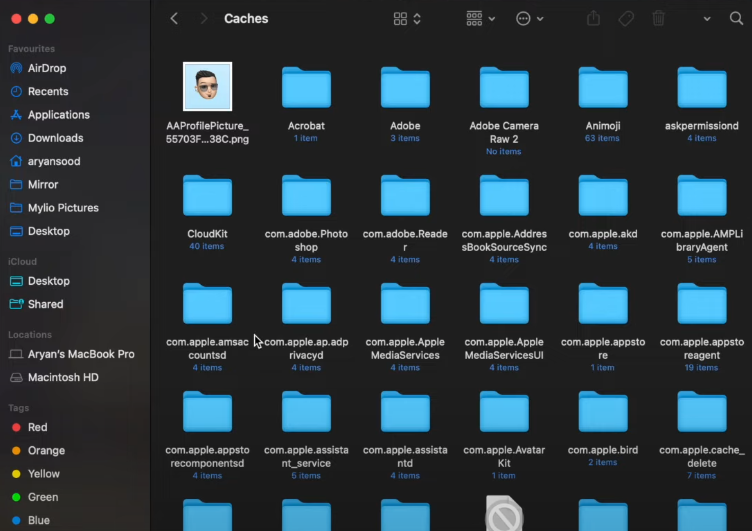
You have now cleared your cache.
If this didn't work you can reinstall teams, and it should do the same.
How to clear your cache in a web browser:
Windows computer:
There are many web browsers, so I will just show how to do it on Google Chrome.
This process is almost the same on most browser (apart from the design), and if in doubt you can google your browser.
Find the "3 dots" in the corner and click settings.
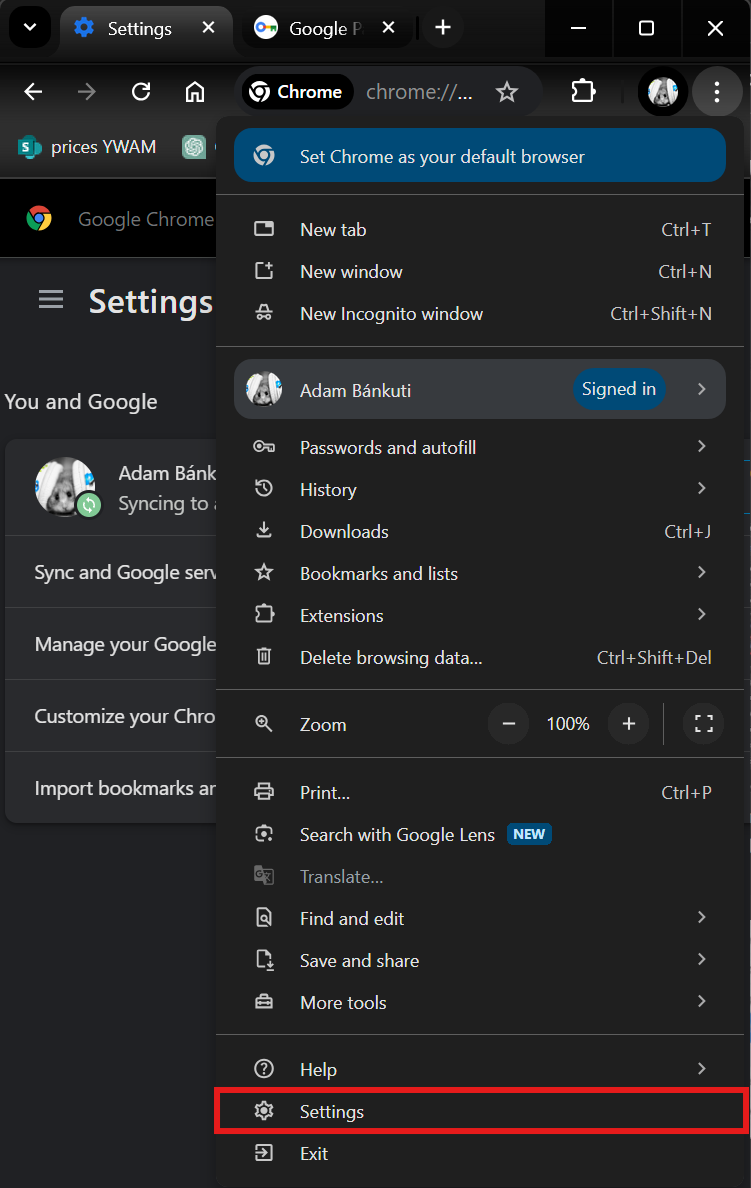
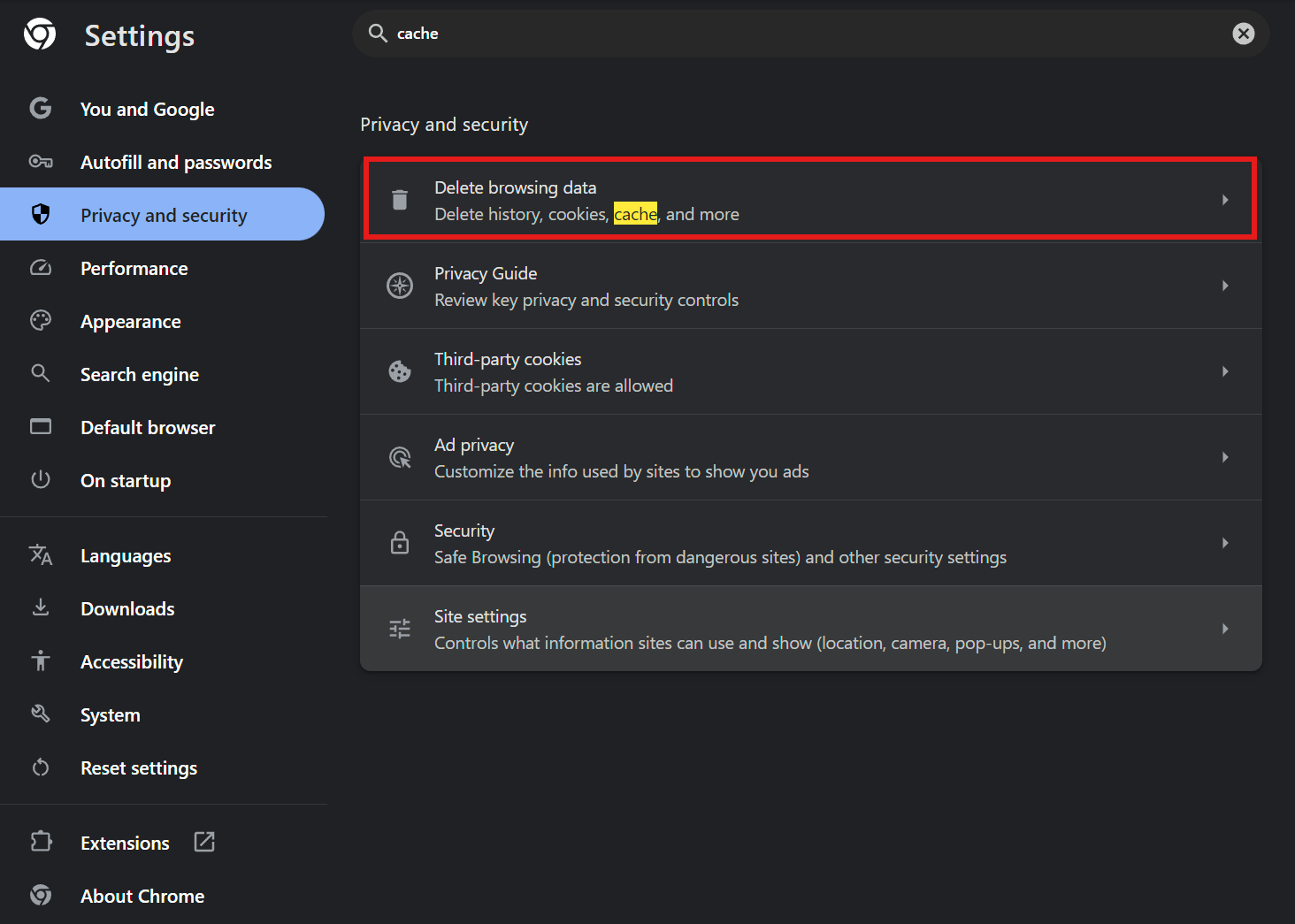
Here you can search for "cache", which usually lies under "Privacy and Security"
"Cookies and other site data" should be ticked off, after which you can proceed to delete the data.
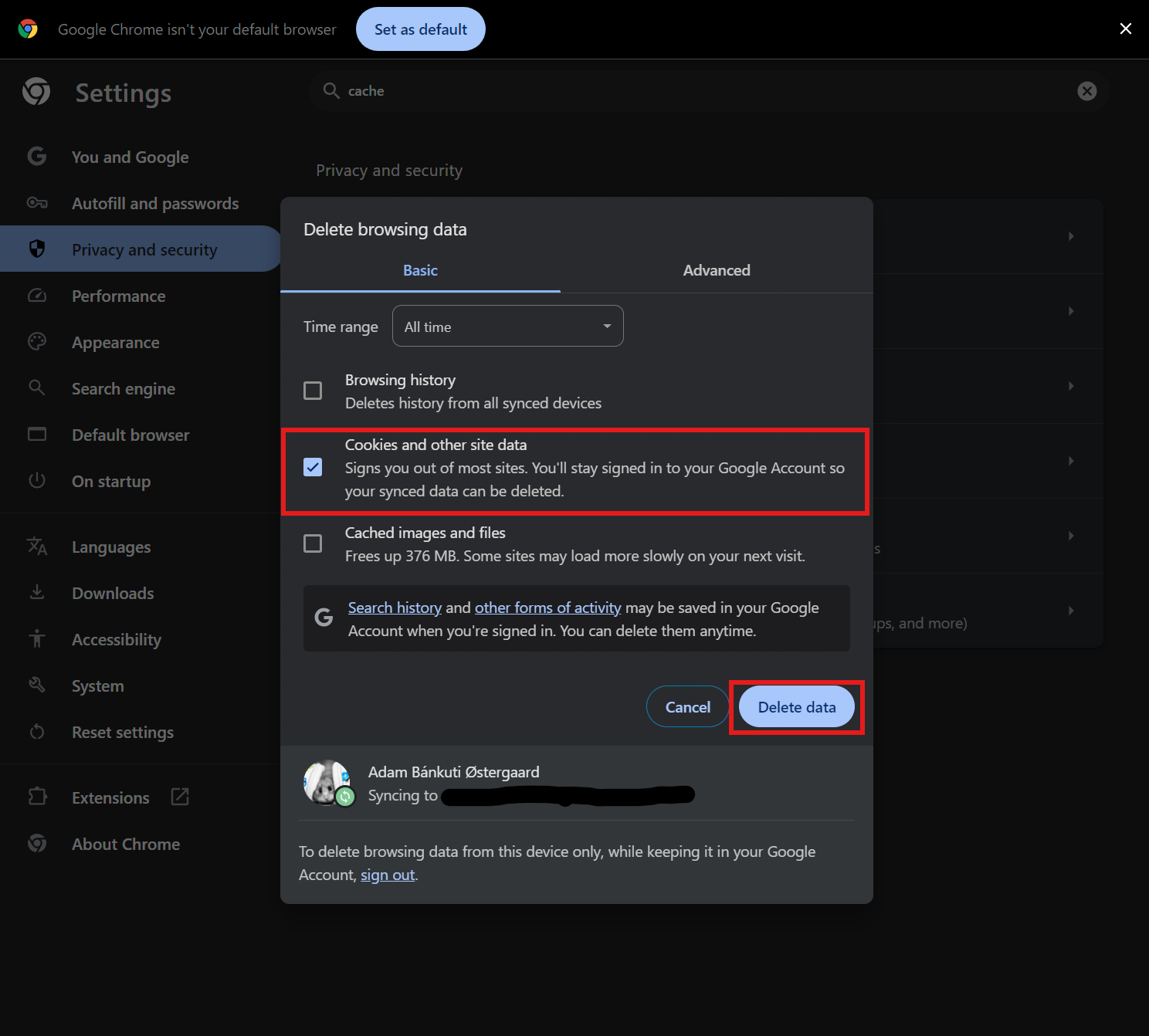
You have now successfully cleared your cookies
Mac:
To clear the cache, you must go to the top bar as shown, and click "settings":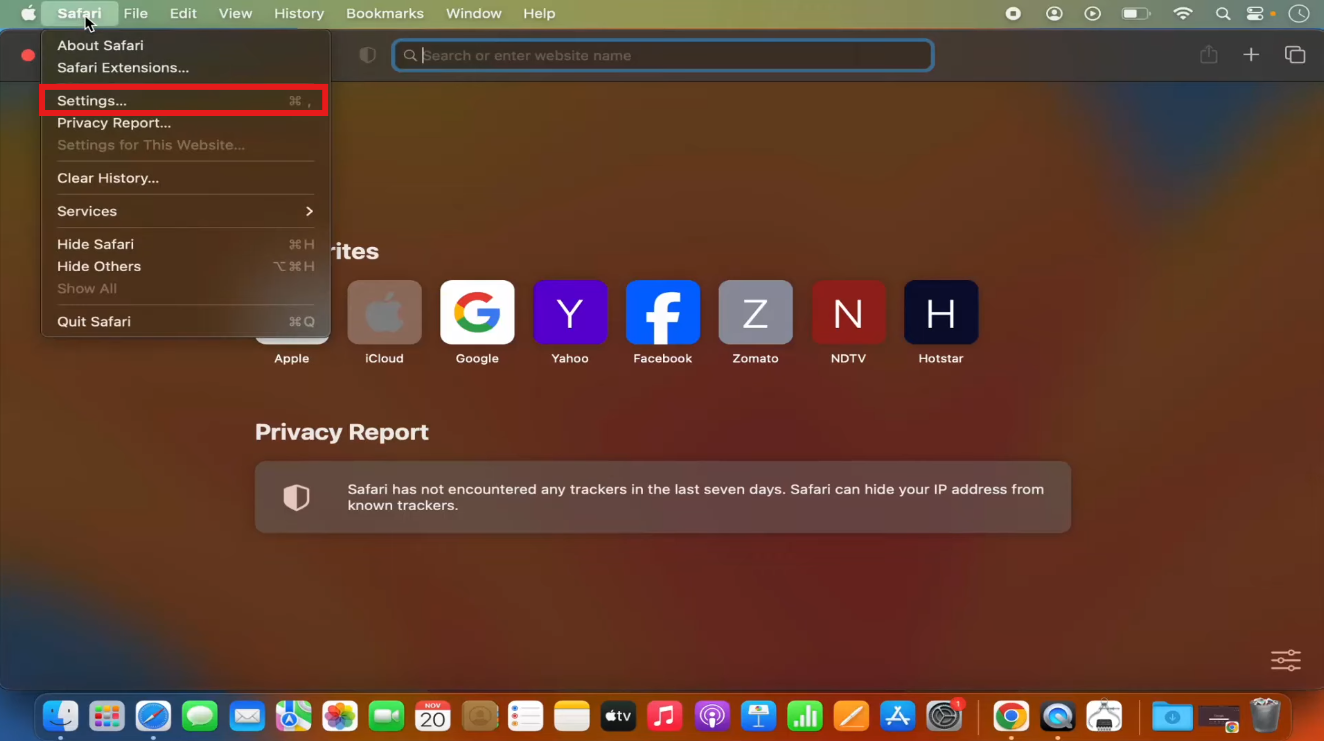
Go to "Privacy" and "Manage Website Data"
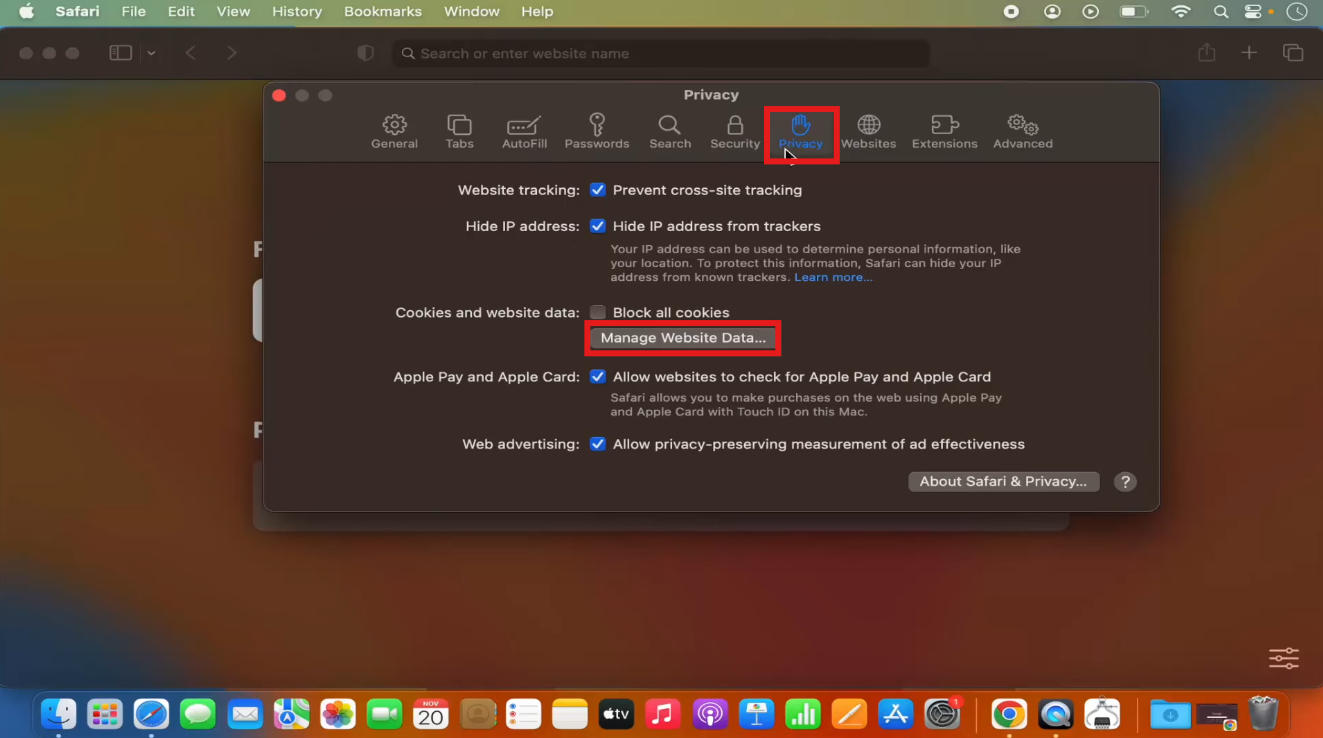
Here you have the list of cookies, you can either choose the website you are having trouble with and "remove". Or you can "Remove All", which is more effective.
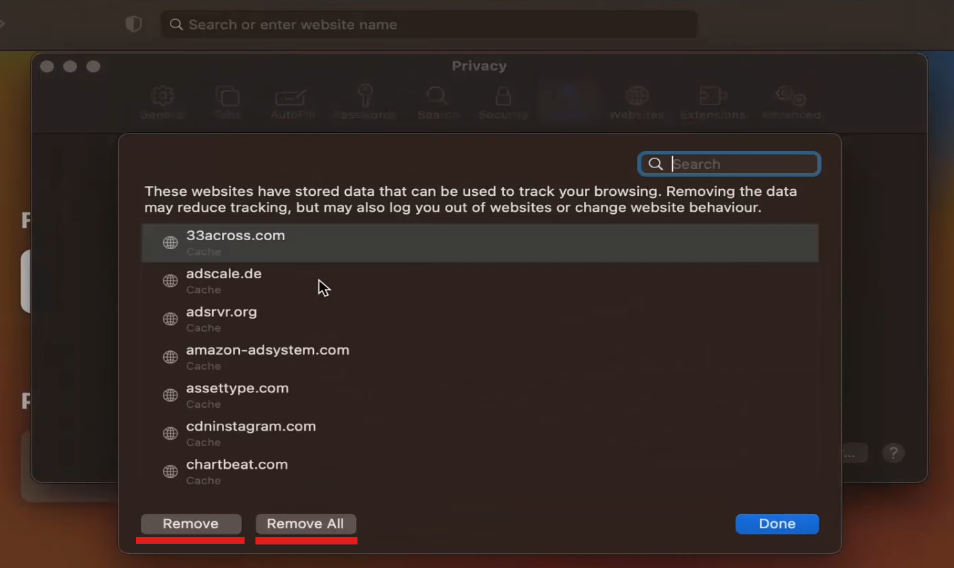
You have now successfully cleared your cookies.
Clearing cache in apps on phones:
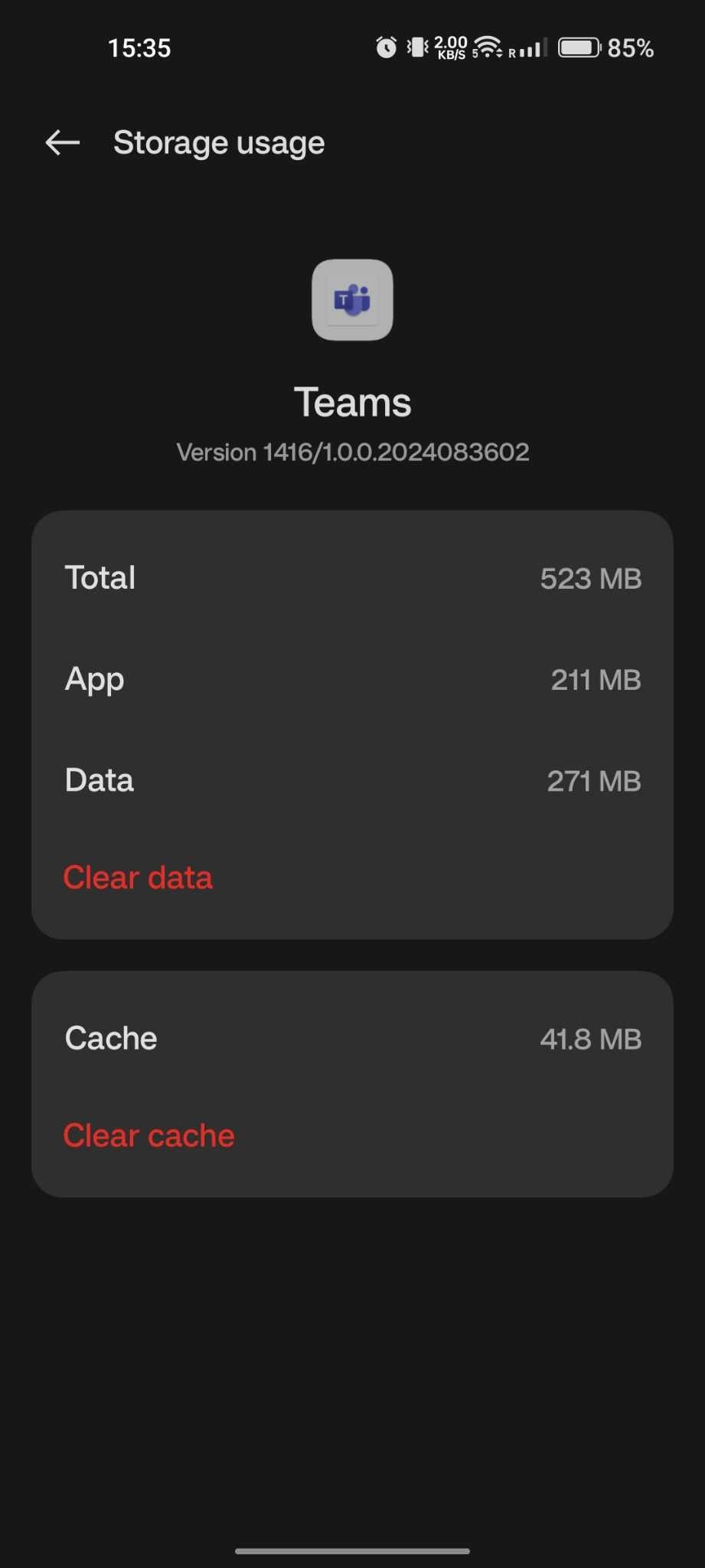
Go into settings in the app (if android), or general settings if you are on an iphone, and clear the cache on the app.
Example of Android in-app cache:
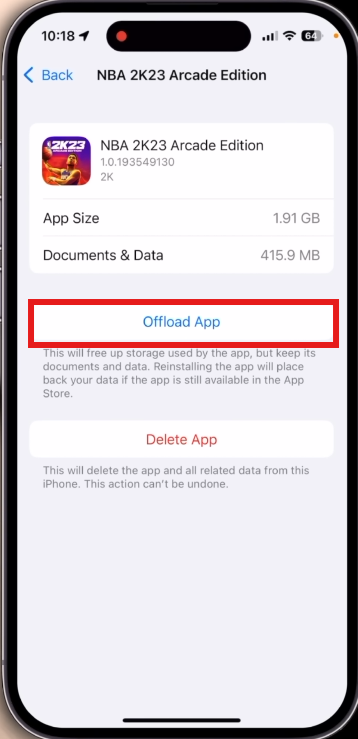
Example of Iphone in-app cache:
It is either called Offload apps or app storage. If in doubt, read the grey text underneath the button
If you want to clear Safari cache:
Find the "advanced" tab at the bottom of Safari in general settings.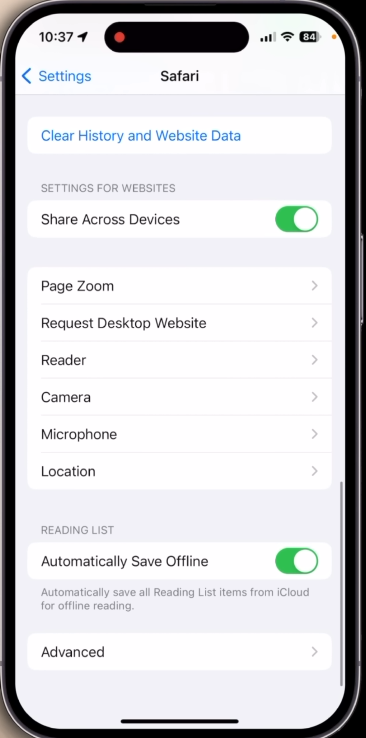
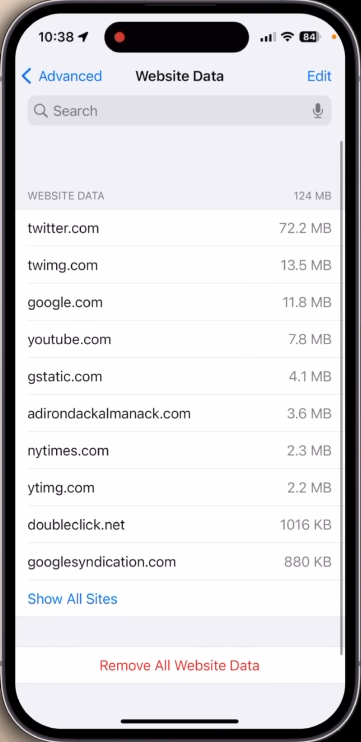
You will get a list of website data, where you will be able to "Remove all Website data"