The short version:
- Log in to SquareSpace using your YWAM email
- Create a new site
- Invite your Editors (ywam emails only)
- Edit your site, ask IT for help to publish - they have pre-paid plans
- Enjoy your new web site
The long version:
Log in to SquareSpace
In the beginning was an email, and the email contains a link, and the link makes a user in SquareSpace. Through SquareSpace our webpages are made, no webpages are made without SquareSpace. (inspired from John 1:1)
From SquareSpace.com, click the Log in link.

When logging in for the very first time, use your YWAM email account. The password field will disappear, and a "Continue with Azure" link will show.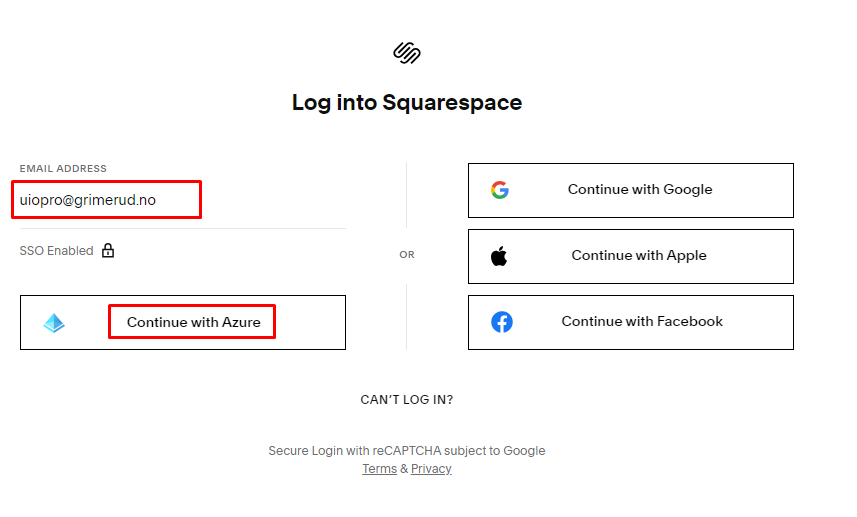
If you're already logged in to Teams, Outlook or any other Microsoft 365 product, you'll be taken directly to SquareSpace and you can start working.
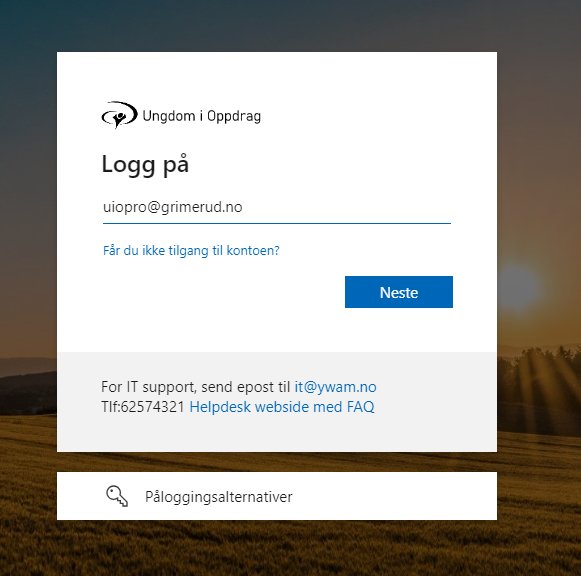
If you're not logged in yet, enter the email, password and 2-factor like normal.
Create a new website
Making a new website is done by
- Creating a new website in SquareSpace.
- Editing the page until it's good enough.
- Ask IT to publish the site (IT has pre-paid plans).
- You can now publish/unpublish the website as you wish.
- If you no longer need the website, please inform IT so that the license can go back in the pool and be used for a new website.
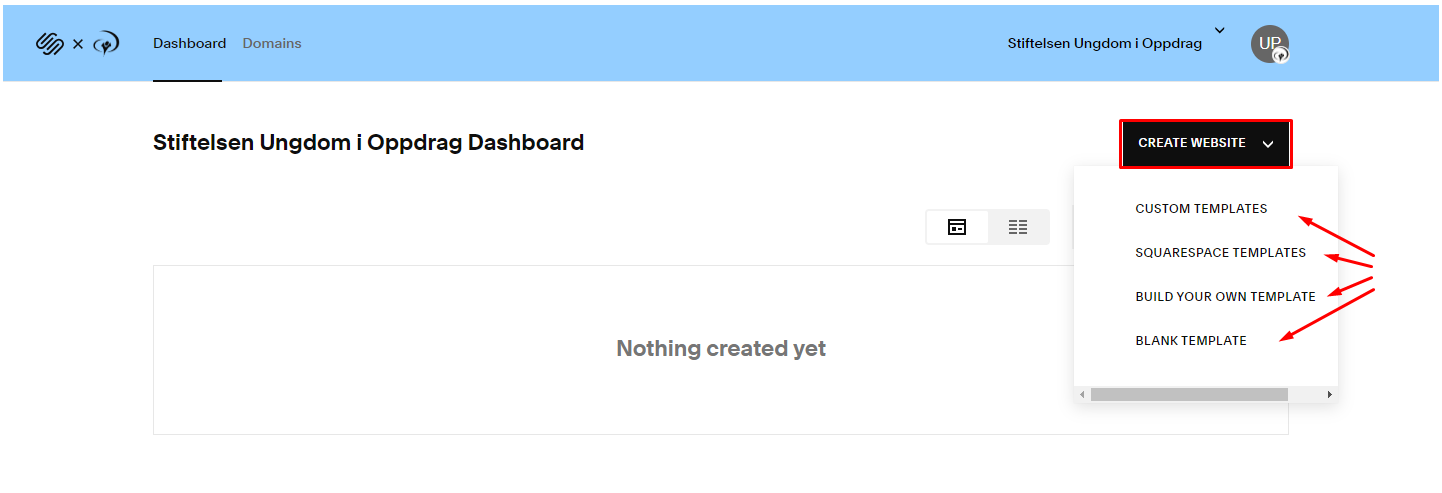
The rest of this walkthrough is made by using a SquareSpace Template.
Select a topic and continue, or even better: Click "I'm just browsing" to show you all templates available.
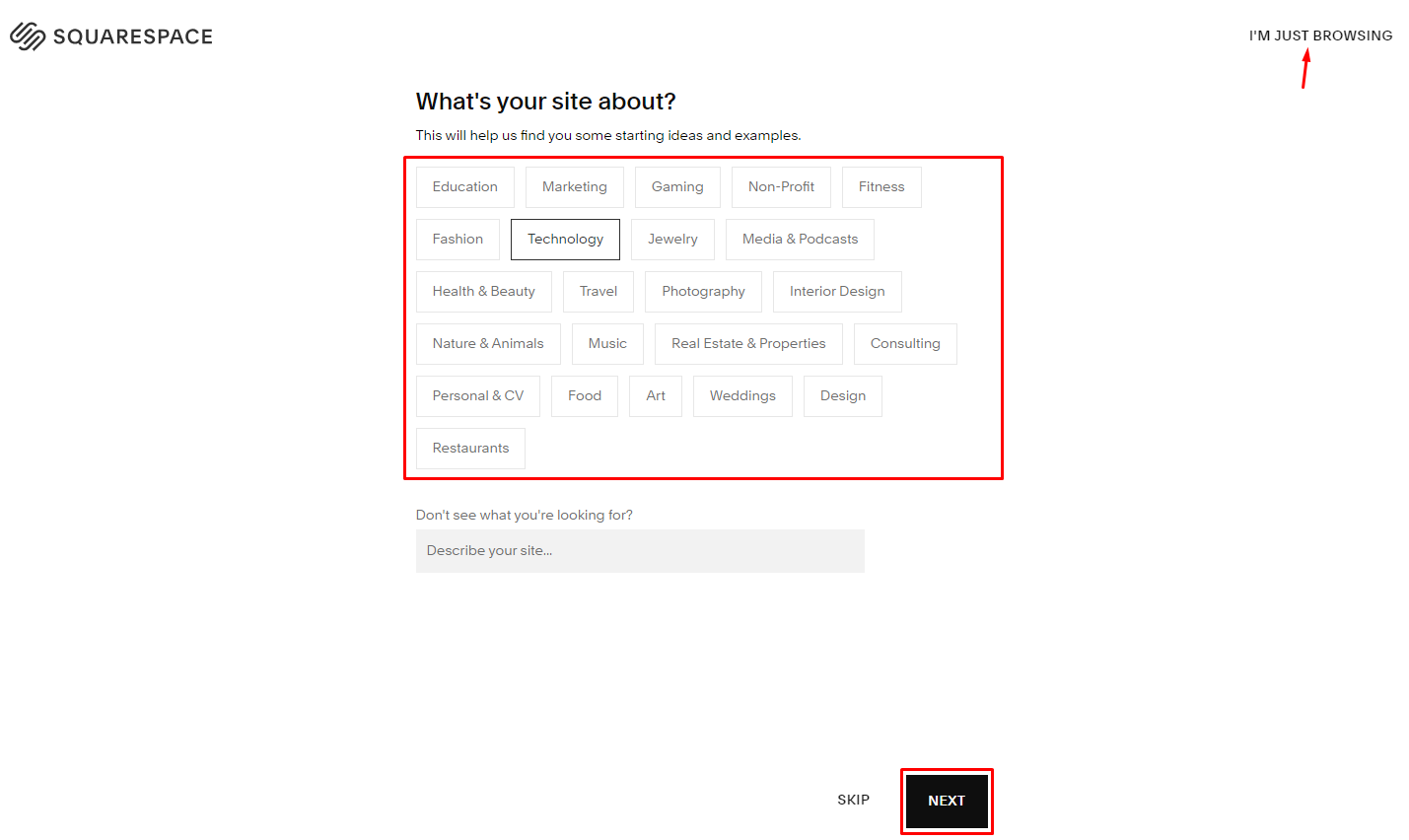
I will continue with the "I'm just browsing" in this example.
Select types and topics to filter. When you have found a nice template, hover it, and click Start with <name of template>.
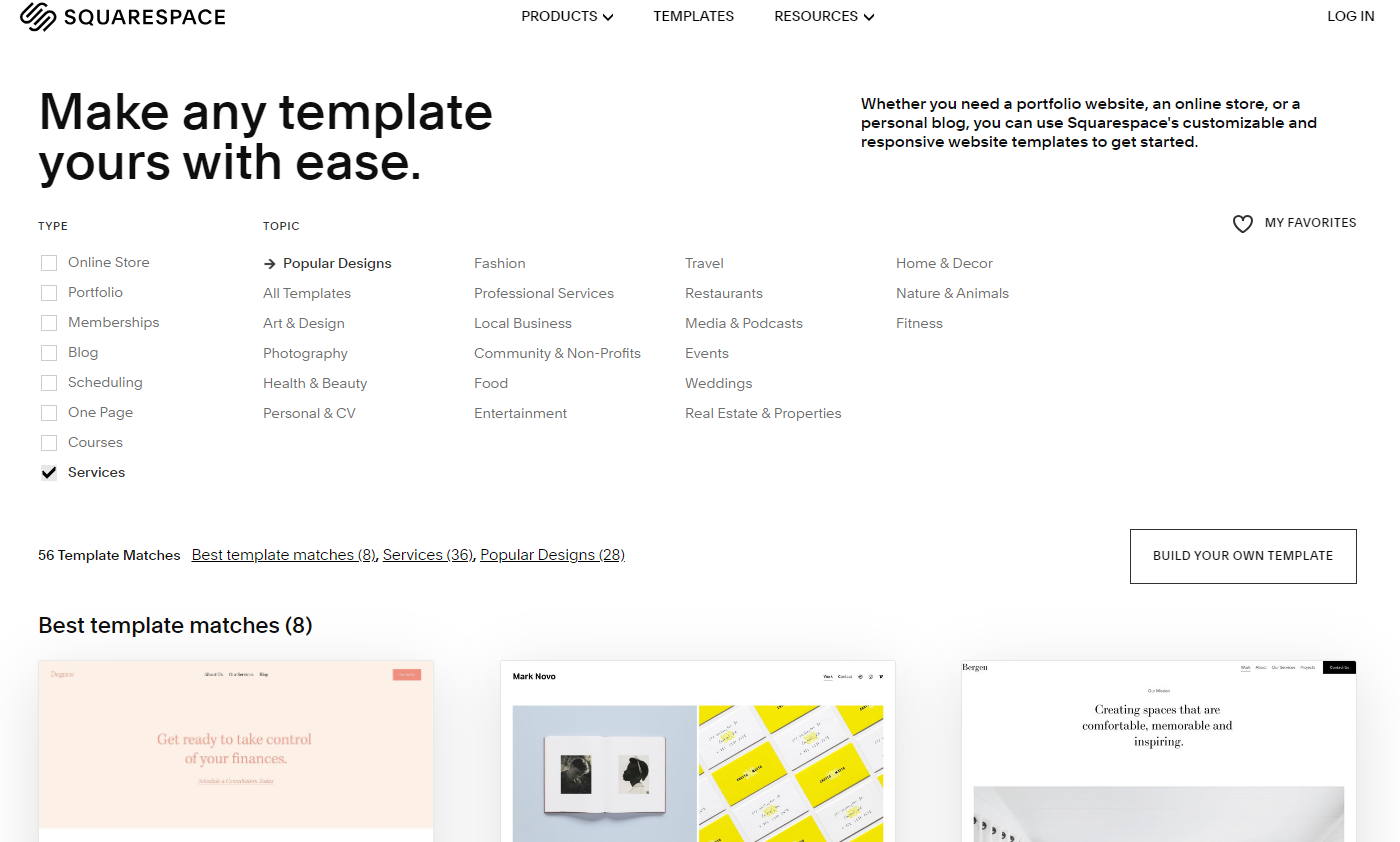
Keep in mind that so far, this does not cost anything. Create and delete pages. Try out different things. As long as you remove the sites you do not need.
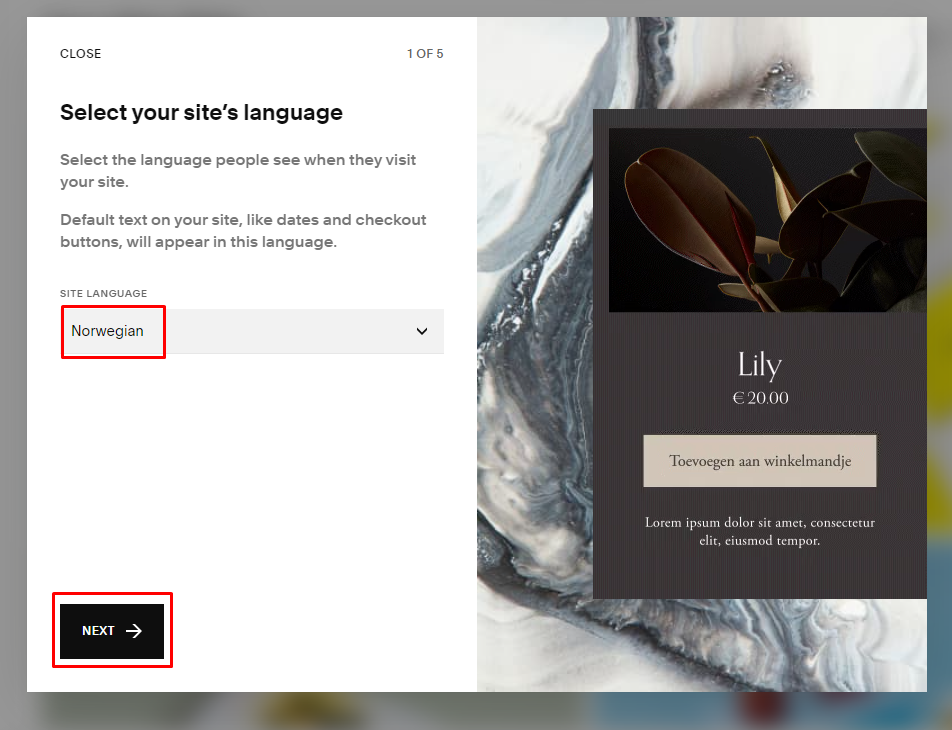
When continuing, set up the page to be Norwegian. We'll add multiple languages later.
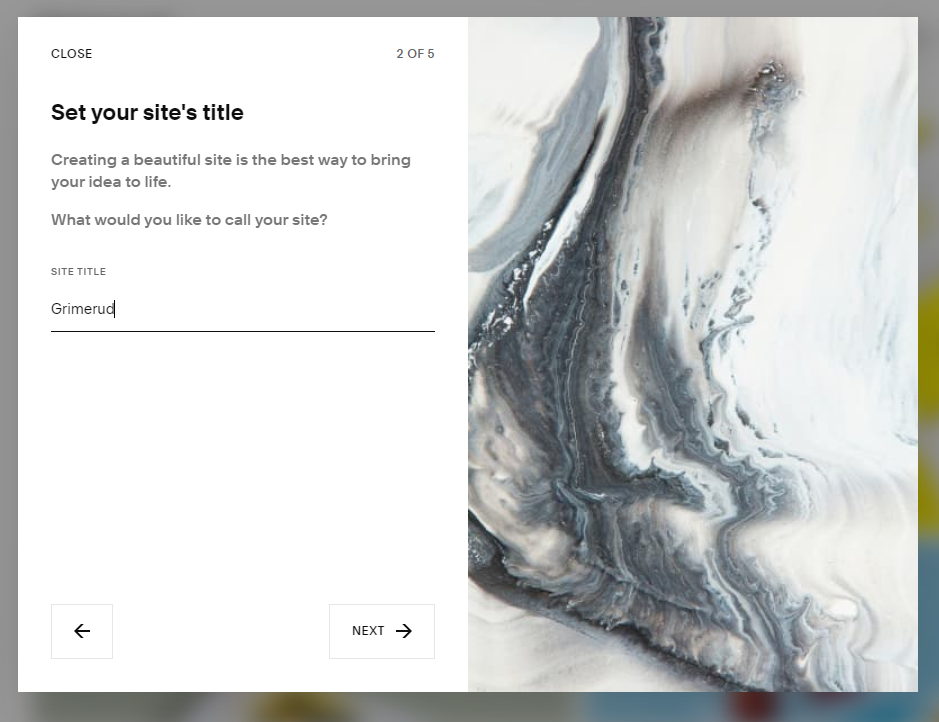
Enter the name of the site. The name can be changed later if needed. The name will be visible on the page-overview in SquareSpace, and on the page
The next couple of pages will show a quick into on how to work in SquareSpace.
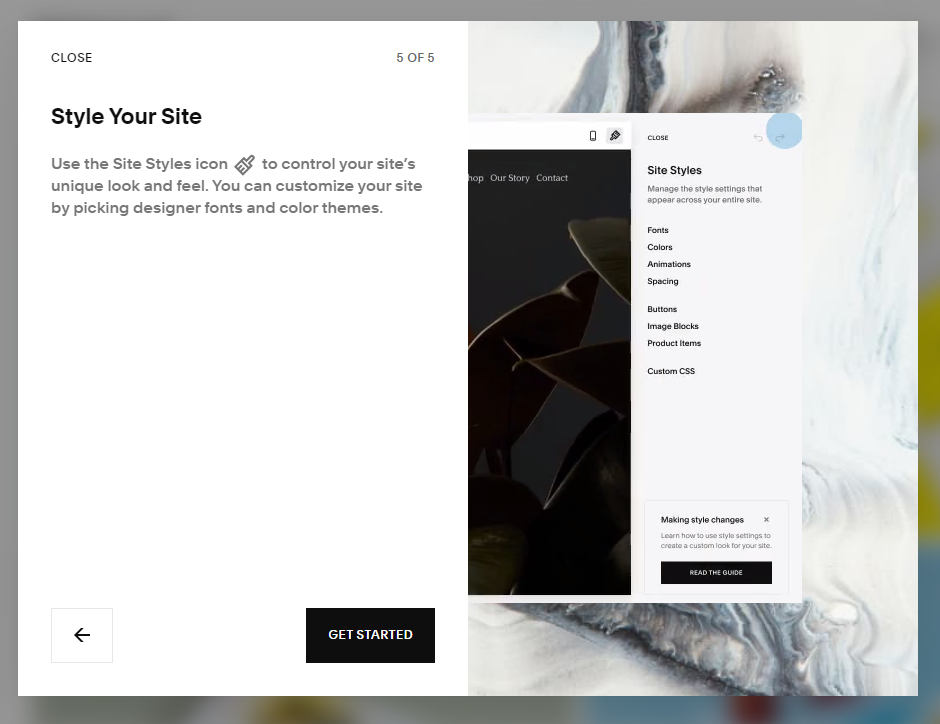
You are now ready to start editing.
Let's not keep the joy to ourselves - let's invite your team members to access this page. Click Settings to invite your Team members.
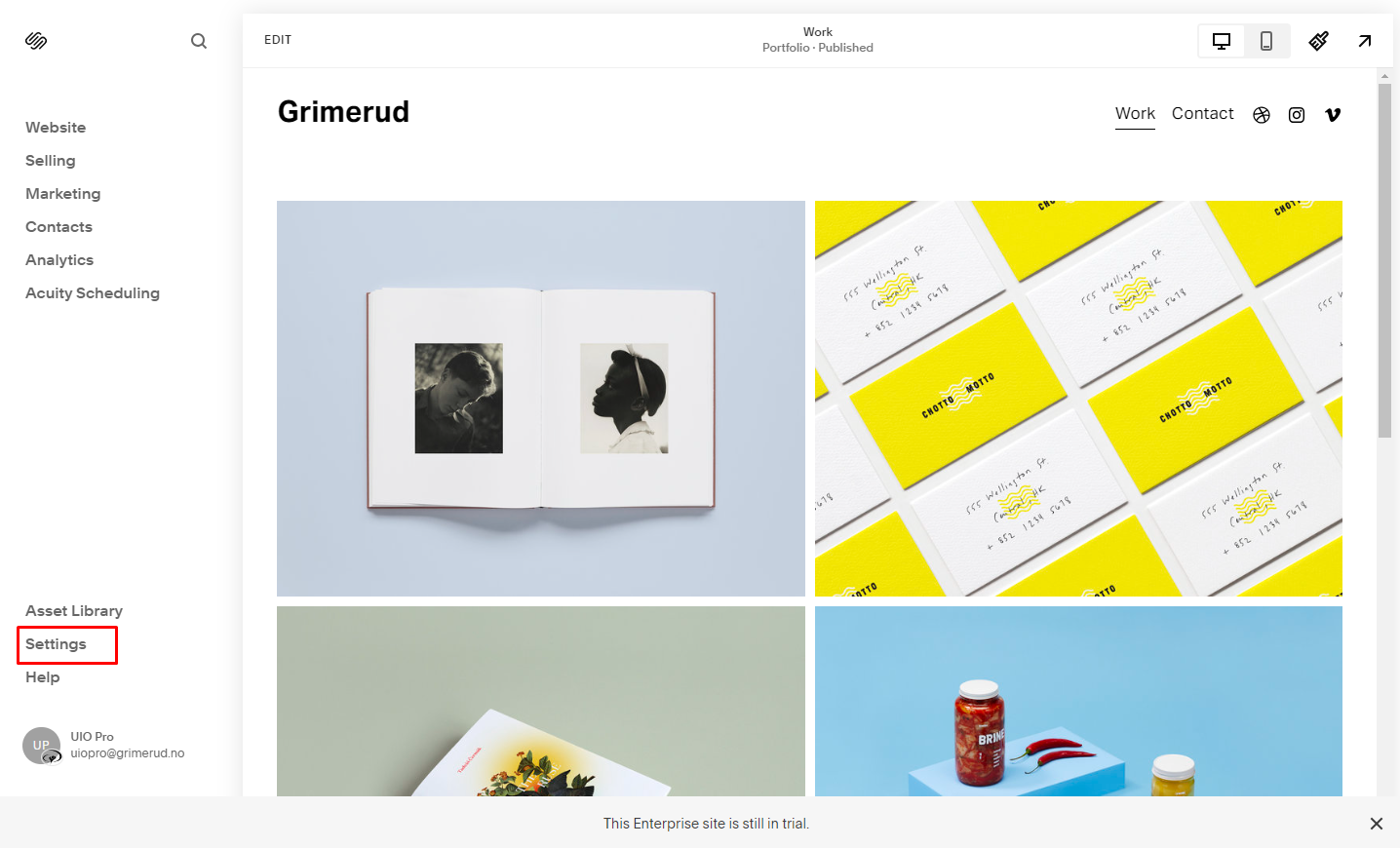
Invite other editors
IT has to create new users to get them in to the top level.
Please use this form to register new users.
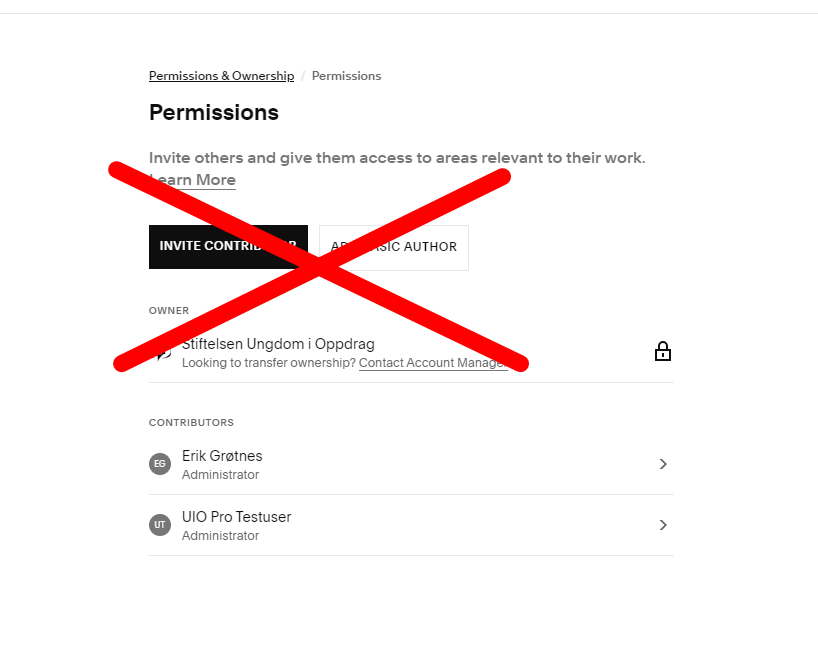
DO NOT use the "Invite contributor" option.