
When handing off a staff-computer in YWAM, the procedure is simple.
- Inform IT by sending an email to it@ywam.no containing information about
- Which base the computer belongs
- Who has been using the computer (name and email)
- Computer name (Right-click the windows icon, select System.
- Power on the computer and do a Factory Reset (see below).
The next staff to be the owner of the computer, should be the first person to log on (using their email and password). The computer will then self-install.
Performing a Factory Reset
All personal data should be stored in OneDrive and properly backed up.
When resetting the PC and handing it off, it should be completely erased, and all programs reinstalled. This is because most licenses are tied to a person these days.
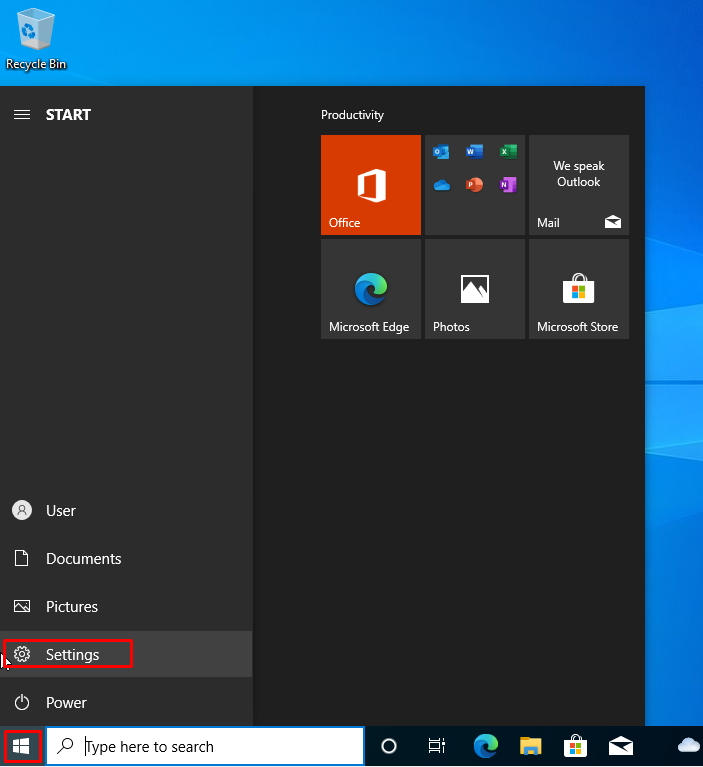
To get started, click the Windows flag, and select Settings.
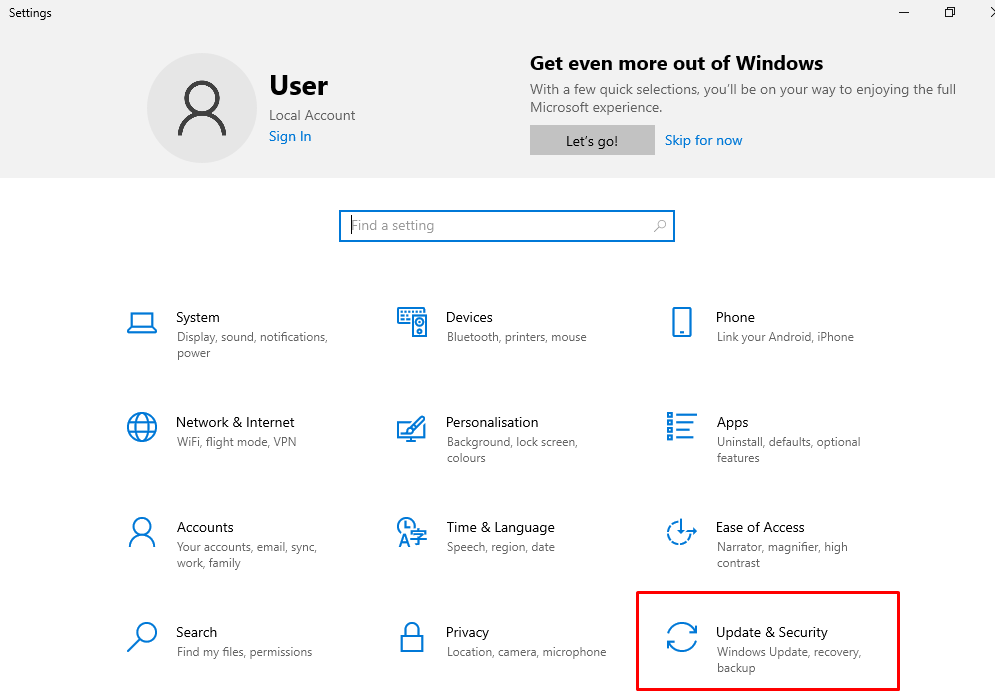
In Settings, select Update & Security
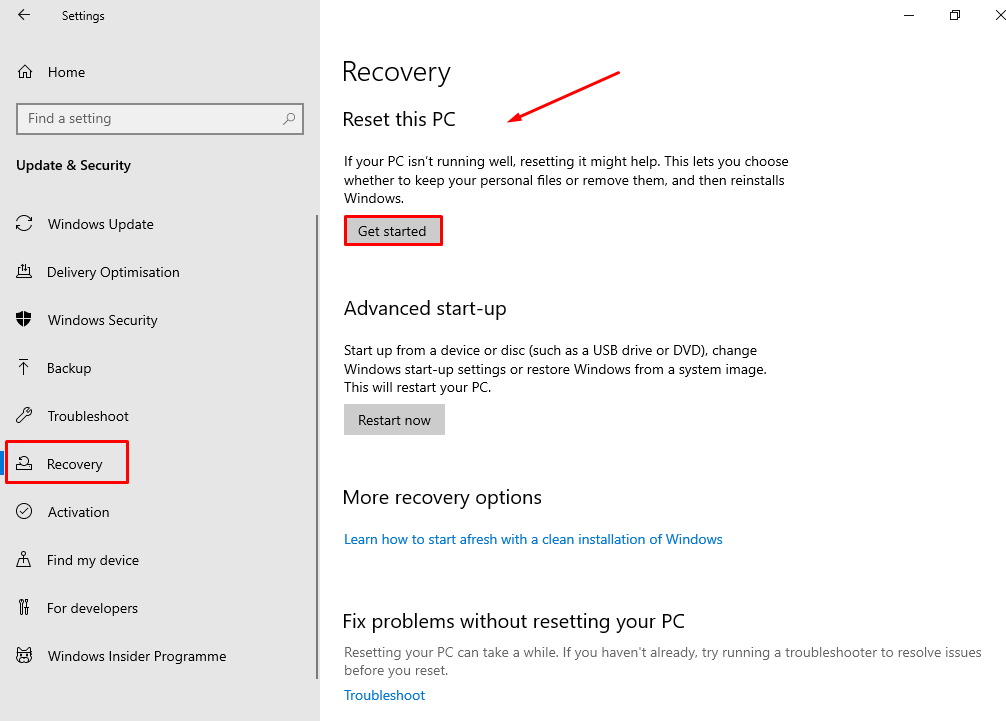
Select Recovery, and under "Reset this PC", click "Get started".
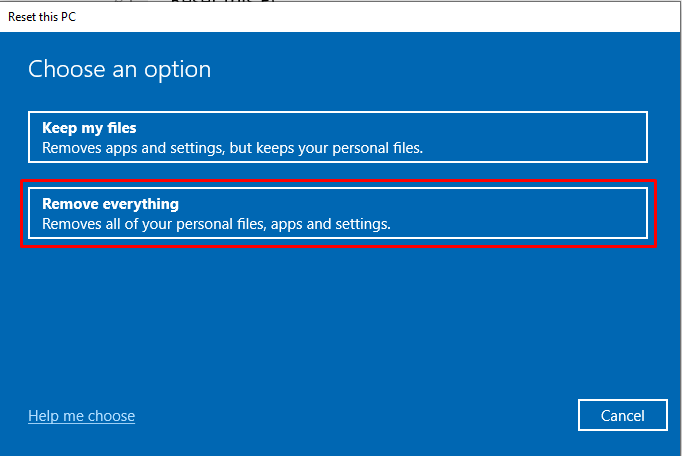
Select to Remove everything.
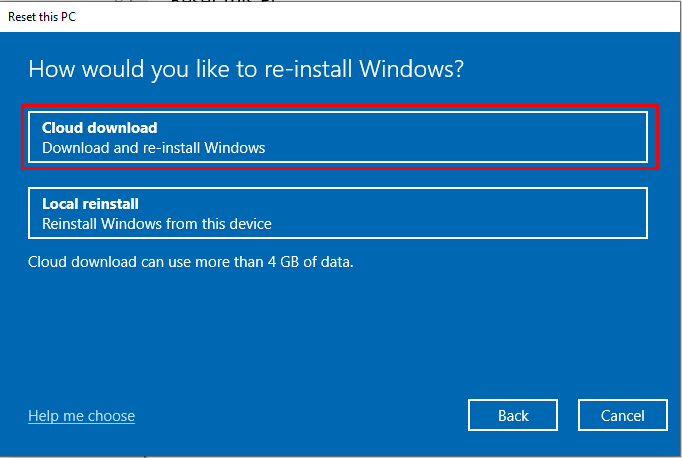
Select how you want to re-install Windows. The preferred option is the Cloud download option. This will get the latest version of the operating system. If you select Local reinstall, you will have to spend a lot of time later to upgrade to the latest version anyway.
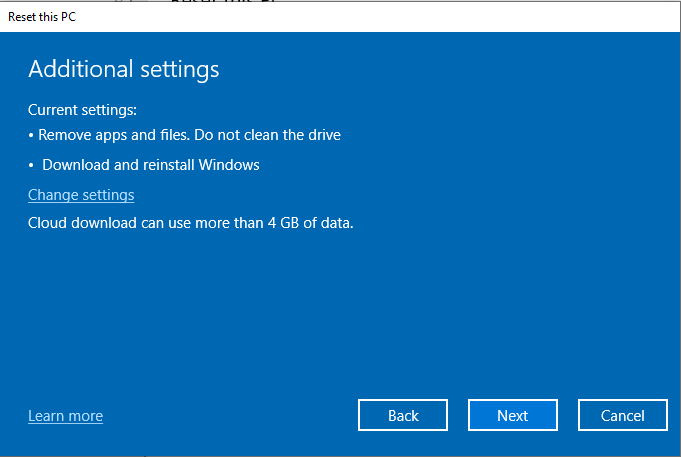
If you are going to continue to use this computer in YWAM, click Next.
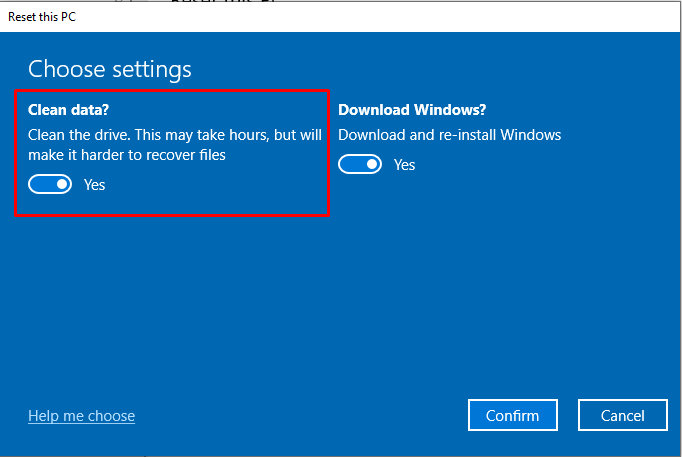
If you are handing it off to someone outside YWAM Norway, click Change settings and choose to Clean data. This will initiate a "deeper cleaning".
For PCs that are leaving YWAM Norway:
Final step: Click Reset.
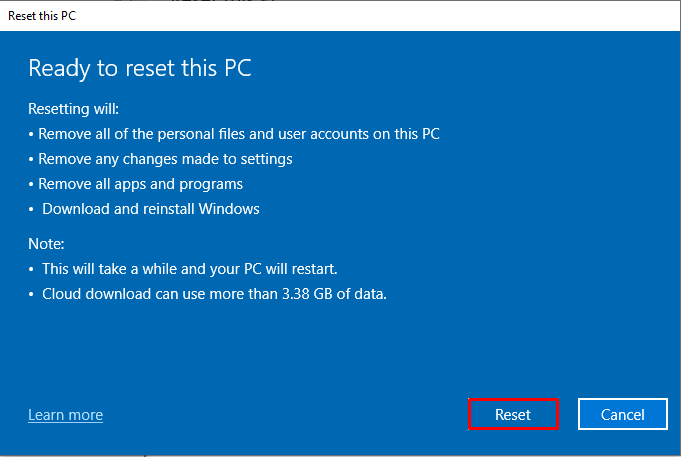
The computer will automatically download the latest version of Windows, reinstall and reboot. When finished, you can follow the next guide to log in the new owner.
Make sure the new user has the correct license(s). Check in "MinSide" or call IT for confirmation.