
HOW TO PRINT AND DOWNLOAD OFFICE PRINTER FOR PERSONAL DEVICES
1. Be connected to the Grimerud Office WiFi or via cable in the office:
Contact IT if you need the password for the Grimerud Office WiFi.
2. Download the correct driver for the printer:
Link for the windows driver: WINDOWS Driver
Link for the MacOS drivers: MacOS Driver
Guide for mac can be found after the explaination for the Windows setup:
Installing and connecting to the printer will look different on macOS and Windows, but it's the same principle. You need to install the print driver and be connected to the printer.
3. Install and Set up the print driver:
After downloading the correct driver, install and make sure you connect to Bizhub C368.
Make sure the product-search is Bizhub C368, then download the newest version of the "Universal Printer Driver
Windows:
Step 1
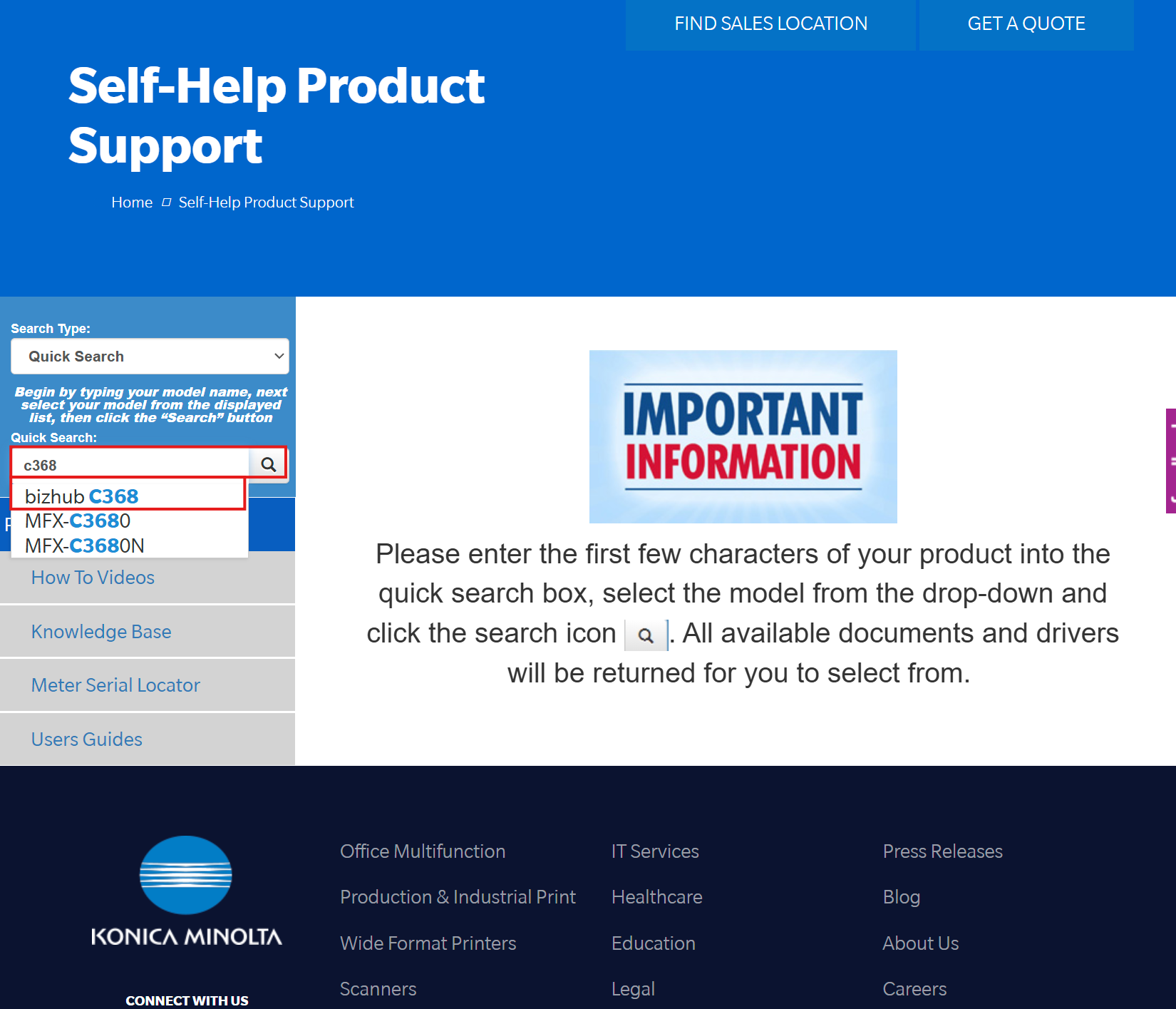
Search for "C368"
Step 2
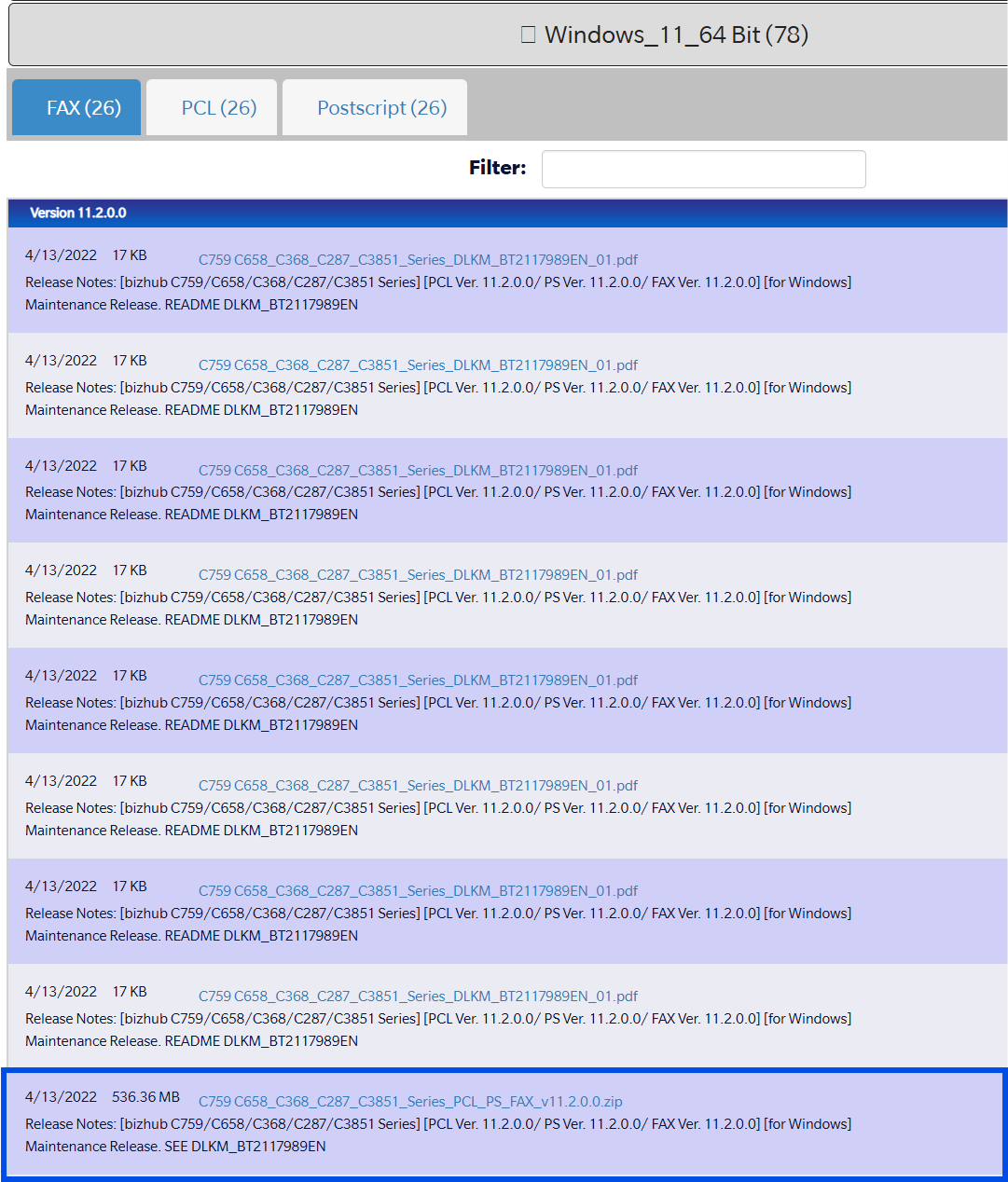
Select Windows 11_64 and download the latest zip file
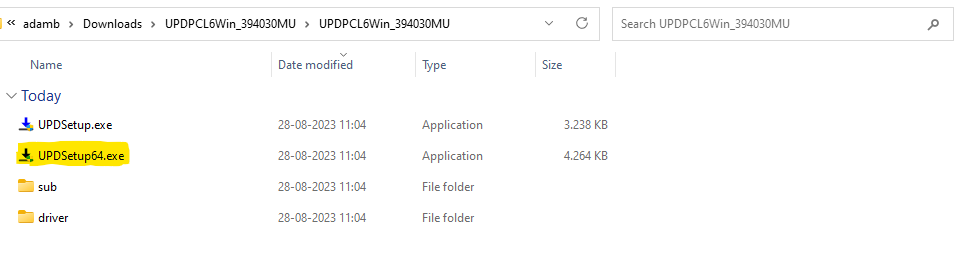
Then click "Extract All" and open the folder
Open UPDSetup64.exe and agree to the license agreement.
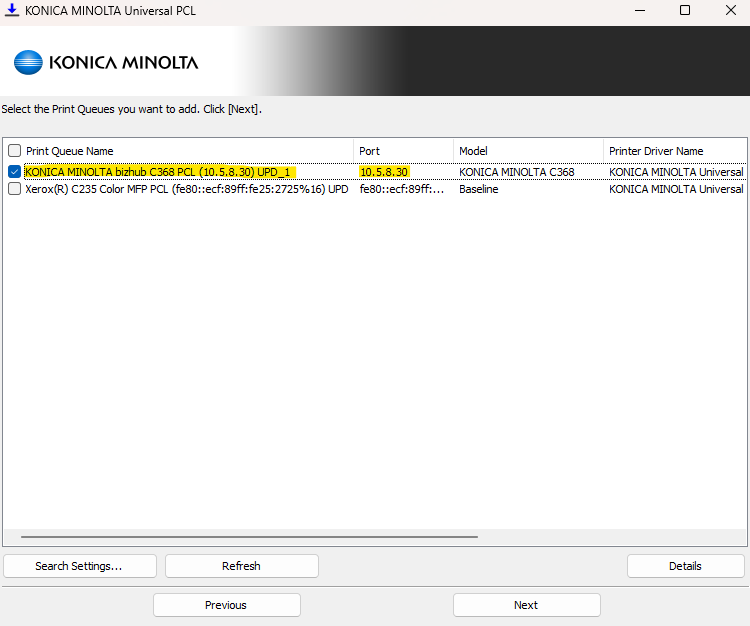
If you are connected to the Wifi "Grimerud Office", you can click "next" and it will find the available Printers and Drivers.
The printer called "KOICA MINOLTA bizhub C368" which is connected to port 10.5.8.30 is the correct printer.
Then click "next" and "Install"
The printer is now downloaded and you can print.
with the printer called Konica Minolta Bizhub C368 PCL (10.5.8.30) UPD.
Macintosh OS X
Finding the correct MacOS version
Step 1.1
First we have to figure out which version of MacOS you have: 10-14
If you have version 15, you have to use MacOS version 14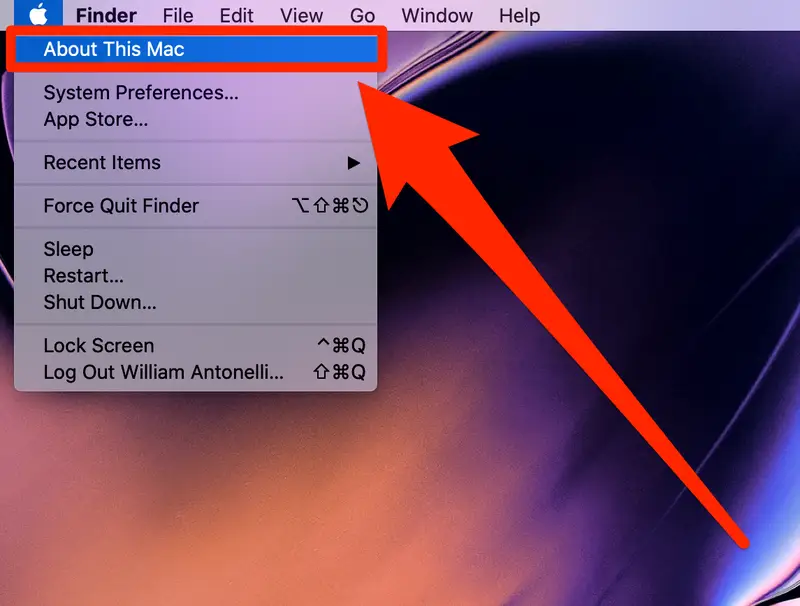
Step 1.2
In this example I have Version 11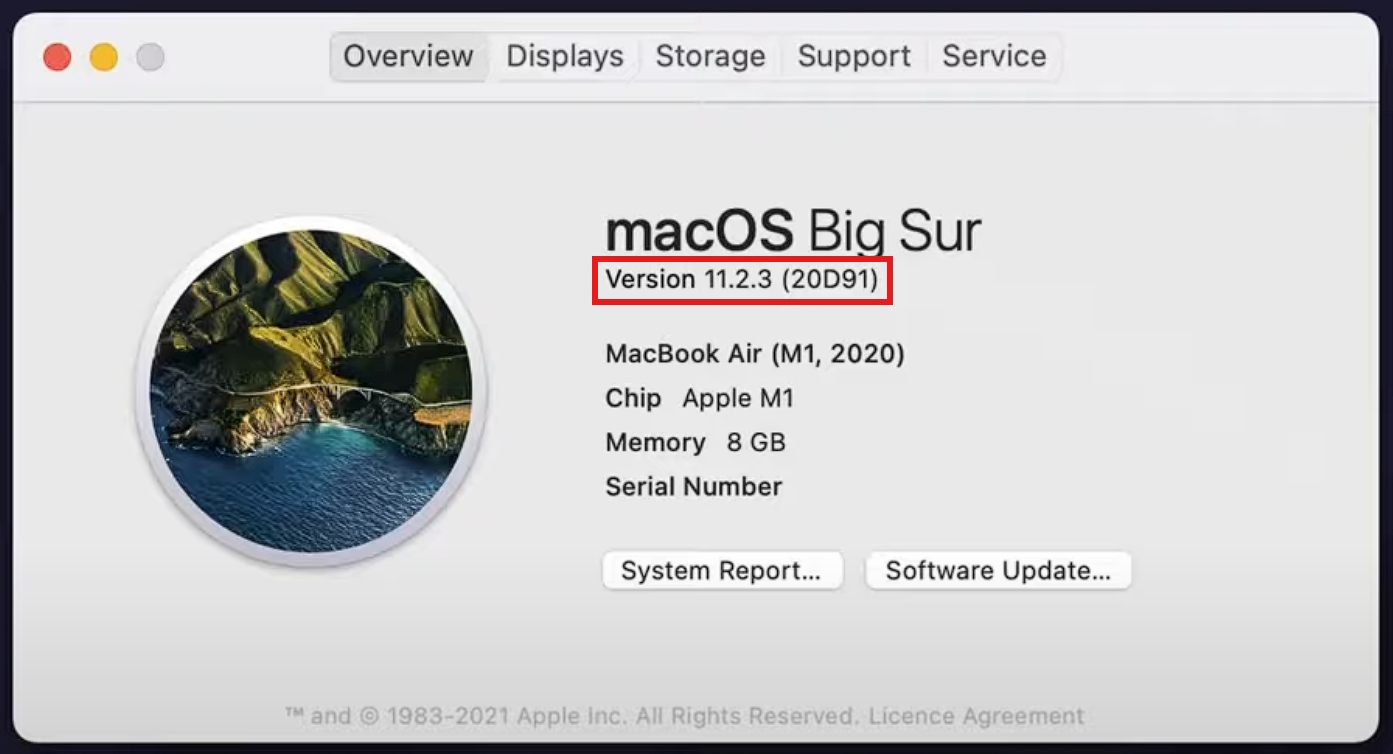
This is important information when choosing the driver needed to install the correct driver.
How to download the driver
Use this link to access the driver needed to download the printer for mac: Driver Download for Mac
Step 2.1
Search for "C368" and click "enter" without clicking "bizhub c358
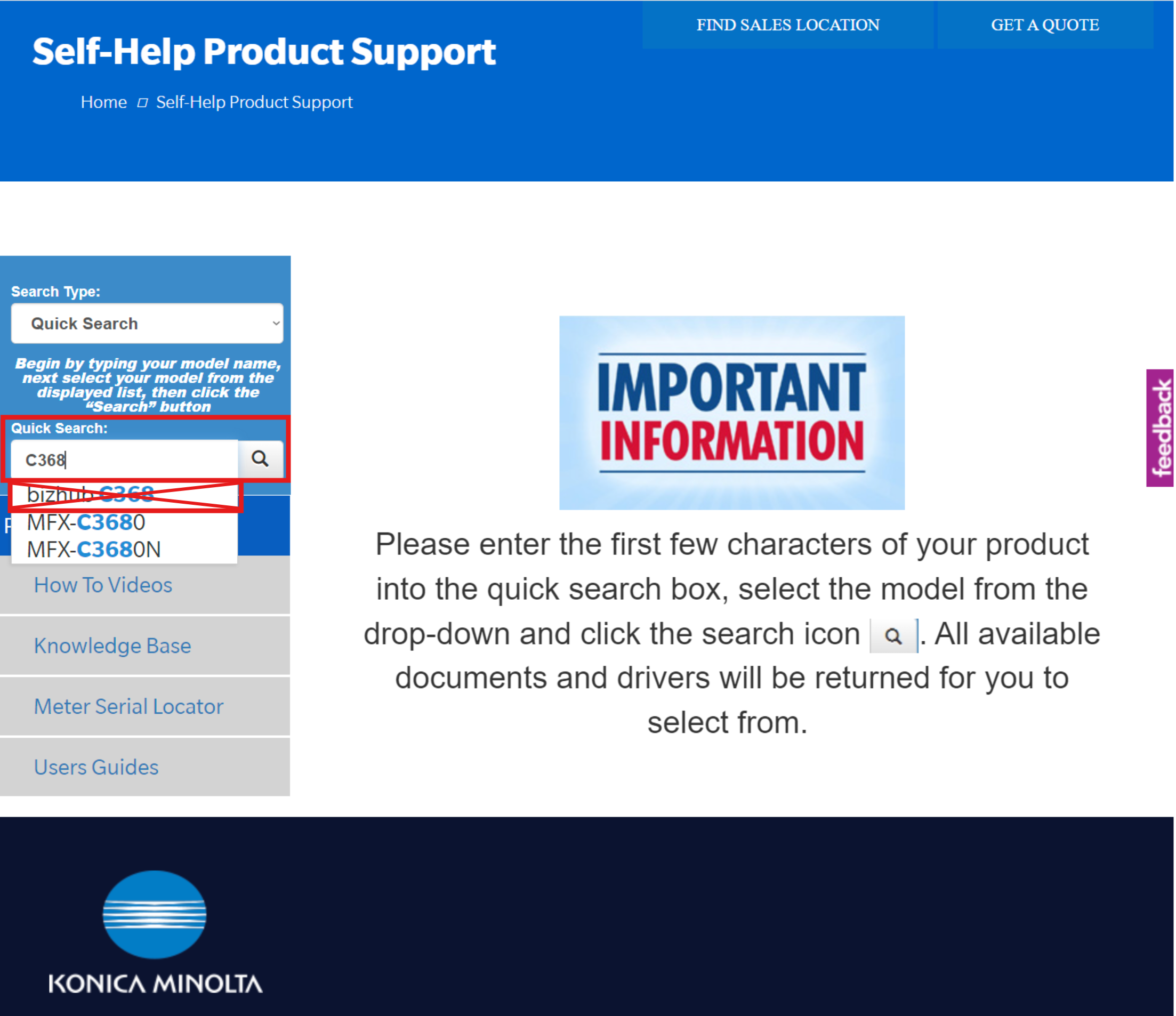
Step 2.2
From here you choose "Drivers"
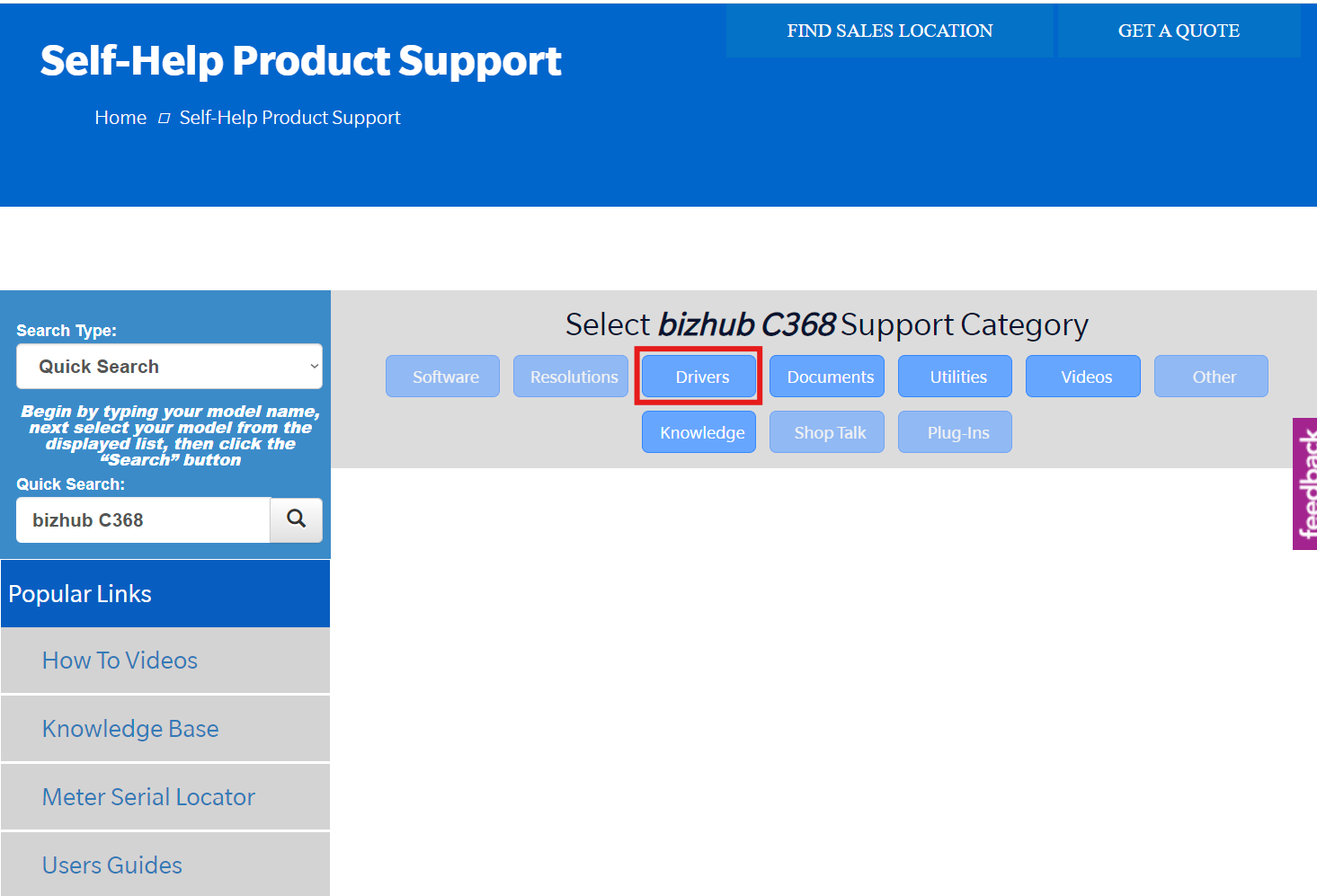
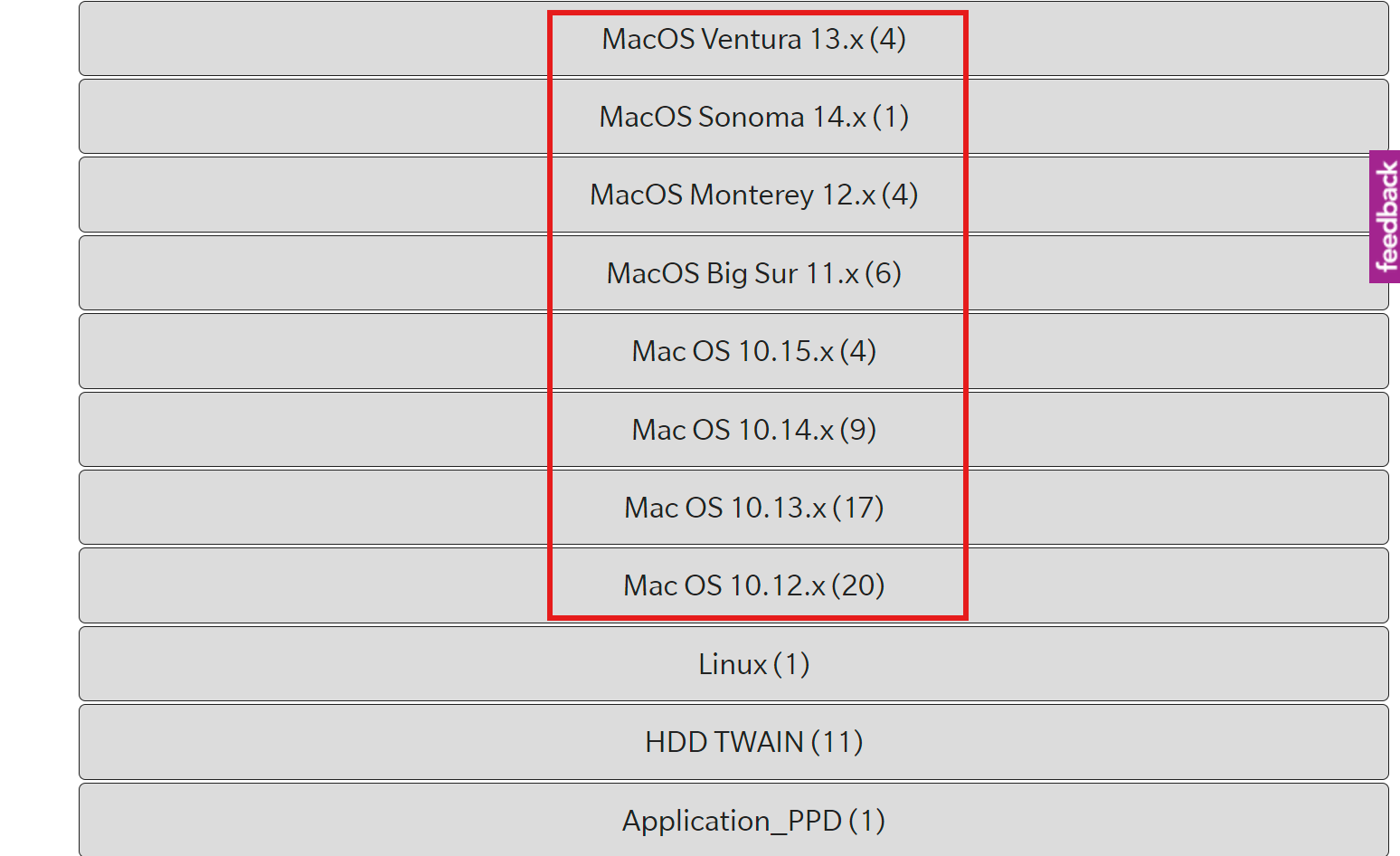
Step 2.3
From here you scroll down to the driver you found previously, in my case version 11.x
User the driver you have on your own mac
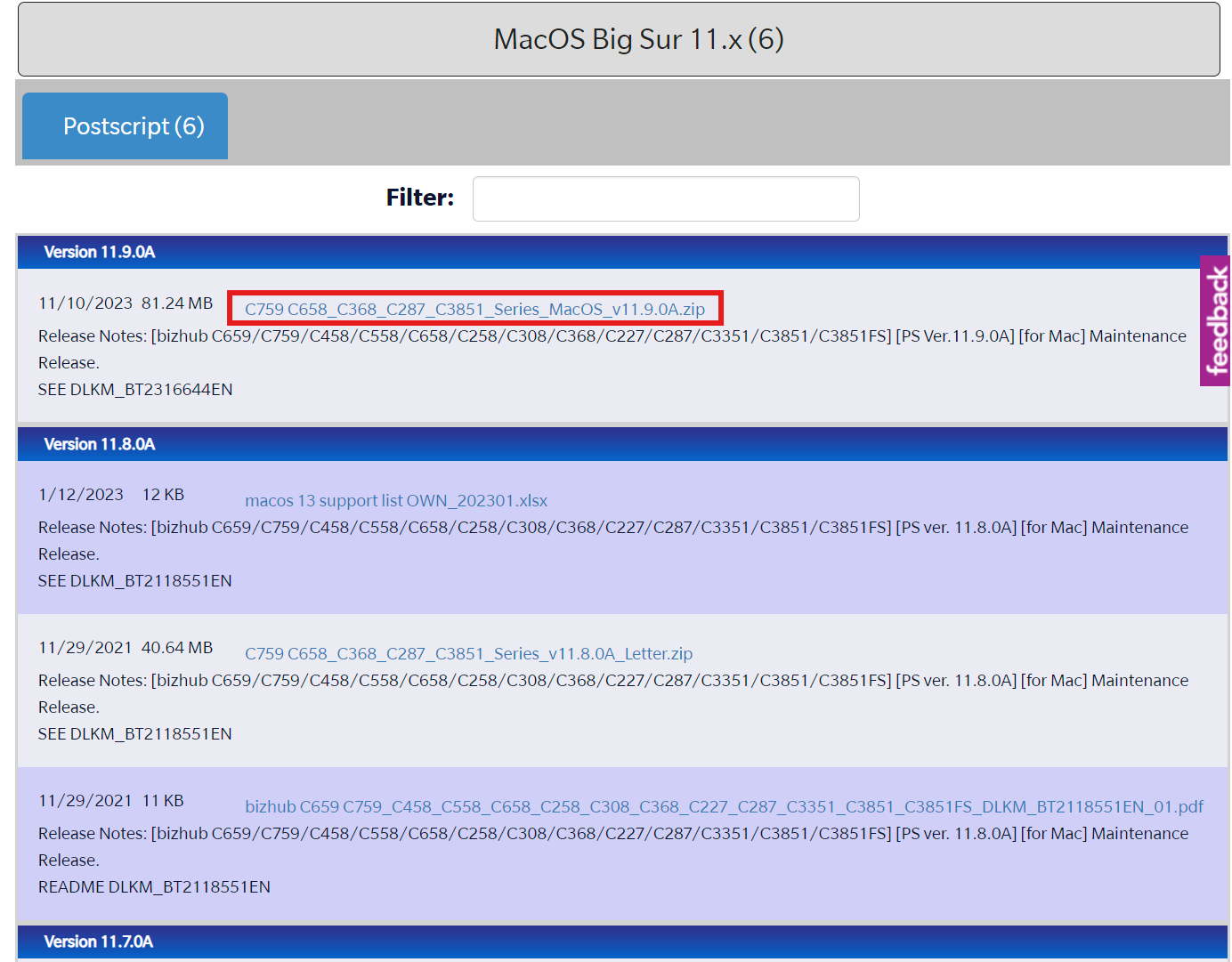
Step 2.4
Here you choose the latest version of the zip file and download it
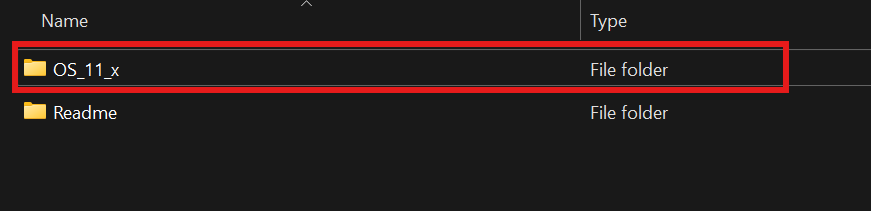
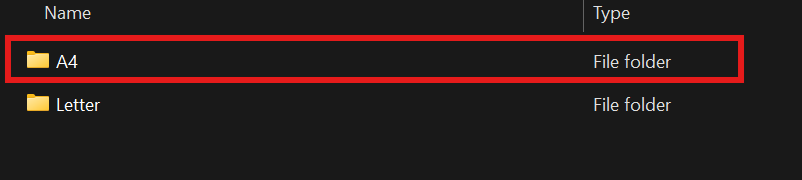
Step 2.5
From here you choose OS_11_x -> A4 -> open the package file and follow the instructions (say yes to everything).

After accepting the package process, the printer should be installed.
After installing it I would suggest that you set the office printer to "default" so you don't have to change it every single time.
NO LONGER IN USE - DEPARTMENT CODES
Since we no longer use department codes in the office, there will instead be made an estimate to each of the departments.
This means that there is no need to count the amount of paper you use. If you print for private use, make sure to use the QR-code to pay for the amount you are using. Prices can be foundfor both black/white and colour at the bottom.
| GRIMERUD CENTER | SCHOOLS |
| 0101 Kindergarten | 0110 Fall DTS |
| 0102 Grimerud Gård AS | 0111 Spring DTS |
| 0105 Central operation | 0112 SBS |
| 0106 Communication office | 0113 FMS |
| 0150 Missions office | 0114 SOTB |
| PROJECTS | NATIONAL |
| 1020 Workersgathering | 0241 Familiefokus |
| 1027 Reborn | 0344 Najonal admin & info inkl Mot Målet |
| 2022 The send | 0345 Prokla-Media |
| 2023 Brave Love |
| OTHER | PRICES: | ||
|---|---|---|---|
| 0055 Private use | |||
| 0400 Borgen | A4 | A3 | |
| 0500 Oslo | Colour | kr 1.25 | kr 1.75 |
| 0600 Skien | Black/white | kr 0.50 | kr 1.00 |
| 0700 Skjærgårdsheimen | |||
| 0800 Alesund | |||
| 0900 Nordland | |||