
Every staff in YWAM Norway must have a personal user account to access ... well ... anything.
(There is NO sharing of passwords. If a user needs access, the access is given to his/her user).
One staff per center has access to "Bitpro MinSide", which we use to create new user accounts.
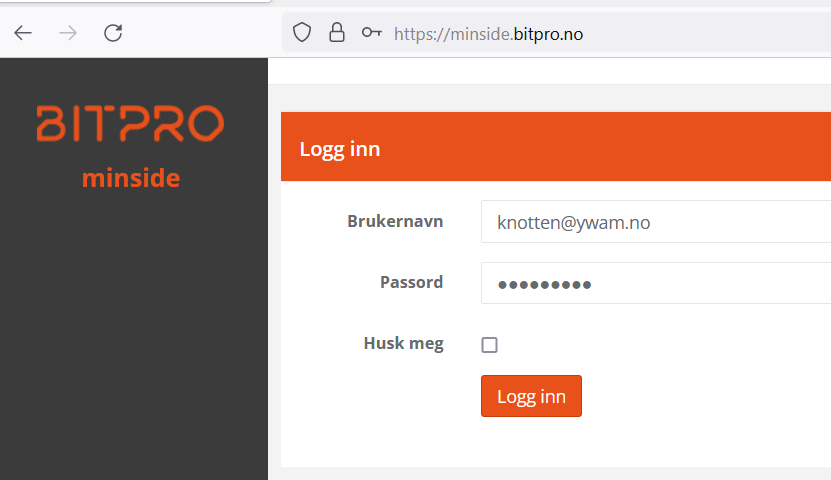
Go to https://minside.bitpro.no/
Log in using your email address.
Select "Brukere" (Users), and then "Ny bruker" (New User).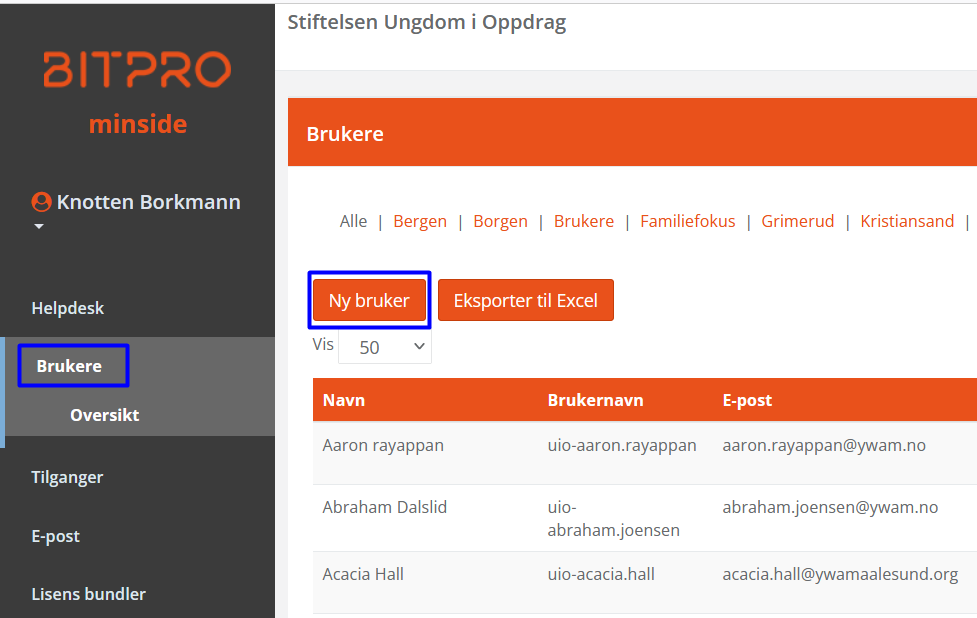
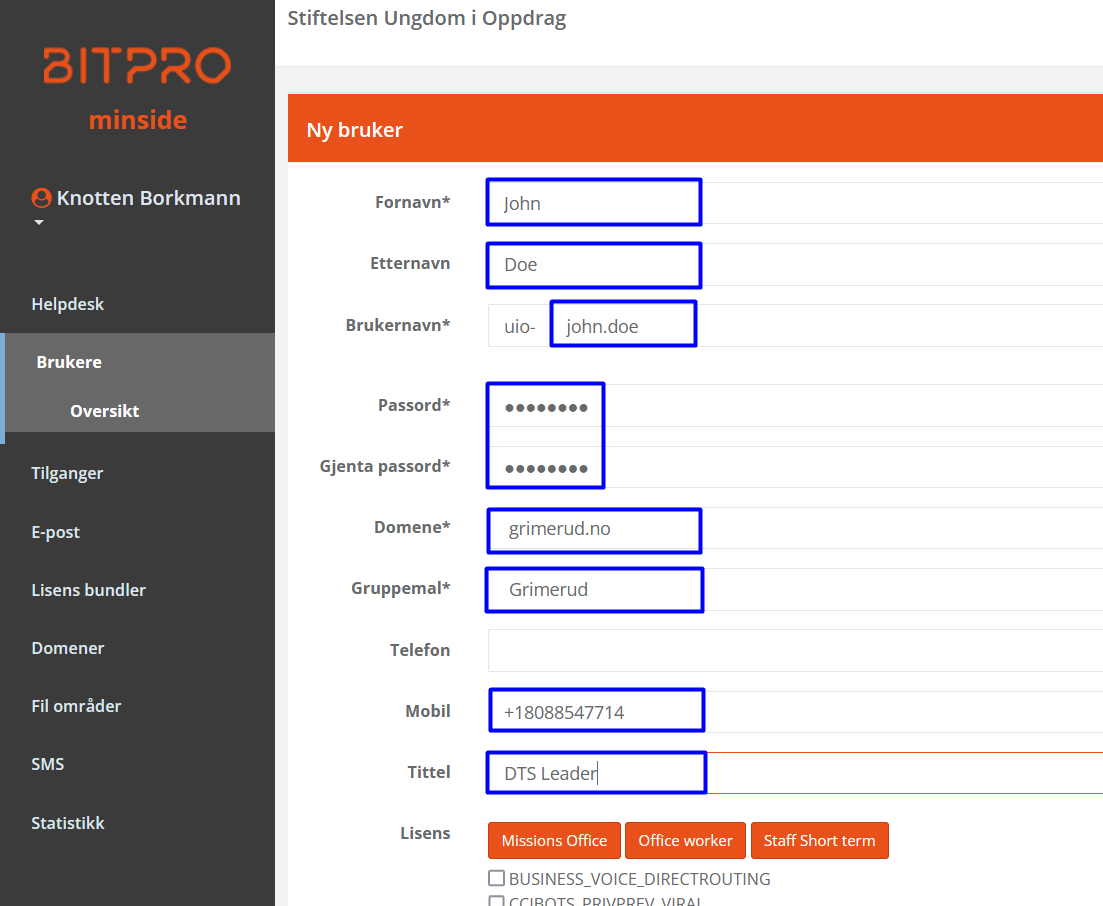
Fill in
- First name (Fornavn)
- Last name (Etternavn)
- Username (Brukernavn) Use firstname.lastname (This is the old pre-windows-2000, which we do not use, but it is mandatory).
- Password (Passord) (Must be at least 10 characters, and consist of three of the following: Lowercase, Uppercase, Digit, Symbol).
- Domain (Domene) (This will be the last part of the email address - the @myYwamBase.no part).
- Template (Gruppemal) (This sets all the defaults for that base)
- Mobile (Mobil) (Needed for password reset. International numbers are ok).
- Title (Tittel) (Role or title) Use eg. FF Staff or DTS Staff
- License (Lisens) Use the buttons.
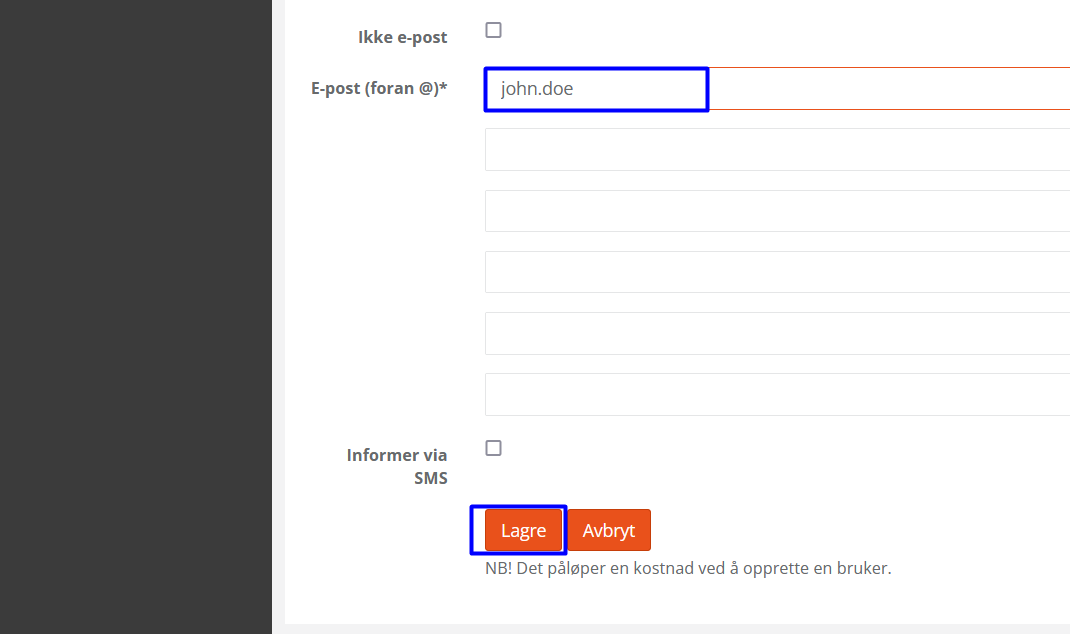
- Email (E-post) Usually firstname.lastname. Only write the first part. The @myYwamBase.no will be added.
- Use Inform via SMS. Add the text: Your YWAM user has been created and will be ready in about 30 minutes. You can access your email and Teams from https://portal.office.com. Log in using your email (upn) and password. You can get help at https://ywam.no/it.
- Save (Lagre)
The user will show up orange - meaning that it is in process. The Status-field shows remaining tasks. It checks every 5 minutes, and does as many tasks as possible. Creating a new user takes 15-30 minutes. It may take longer until Email and Teams are available.
Give correct access
When a user is created or change roles, the access should be changed to reflect this.
In MinSide, open the user, and select Brukertilgang (user access).
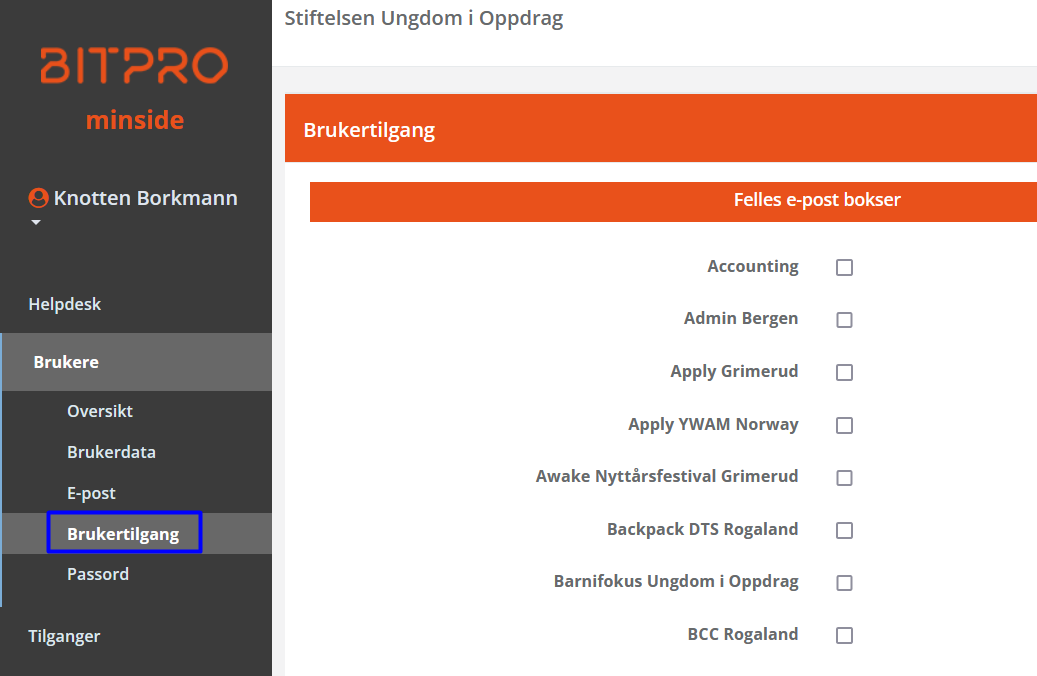
The access rights are categorized and give access as follows:
| Area | Gives access to |
|---|---|
| Felles e-postbokser (shared email) | Read the shared mailbox you select. The mailbox will automatically appear in the Outlook App. On Web you must click your user icon and select to open another mailbox. |
| Rom (Rooms) | Gives access to directly modify this room/car. Everyone can book, but this person can override everything. |
| Distribusjonslister (Distribution lists) | Make the person a member of the distribution list. |
| Filområder (File areas) (not in use) | Not in use. |
| Skrivere (Printers) | Gives access to the printer. This varies in use. |
| RDS og Citrix tilganger (Access to Remote Desktop) | Give the user access to log in to the remote desktop server. |
| VPN | Gives VPN access. |
| Policy innstillinger (Policy settings) | Activates the current policy. Normally used for Paulus. |
| Lokal Admin (Local Admin) | Makes the user Local Admin on all YWAM-computers. |
| Spesialtilganger (Special access) | Access that does not fit into any other category. |
| MinSide | Special access on MinSide. |
| O365 | Special access in Office365. |
| Intune Apps | Push applications through Intune. Users with YWAM computers should have
|
| Intune Policies | Push policies through Intune. Users with YWAM computers should have
|