
You can now book meeting rooms via our Outlook Calendar. Your booking will be accepted or declined depending on the availability of the room.
Book the room via an APP in Teams:
1. When you open Teams, click on the YWAM logo to the left (either on the top left on the PC or bottom left on your phone)
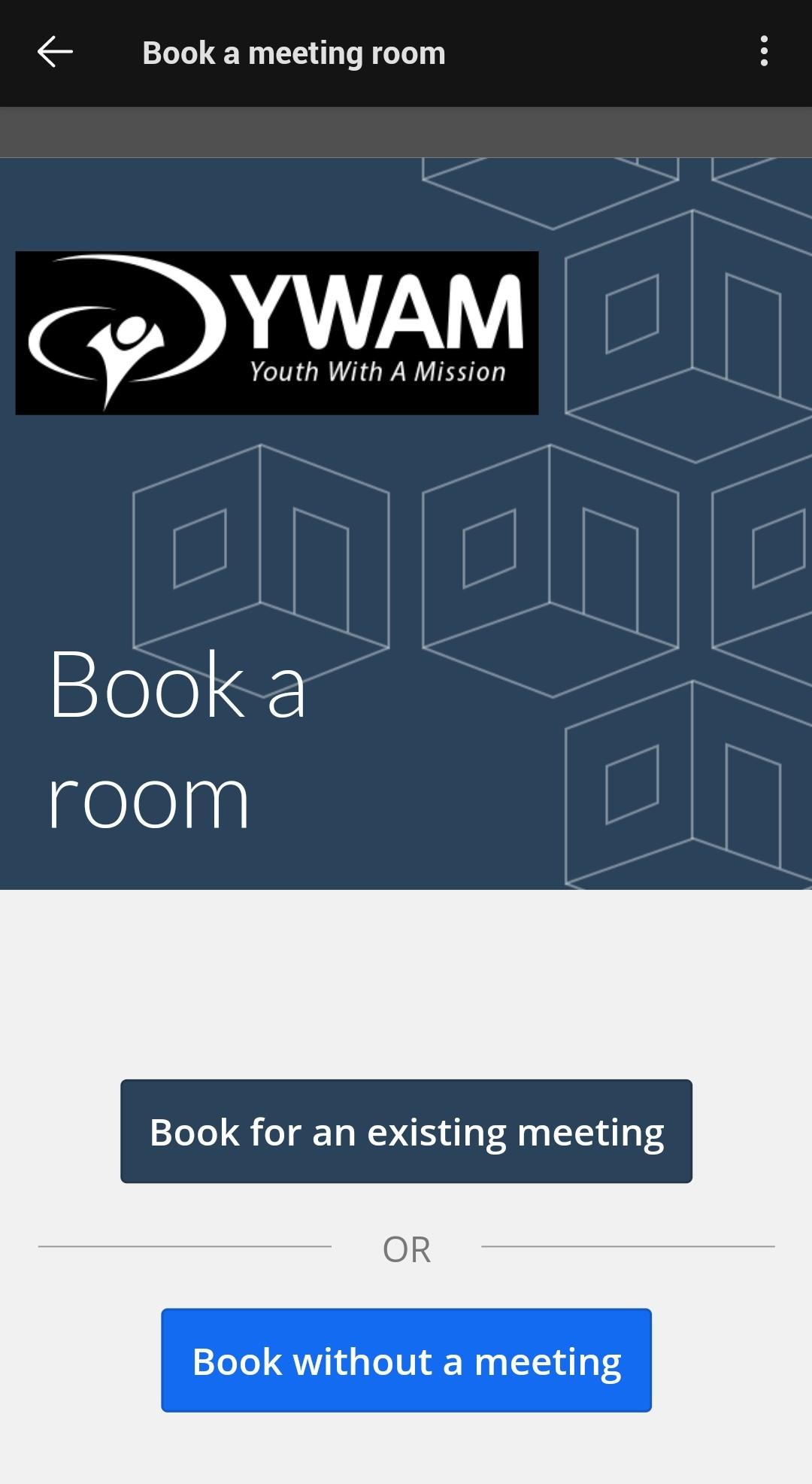
2. Here you will see different tabs, choose the tab named "Book a meeting room".
3. When you open the app for the first time, you have to allow it access.
4. If you already have created a meeting in Outlook and just want to book a room for the meeting, choose "Book for an existing meeting" if not just choose "Book without a meeting".
5. Choose "Grimerud room", select the room you want to book and fill in the date and time.
How to view a meeting room as a calendar (to check availability):
1. Go to the Outlook calendar view.
2. Add a new calendar and search for the one you want to add.
3. Choose the calendar from the list, it will either open as its own calendar or show on top of your own.
How to book a meeting room:
1. Go to the Outlook calendar view.
2. Choose "New appointment".
3. Choose a title for the booking
4. Choose a location and search for the room you want to book.
5. Put in the start and end date.
6. Click "Save and close" and your booking will be sent to Hospitality to be confirmed.
7. Wait for a confirmation email.
How to video PC: How to book and view meeting rooms.mp4
How to video Mobile: How to book and view meeting rooms - Mobile.mp4
Meeting Rooms Grimerud
| Name | Location |
| GRM Barn | Barn |
| GRM Overflow room | Barn |
| GRM Prayer room | Barn |
| GRM Studio / Classroom 3rd floor | Office building |
| GRM Conference room | Office building |
| GRM Old Prayer room | Office building |
| GRM Gym hall | Office building |
| GRM Cafe The Bird and Baby | Main building |
| GRM Dining hall | Main building |
| GRM Kitchen | Main building |
| GRM Livingrooms | Main building |
| GRM Middle Livingroom | Main building |